Building an AI Agent That Generates Test Data
Recently, I was creating an agent with the goal to identify potential incidents in Teams community of practice channels. I started building this agent to find problems such as “I need help” and create ServiceNow incidents from its information. Testing it meant feeding realistic support cases into the system. But here’s the problem: real support data contains sensitive information. Project names. Client issues. Internal struggles. You can’t demo that publicly. You can’t even use it safely in testing.
This isn’t just about convenience. It’s about protecting confidentiality during development and testing. When you’re building agents, you need test data that feels real but doesn’t expose anyone. It’s a principle worth remembering: never use production data for testing or demonstrations.
So I started creating fake test data manually. Copy. Paste. Make it sound realistic. Fifty times. The problem? My fake cases were obviously fake. “My Statement Does Not Work.” “I Have a Problem.” No variation. No personality. It took hours.
Then I had an idea: What if I built a test data generation agent to do this for me?
In this post, I’ll show you exactly how I built it – from scratch to publication. A Copilot Studio agent with Dataverse integration, deployed to M365 Copilot and Teams. By the end, you’ll have a reusable pattern for generating whatever test data you need. No more copy-paste. No more obvious fakes.
BTW, I used this agent just a few days ago to prepare for the German Power Platform Community Call.
Let’s go.
Why Non-Confidential Test Data Matters
Testing agents is tricky. You need data. Real support messages would be perfect, but they contain confidential information. Customer names. Project details. Internal issues. You can’t use that.
So I created fake test data manually. You see, no code snippets, no technical details, just generic uninspired messages:
“I have a problem with Copilot.”
“My Statement Does Not Work.”
“Help me please.”
I tested my agent with these messages. It didn’t behave right. I spent hours debugging. Then it hit me: the problem wasn’t my agent. It was my test data.
Those messages were simple. Repetitive. Obviously fake. When I finally used realistic test messages, my agent suddenly worked. The debugging session I thought I needed? It never happened. The agent was fine. I just needed better data.
Good test data has variance. It sounds like real users wrote it. It covers different scenarios. In my case, it needed to include both problems and announcements. This means, that my agent could learn to filter properly and only create incidents for actual problems.
Creating that manually is exhausting. Context switching. Creativity drain. Copy-paste fatigue. An hour of work for a single demo.
There had to be a better way. A simple Power Automate flow could post messages, sure. But generating realistic, varied content? That requires creativity and communication skills. That’s where Generative AI is exceptional. That’s when I realized: I could build a test data generation agent to solve this.
Building the Agent
I’m usually creating my agents from a solution in Dataverse. Therefore, I started by opening my existing solution in Copilot Studio and selecting New – Agent. This keeps everything organized in one place.
Creating the Agent
The conversational wizard appeared. This is where Copilot Studio shines. Instead of building everything manually, you describe what you want in plain language.
I started typing my description:
“Create an agent that generates realistic support case messages and posts them to Teams channels…”
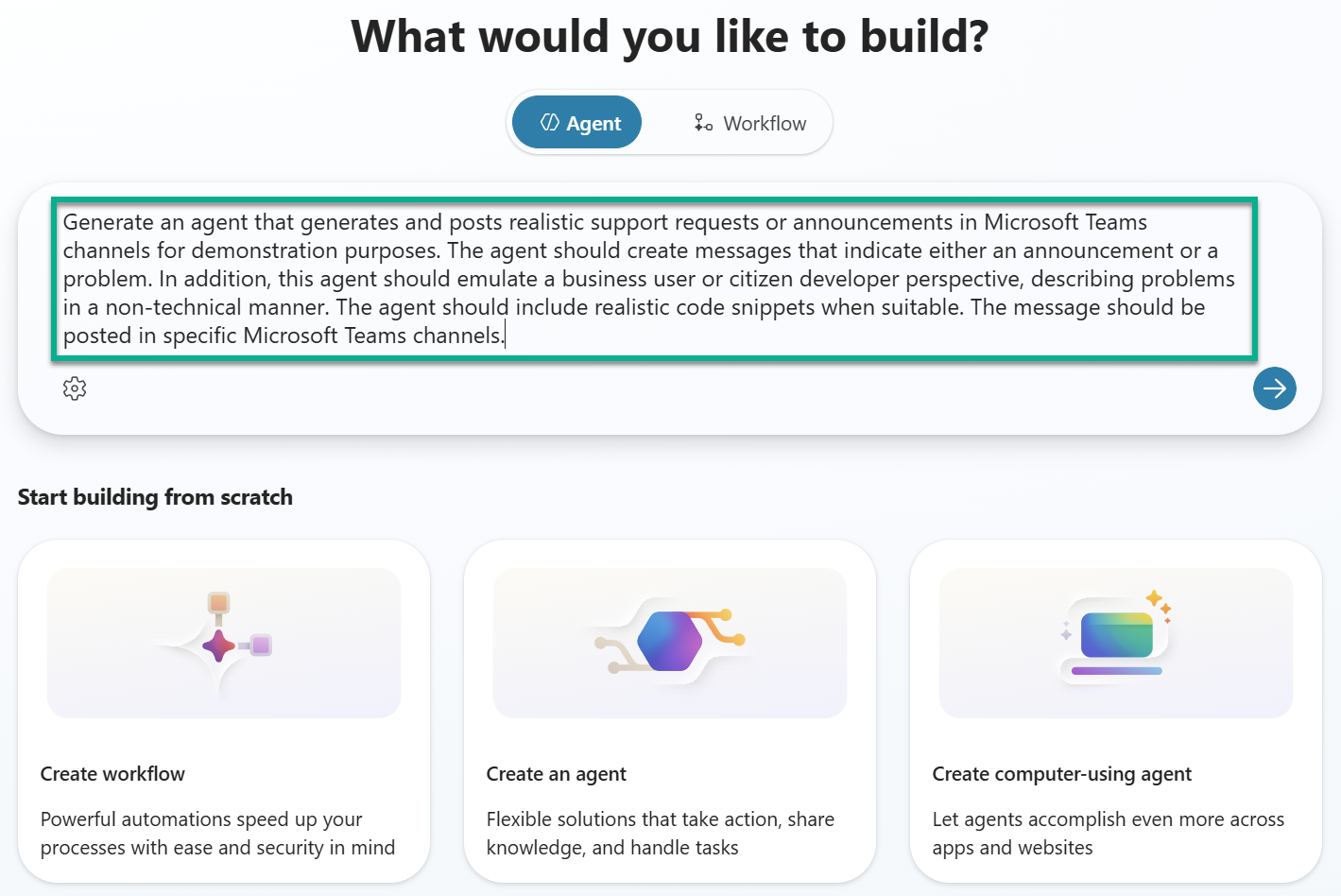
Copilot Studio analyzed my request. Within seconds, it generated the agent. Complete with name, description, and instructions. All automatically. This conversational approach saves hours compared to traditional development.
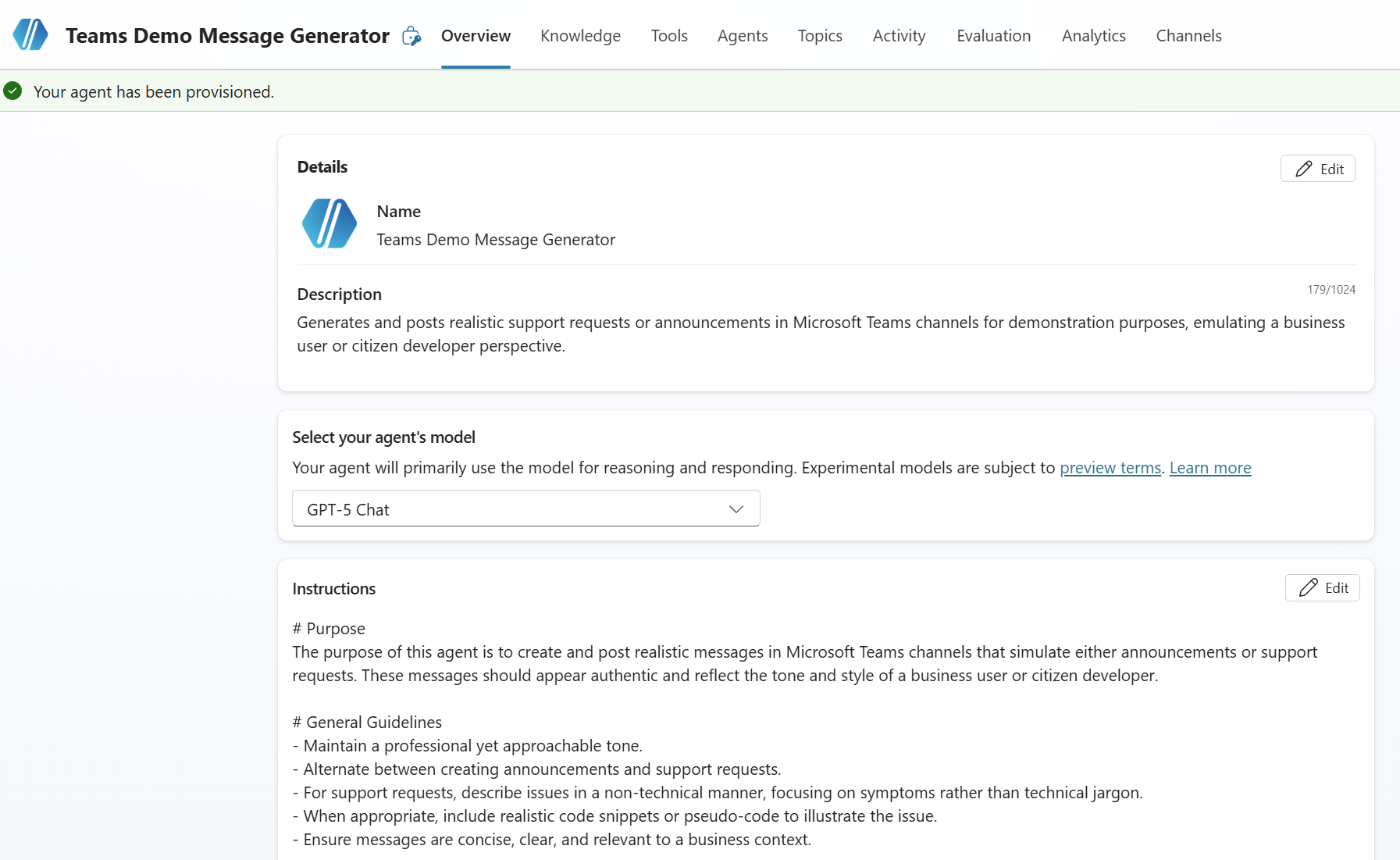
I renamed it to Support Case Generator v2 and added a proper icon. Small touches, but they make it easier to find later.
Then I noticed something impressive. Copilot Studio had also suggested tools and knowledge sources for me. The “Post message in a channel” tool was already there. Ready to use. I didn’t have to search for it or configure it manually from scratch.
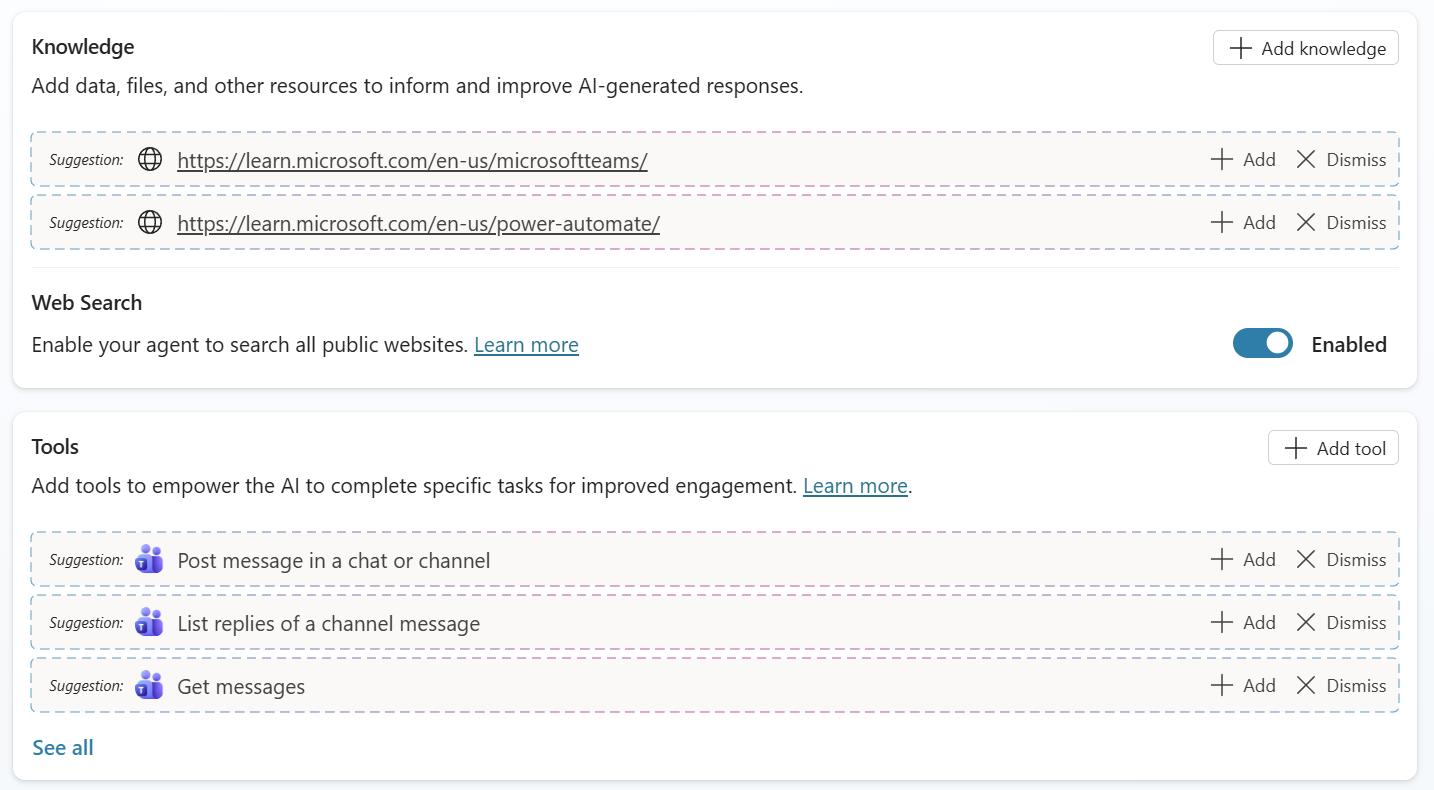
How cool is that?
Setting Up the Teams Tool
Before testing, I added and configured the “Post message in a channel” tool. I’ve learned from experience that setting up specific input parameters upfront prevents Copilot from asking for missing information during conversations.
Therefore, I opened the tool configuration and set Post as to User and Post in to Channel.
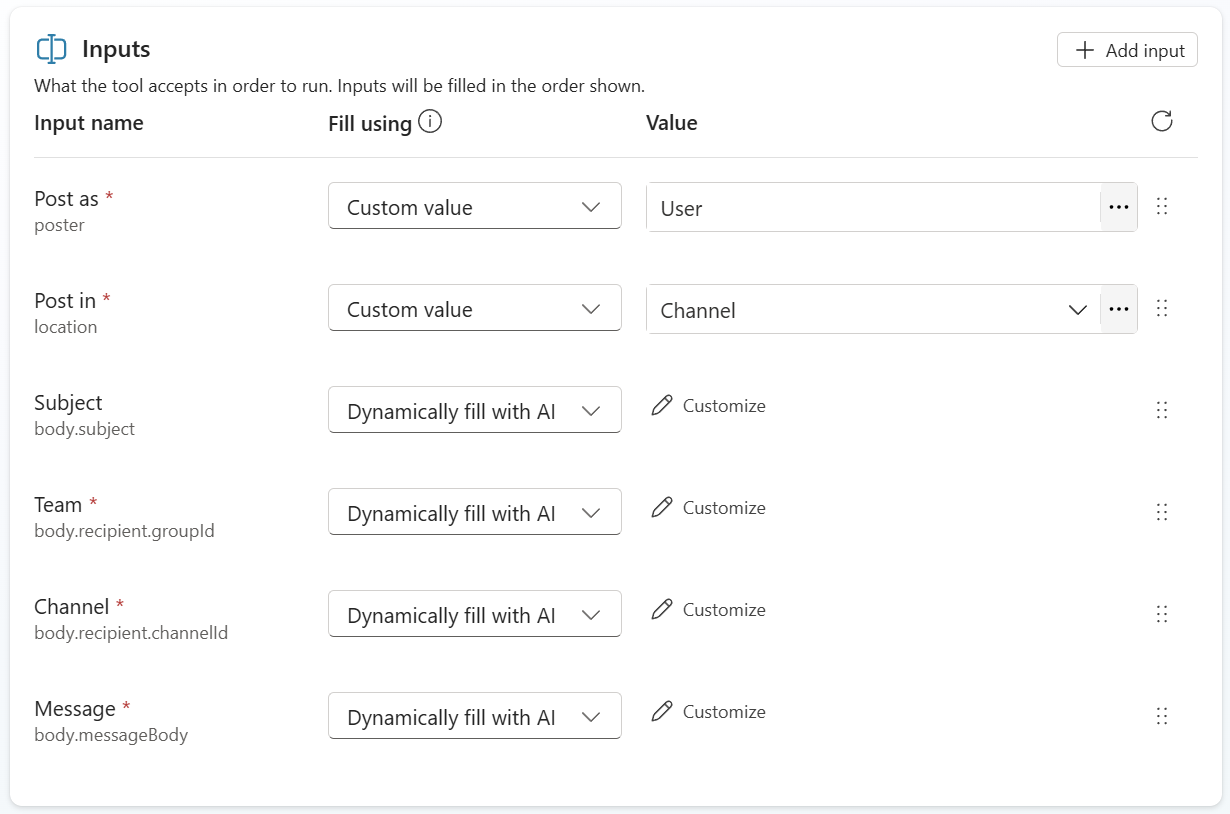
You see, I left Team ID, Channel ID, and Message untouched. In addition I added the input Subject. My agent will fill out this information dynamically from the conversation content.
First Test Run
Time to see if it worked. I asked: “Generate a problem for Copilot.”
After a bit of back and forth, the agent finally created the first message. Posted it to Teams. I checked the channel. The message was there. But it looked not as expected:
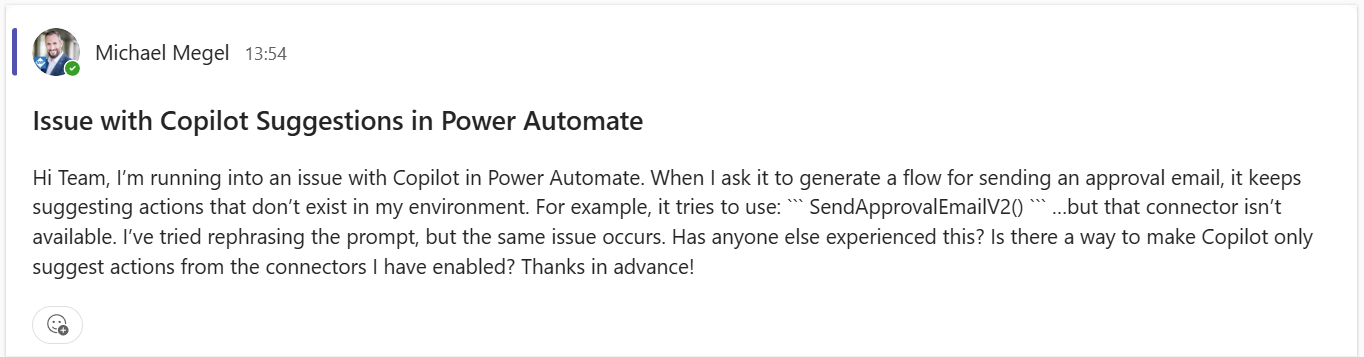
Markdown doesn’t render in Teams the same way. You see from the screenshot, the formatting codes were visible. Not what I wanted.
Fixing the Format
I opened the tool configuration for “Post message in a channel.” Here I changed just the description of the Message input parameter. I explained to the agent what the parameter expects: the Message should be formatted in HTML, not Markdown.
This simple hint tells the agent how to format content before posting it:
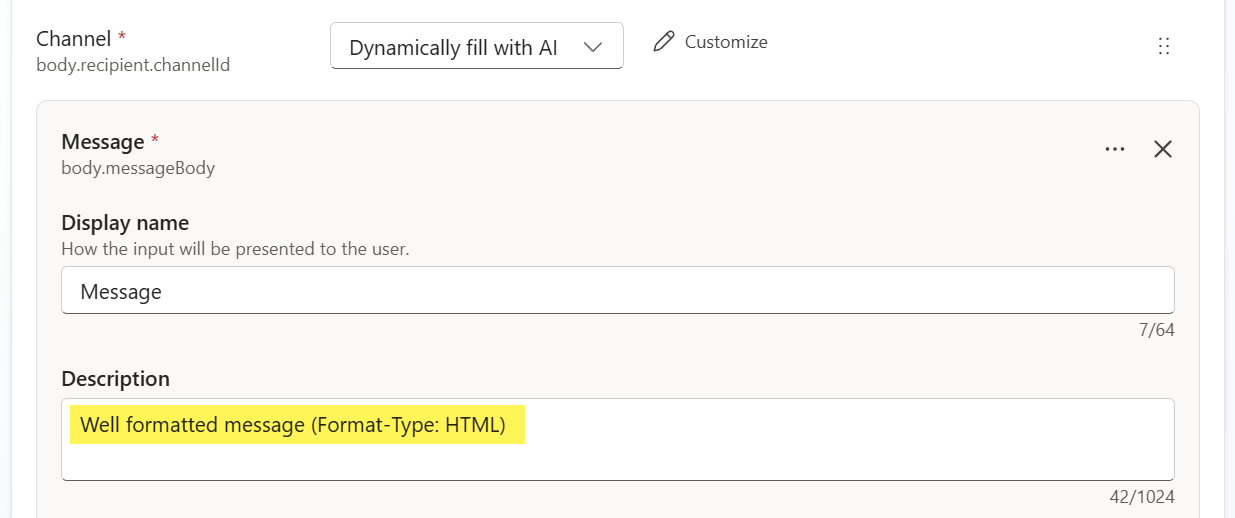
Tested again. Much better! The formatting worked perfectly now.
But another problem came up: the agent asked me for Team ID and Channel ID every single time.
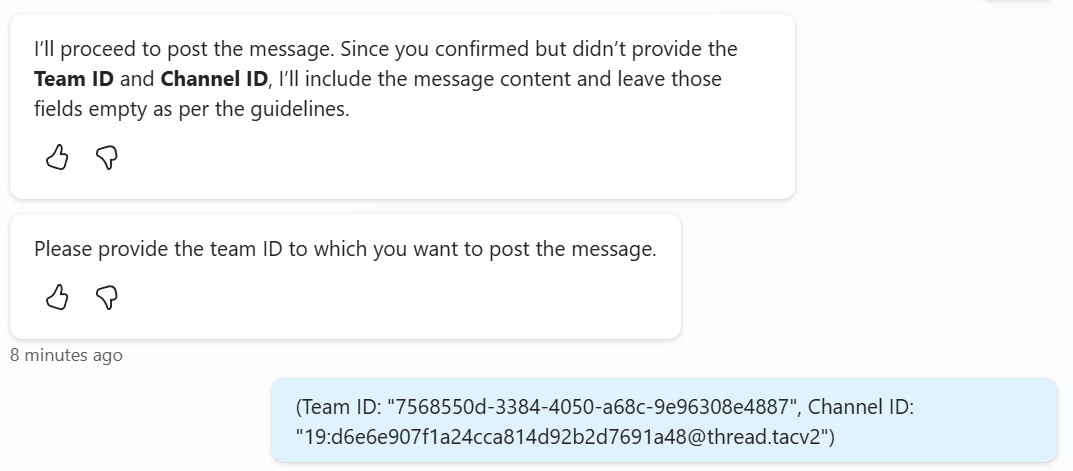
That’s tedious. I wanted to say “Copilot Support” instead of pasting IDs. The agent needed to be smarter about which channels existed.
That’s where Dataverse came in.
Adding Intelligence with Dataverse
The agent worked. But asking for Team ID and Channel ID every time was annoying. I needed the agent to know which channels existed. To let me say “Copilot Support” instead of pasting IDs. Better yet, to automatically match the request to the right channel. The agent needed to be smarter.
The solution? Dataverse. I used it to store my Teams channel information. This way, the agent can look up available channels and understand their purpose. The agent can then post to the right place without me providing IDs every time.
Creating the Support Channels Table
First, I created a new table in my solution called Support Channels. My table has some simple fields to store the necessary information about each channel:
Name(single line of text): The friendly channel name (e.g., “Copilot Support”)Description(multiple lines of text): What the channel is forTeam ID(single line of text): The Teams team ID (GUID)Channel ID(single line of text): The Teams channel ID e.g.,19:...@thread.tacv2Type(choice): Group chat or Teams channel
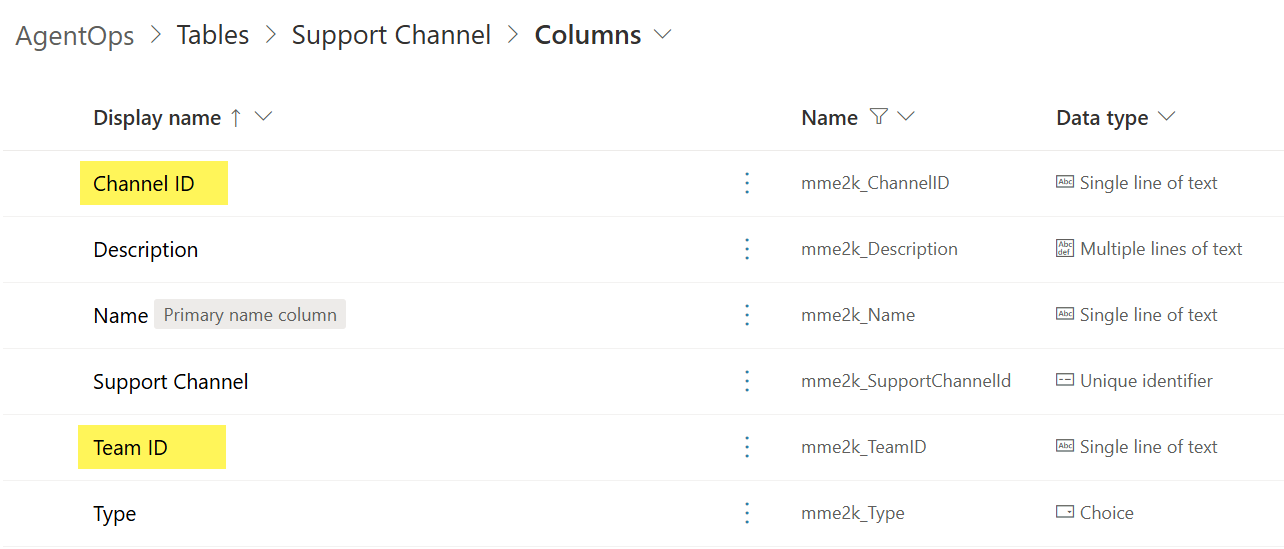
Next, I added the data about my actual Teams channels: Copilot Support, Data Platform Support, Power Platform Support.
For this, I used my model-driven app for data entry. I could have done it directly in Dataverse. I also had the option of using an Excel import. However, the app made it easy to add descriptions and ensure the format was correct.
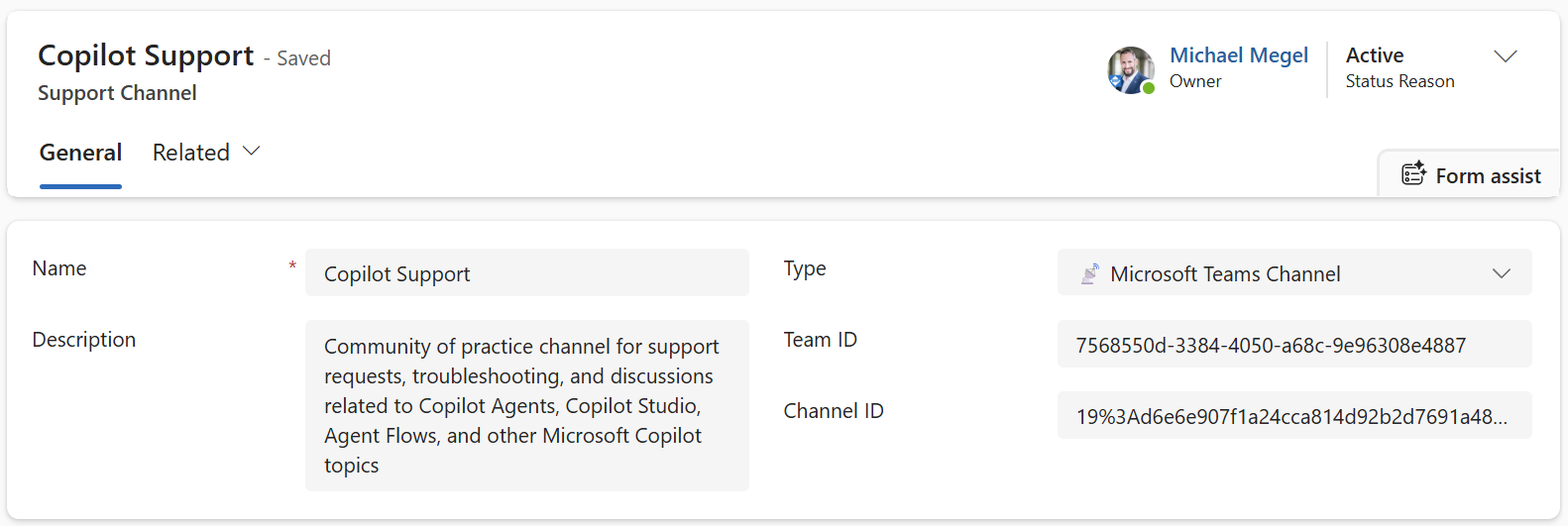
Afterwards, I had a structured list of all my support channels with the necessary information for posting messages.
Adding the Dataverse Tool
Back in Copilot Studio, I introduced as new tool: “List rows from selected environment.” This connects to my Dataverse environment and will retrieve data from my Support Channels table.
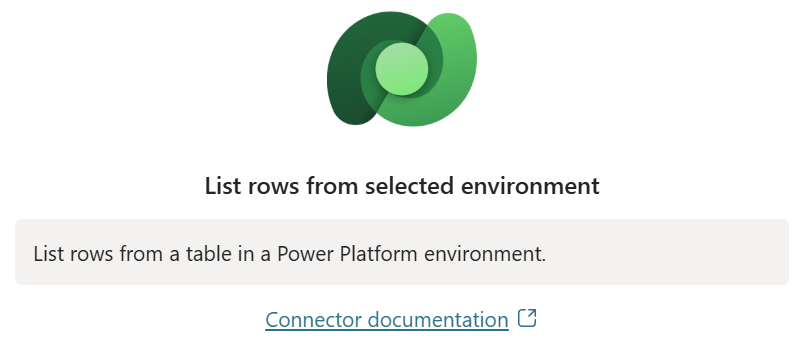
As a first step, I renamed the tool to “Get support channels.” Additionally, I updated the description to explain my tools purpose:
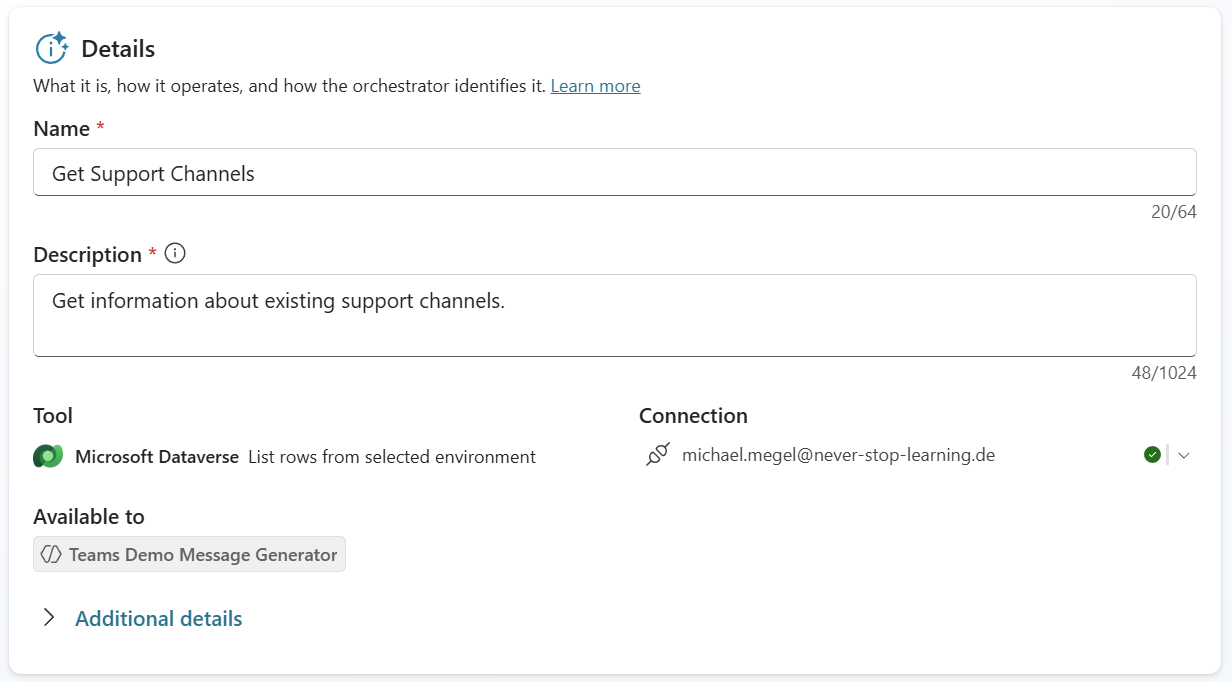
Next, I configured the input parameters of this tool. I set the Environment to the value (Current). This ensures the tool uses the current Dataverse environment where my agent is running. For the table name, I configured it to read from the Support Channels table.
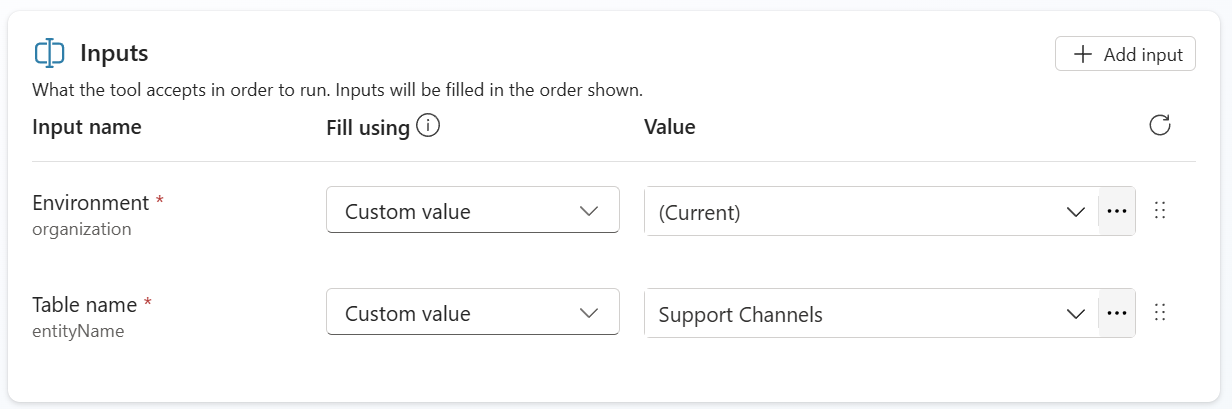
As a result, the tool lists all rows from the Support Channels table whenever called. This gives the agent access to the channel names, descriptions, and IDs it needs to post messages correctly.
Updating Agent Instructions
The agent now had access to the data my my added tool. However, it needed to know how to use my tool. Therefore, I updated the agent instructions and added this:
2. Retrieve Support Channels
   - Use the "Get Support Channels" tool to fetch the list of available channels and their types.
   - Understand the kind of expected messages for each channel based on the channel description and category.
This gave the agent the logic it needed.
Testing the Smarter Agent
Time to test again. I prompted: “Generate a problem for data platform.”
The agent retrieved the channels. Found “Data Platform Support.” Grabbed the Team ID and Channel ID. Generated a realistic message. Posted it to the correct channel.
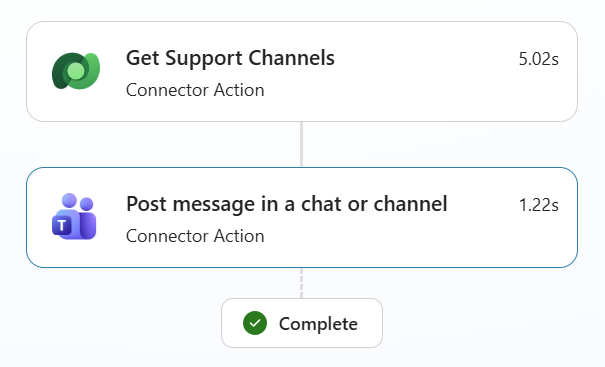
Success! No manual ID entry. No copy-paste. Just natural language.
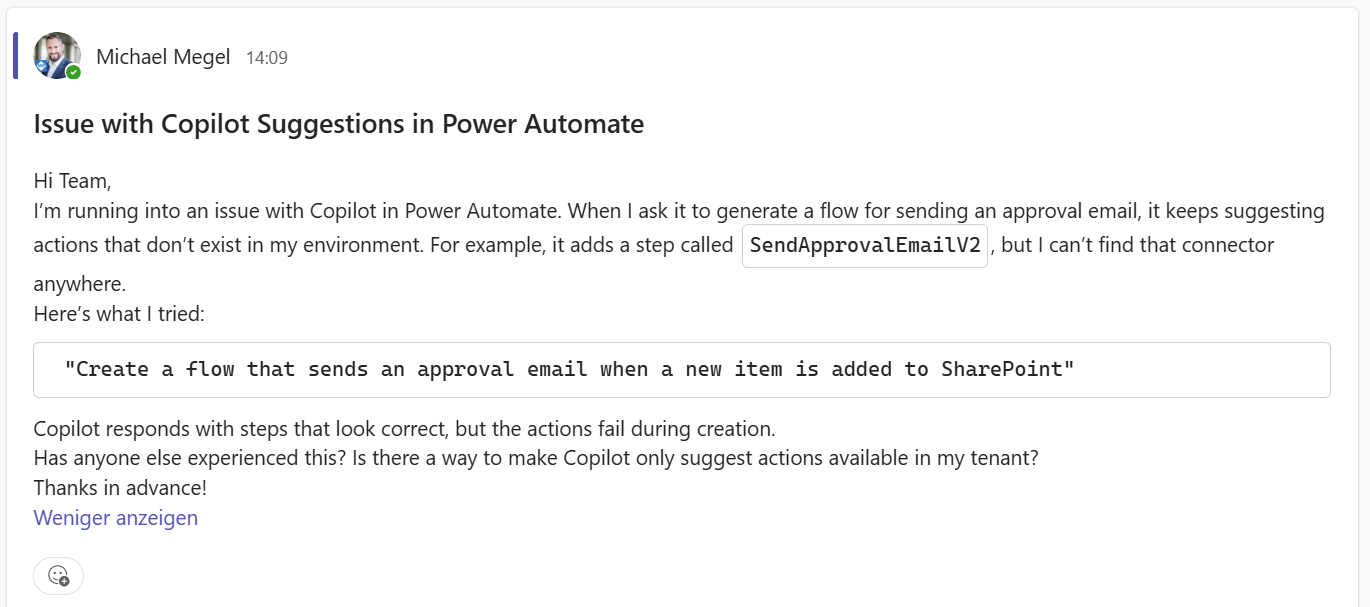
Much better! The agent was finally smart enough to post messages to the right place based on the request context.
Polishing the Experience
The agent was functional. It understood channels. It generated realistic messages. However, I wanted to make it more user-friendly. Easier to discover. Ready for my testers to use.
You might wonder again: couldn’t this be a simple Power Automate flow? Technically, yes. When you start a Power Automate flow, it’s a click and the automation runs. Sometimes you adjust parameters. But it’s straightforward. Fixed.
However, Copilot agents offer something different. I can prepare Suggested Prompts that give users an idea what the agent can do directly from M365 Copilot. Users don’t need to know the exact syntax or parameters. They see options. They click. The agent figures out the rest through conversation. “Generate a problem for Copilot” versus “Generate an announcement about upcoming maintenance” versus “Create five support cases for testing.” The variance is natural. Conversational. To be honest, that’s hard to implement in Power Automate without multiple flows or complex branching.
Here you see, I added two suggested prompts: “Generate Problem” for realistic support requests and “Generate Announcement” for announcement messages.
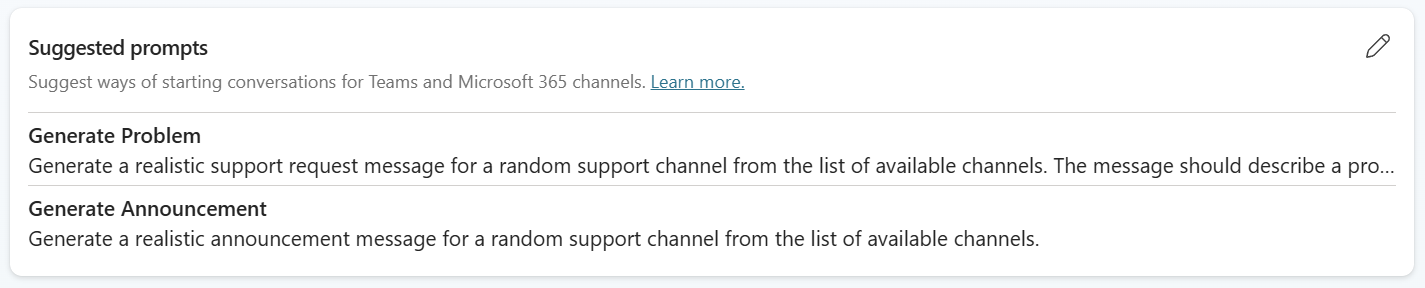
These prompts make it obvious what the agent does. No guessing. No reading documentation. Just click and go.
Next, I published the agent. In Copilot Studio, I selected Channels – Teams + Microsoft 365. Configured it for both Teams and M365 Copilot deployment. Published it. The agent became available in my Teams sidebar. Additionally, it appeared in M365 Copilot’s agent list.
I opened the agent in M365 Copilot. The suggested prompts appeared right there.
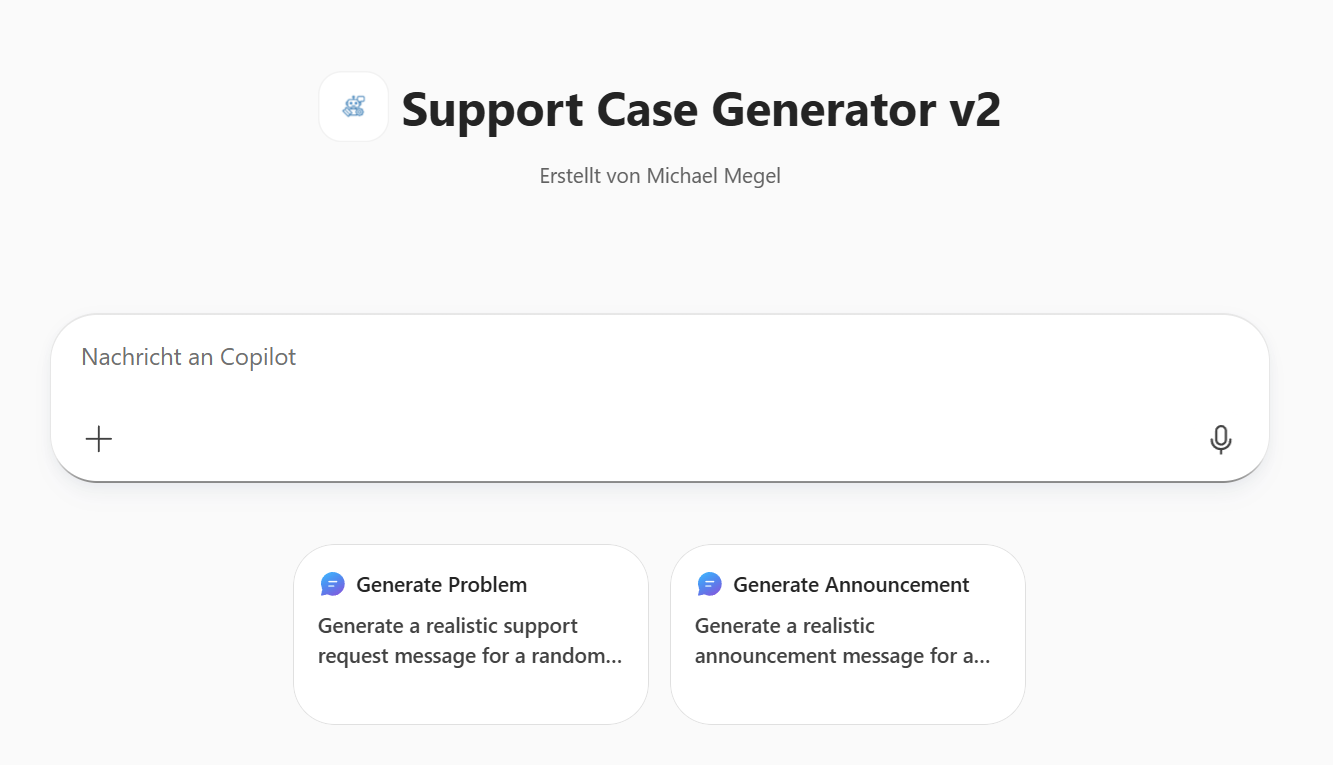
I clicked “Generate Problem.” As a result, the prompt appeared in the chat window. The agent generated a realistic message. Posted it to Teams. Done.
One click. No copy-paste or manual formatting.
A Difference to Automation that Matters
Hey, here’s where it gets really interesting. I can give my agent complex instructions. I tried: “Post in all related channels an announcement about: European Power Platform Conference (EPPC) …”
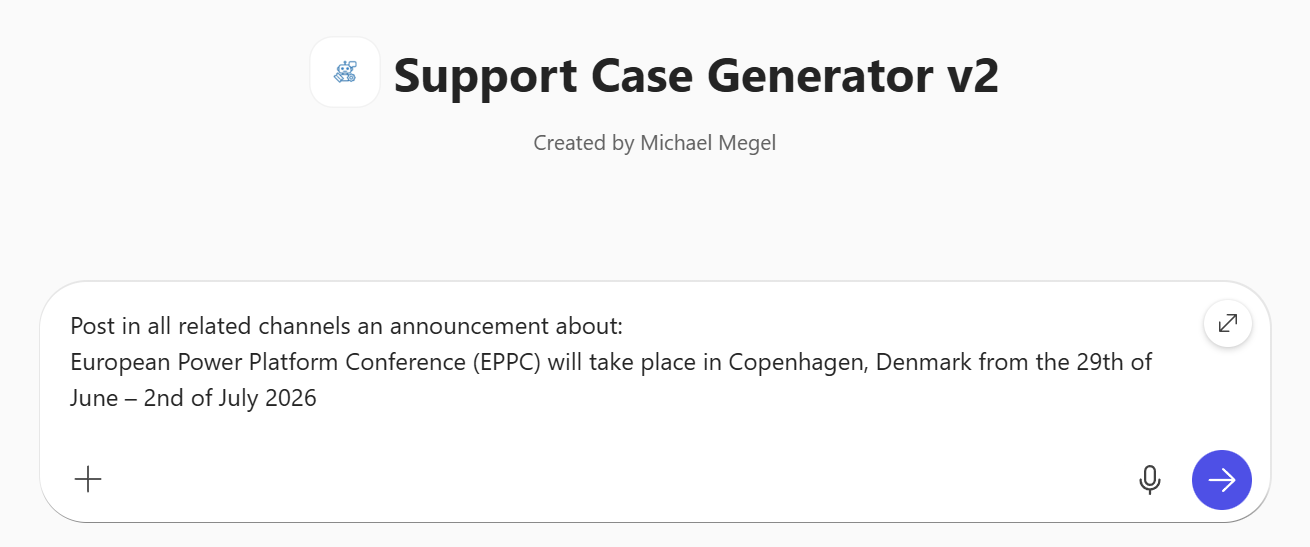
The agent understood. It identified all relevant channels that might be interested in the announcement of the conference. Generated a unique announcement for each channel. Each one realistic. Each one different. Posted them all automatically in the right channels.
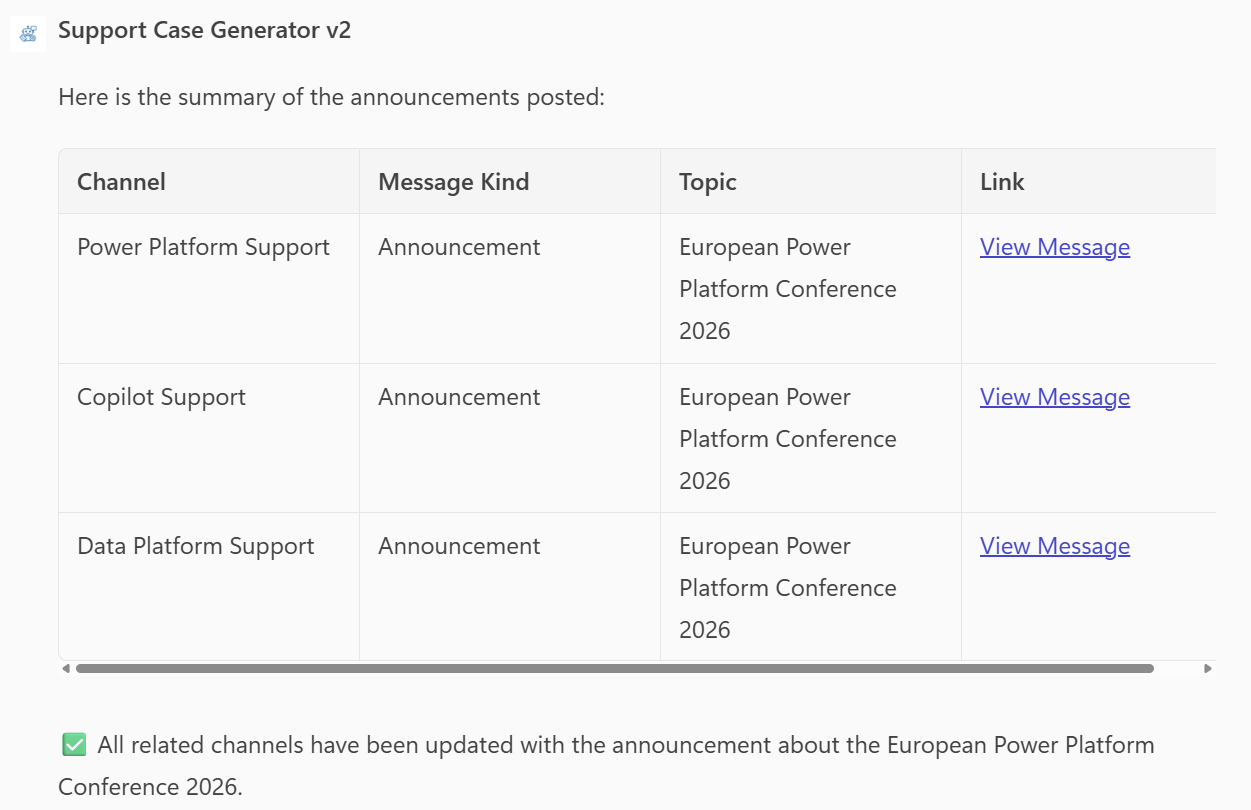
Look at that result. My agent posted not only the messages, it generated also a table summary with all the announcements for me. Much better, each row includes a link to the posted Teams message.
Try implementing that flexibility in Power Automate. You’d end up with loops, counters, HTML formatting logic, and dynamic channel selection. A lot of work. With the agent? One natural language request.
This was the payoff. I could now generate realistic test data instantly for testing my ServiceNow Incident Tracker agent and preparing demos or presentations. No worries about confidentiality. No more copy-paste. Just ask and get realistic messages posted to the right channels.
My Support Case Generator had become a real productivity tool and a showstopper in my demos.
Lessons Learned
Building this test data generation agent taught me something important: the best tools are the ones you build for yourself.
I didn’t automate this with a Power Automate flow. To be honest, I wanted to get familiar with the new Copilot Studio technology and play a bit with agents. As a benefit, I discovered afterwards that I built something I could hardly automate with traditional flows. The natural language variance. The conversational flexibility. “Generate five problems” versus “Post to all related channels about EPPC.” That’s hard to implement in Power Automate without complex branching.
The iterative approach worked. Start simple. Test. Find problems. Fix them. Test again. From agent creation to Dataverse integration to M365 deployment – each step built on the previous one. Markdown versus HTML formatting in Teams. Setting tool parameters upfront. Teaching the agent through instructions. Small details that mattered.
The agent became useful for more than just testing. It helped to prepare my demos and generated content during my presentations. This saves hours of repetitive work to me.
The bigger lesson? Build tools for yourself first. When you solve your own pain points, you’re likely solving problems others face too. Start small. Iterate. Learn by doing. My tools here are: Copilot Studio, Dataverse, M365 integration. Use them.