Teams ServiceNow Integration with Copilot Studio Agents
Who doesn’t know such calls for help? “Can someone help me with Databricks? I can’t access my S3 bucket. Getting permission denied errors.”
Just another Teams message. Another problem solved in minutes through quick collaboration. No ticket created.
Then came the memo. Management wanted to shut down all support channels. Force everyone to use ServiceNow, our ITSM (IT Service Management) platform for tracking IT incidents and requests. Make compliance mandatory through restriction. I knew this would backfire.
From my perspective, banning Teams kills the quick collaboration that makes teams productive. Not every question needs a formal ticket. Forcing ServiceNow for simple questions creates friction. Users would find workarounds or just stop asking for help.
But IT’s concerns were valid. Without tracking, you can’t spot trends or measure performance. Real incidents vanish into chat history. Compliance becomes impossible.
There had to be a better way. The answer isn’t choosing Teams or ServiceNow. It’s Teams ServiceNow integration powered by AI.
We built ITSM Copilot automation that monitors Teams channels, detects actual incidents, and creates ServiceNow tickets automatically. Full context included. Users stay in Teams. IT gets complete tracking. Best of both worlds.
Let me show you how.
The Problem
Here’s what this looks like in reality. A user posts in the Teams support channel:
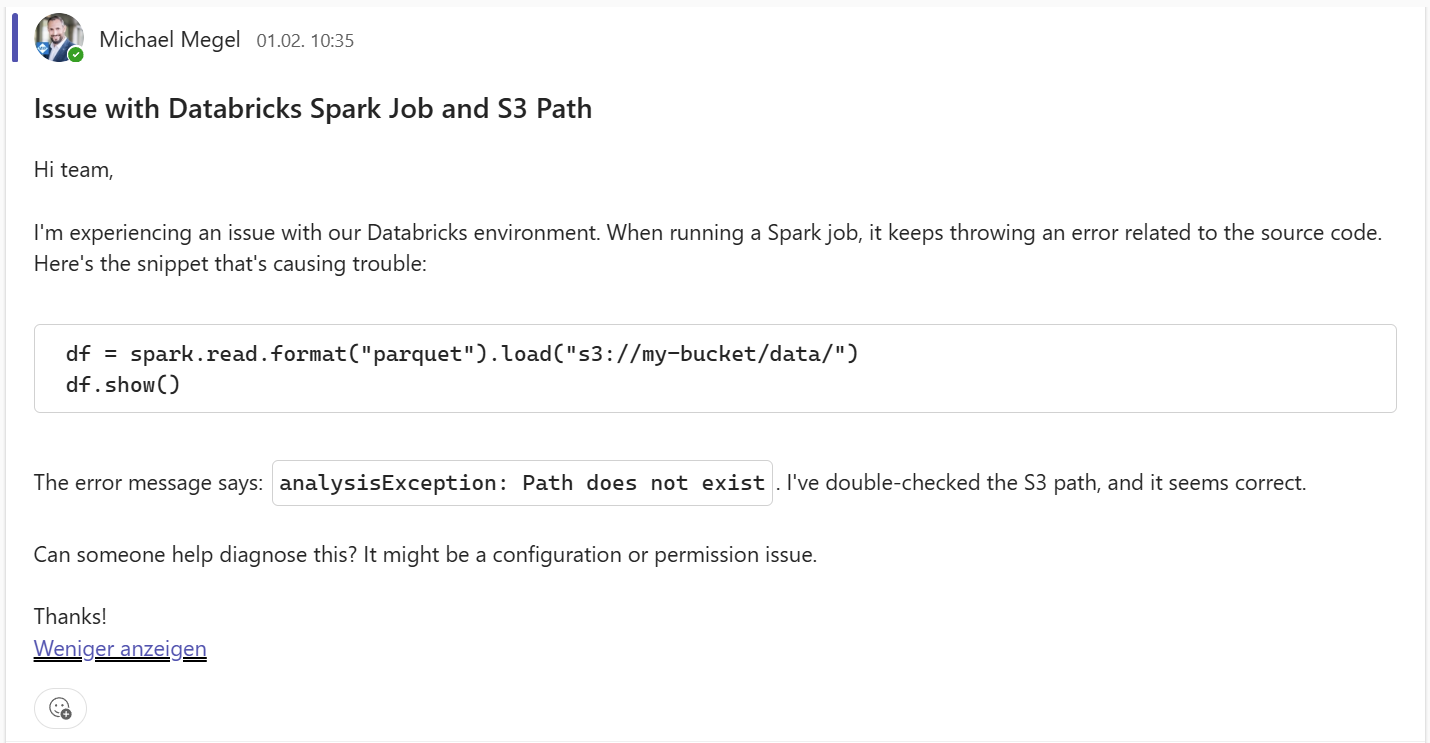
A typical user support request in Teams – fast and convenient, but untracked
Someone from the team jumps in. They share a quick fix. The user confirms it worked. Everyone moves on.
This is collaboration at its best. Fast. Helpful. Natural.
But here’s what IT sees. Nothing.
That conversation vanished. ServiceNow has no record of it. You can’t track similar issues. Response times remain unmeasured. Compliance audits find no trail.
When the same question comes up next week, someone else answers it again. The knowledge exists in chat history, but nobody finds it. Teams solve the same problems repeatedly without realizing it.
IT can’t measure what they can’t see. SLAs become meaningless. Trend analysis becomes impossible. Capacity planning lacks the necessary data. When auditors ask, there’s no proof of compliance.
The gap keeps growing. Users want Teams. IT needs ServiceNow. Both sides have valid points. Neither side budges.
The question became: How do we enable Teams ServiceNow integration without forcing users to change their behavior?
Demo Prerequisites
To demonstrate this solution, I needed a realistic ITSM environment. For that reason, I used ServiceNow, a leading ITSM platform that offers free developer instances with complete functionality for testing and learning.
(Building this with Copilot Studio lets you create autonomous agents that work across platforms.)
First, I created a ServiceNow developer instance.
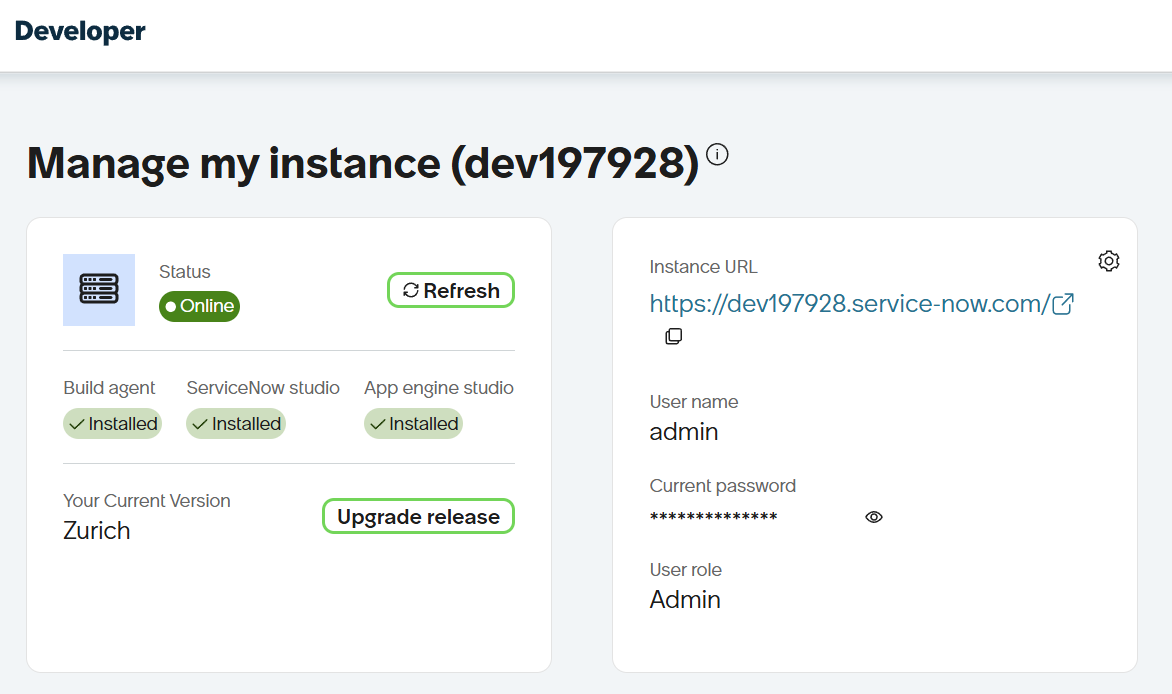
A ServiceNow developer instance provides a complete ITSM environment for testing
Then I asked Copilot to generate realistic business service definitions. Why manually create test data when AI can help?
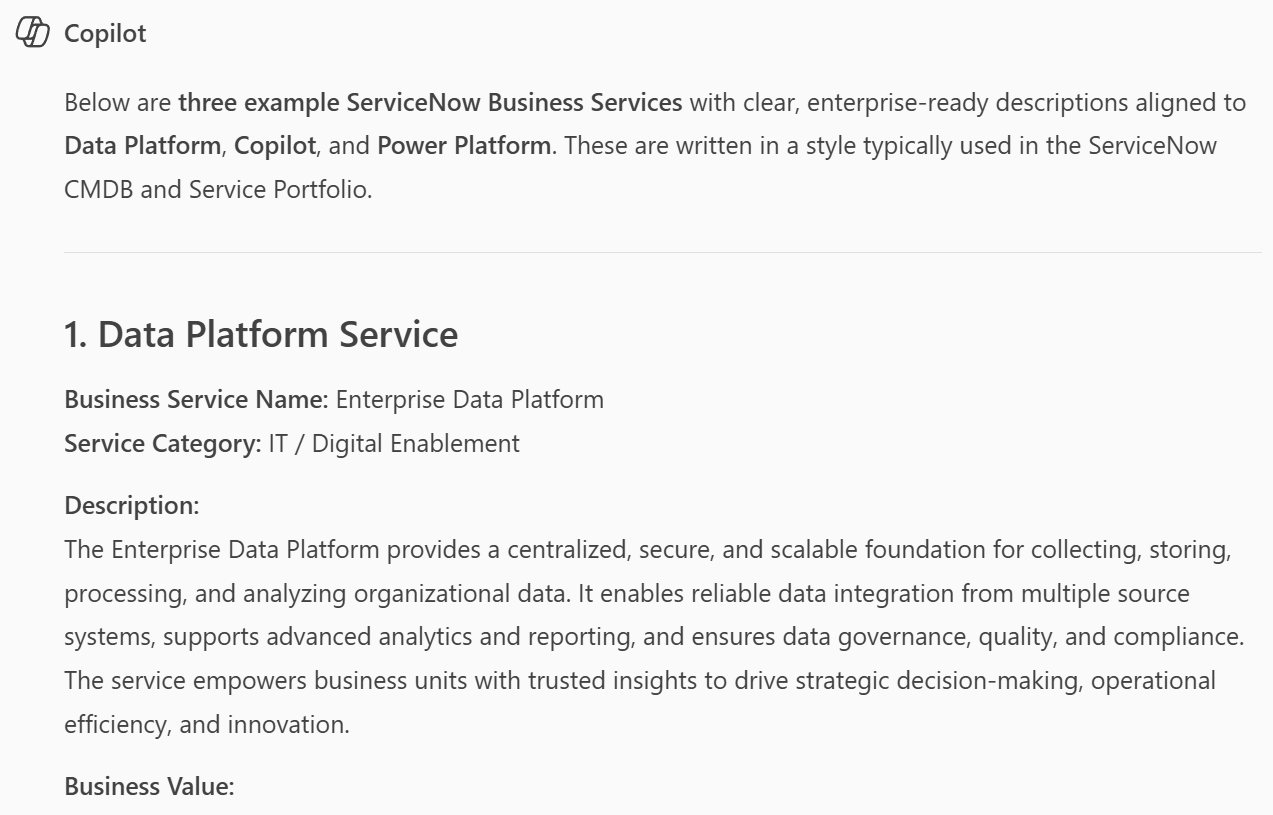
Using Copilot to generate realistic business service configurations for the demo
Finally, I added those business services in ServiceNow – email, file storage, web applications, and infrastructure components.

Configured business services help categorize incidents and track IT infrastructure
With this setup, I had a realistic environment to show the automation in action.
The Solution: Teams ServiceNow Integration
I knew the answer wasn’t picking Teams or ServiceNow. I needed Teams ServiceNow integration that worked seamlessly.
So I built ITSM Copilot automation using Copilot Studio. Two autonomous agents working together to bridge the gap between informal Teams chat and formal ITSM tracking.
Here’s how I designed it:
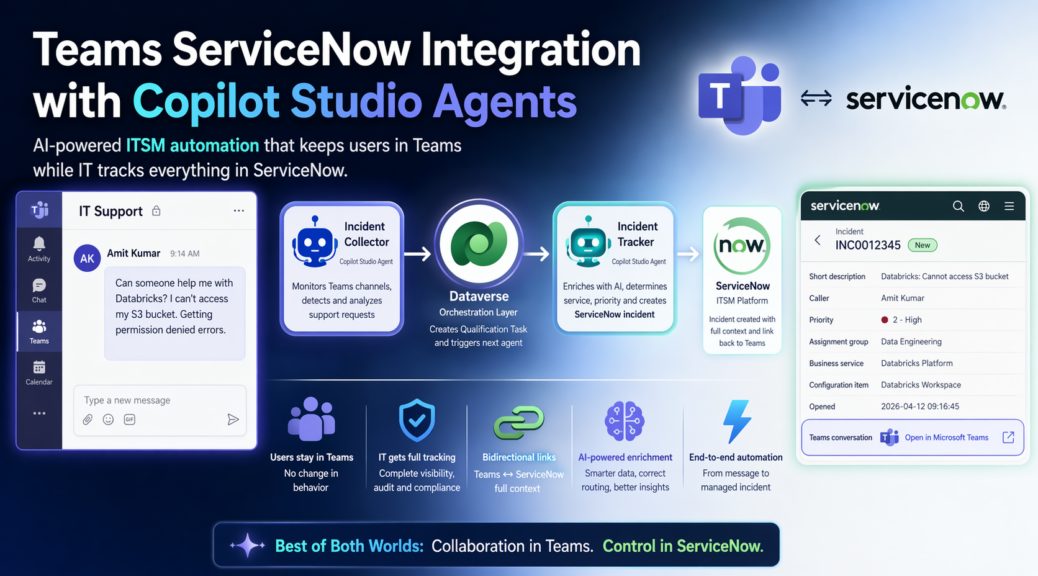
How Teams ServiceNow Integration Works
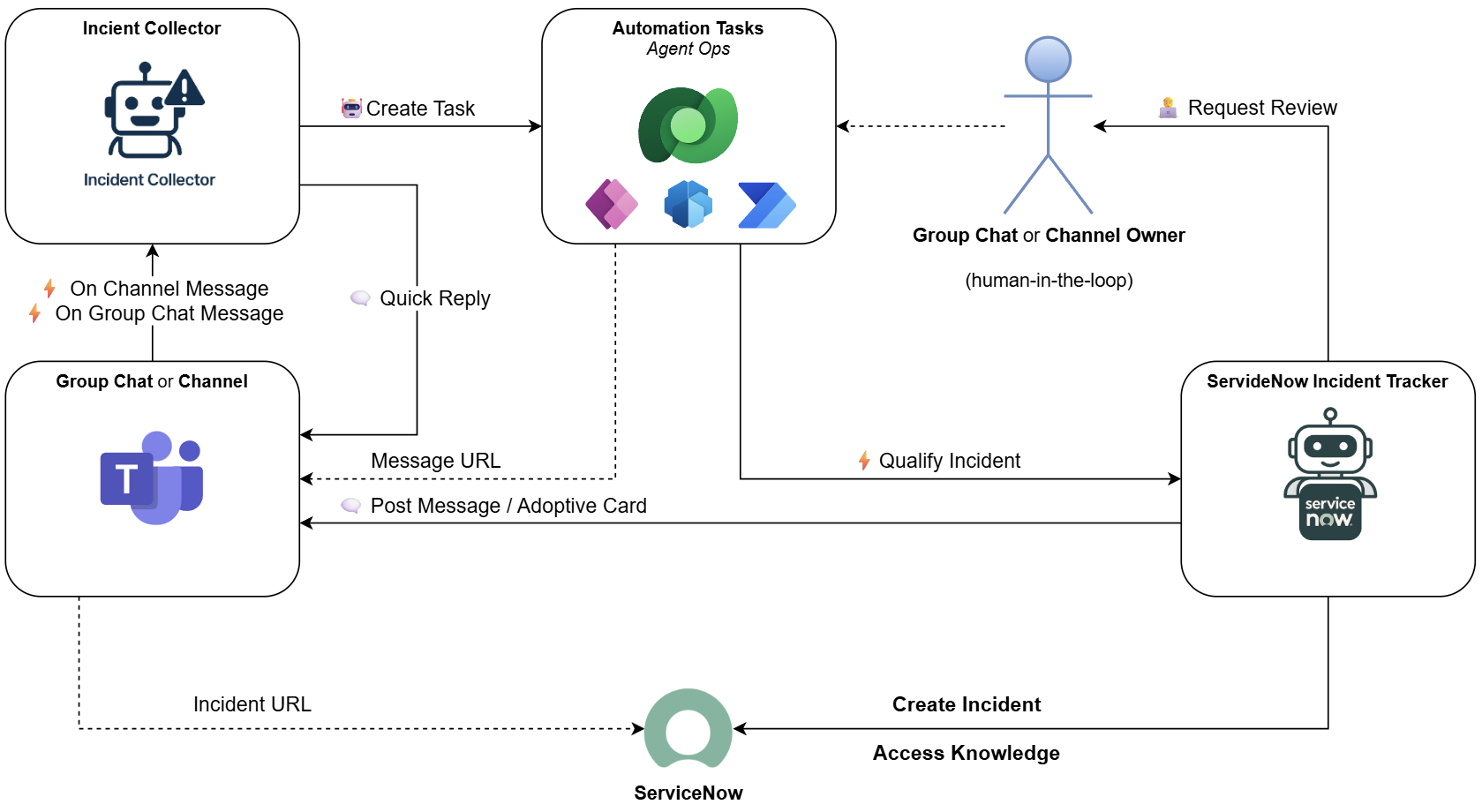
Complete workflow: Teams → Incident Collector → Dataverse Task → Incident Tracker → ServiceNow
The Incident Collector monitors Teams channels for support requests. When someone posts a message, it detects and analyzes the content. Real incident or just casual conversation? The agent decides.
The Incident Tracker takes over once an incident is confirmed. It enriches the data with AI, determines the affected business service, assesses priority, and creates the ServiceNow incident with full context.
I put Dataverse between them as my orchestration layer. The Collector creates a task in Dataverse when it finds an incident. That task triggers the Tracker to handle ServiceNow creation. Clean handoff. No lost data.
Users never leave Teams. They post messages like always. The ITSM Copilot automation handles the rest.
IT gets properly tracked incidents in ServiceNow. Complete with links back to the original Teams conversation. Full audit trail. No manual data entry.
This Teams ServiceNow integration delivers best of both worlds.
Dataverse Orchestration
You might wonder why I chose Dataverse as the middle layer. Why not let the agents talk directly?
Because orchestration needs a brain. Dataverse gives me that.
Here’s what it handles. The Incident Collector stores every detected relevant message in a Dataverse table. These messages help me track the message flow throughout my agentic solution. This also allows manual review during proof-of-concept phases to gain insights into how the agentic automation actually works.
When the Collector confirms an incident, it creates a Qualification Task record. Once that task is ready, a simple trigger invokes the Incident Tracker agent. I used a status transition trigger in Power Automate – when the Dataverse record status changes, it fires the agent.
Task appears. Agent activates. It reads the context, enriches the data with AI, and pushes to ServiceNow.
Clean handoff between agents. No direct coupling. Each agent focuses on its job.
But here’s where it gets powerful. I added Power Automate Approvals as an optional step. Before creating the ServiceNow incident, the system can route to a manager for review. Human-in-the-loop when you need it. Full automation when you don’t.
The data model is simple. Tables for messages, incidents, tasks, and agent states. Everything tracked. Everything auditable.
Why Dataverse? Integration with Power Platform. Built-in security. Workflows and approvals out of the box.
The agents do the AI work. Dataverse orchestrates the ITSM Copilot automation workflow.
I’ll share more insights on this in future posts when we dive into each agent.
The Workflow In Action
Let me walk you through what actually happens when a user posts in Teams.
Complete workflow: Teams → Incident Collector → Dataverse Task → Incident Tracker → ServiceNow
The Message Arrives
Remember the Teams message from the beginning? Someone posts about Databricks access issues. In my demo, I actually generate such messages using a Support Case Generator agent to create realistic test scenarios. But in production, these are real user messages.
Once such a message arrives, my Incident Collector agent analyzes the content using AI. It needs to decide: Real incident or just casual chat? In this case, the Databricks permission error is clearly a support request. The agent confirms it.
The Handoff to Dataverse
Now the Collector creates a Qualification Task in Dataverse. I designed this to capture everything. User info. Timestamp. Channel context. All the details the next agent will need.
The task status changes to ready. My Power Automate trigger fires immediately. The Incident Tracker agent wakes up. It reads the task, pulls all the message details, and starts the enrichment process.
AI Adds Intelligence
Here’s where the ITSM Copilot automation adds AI intelligence. The Tracker analyzes the message and determines the affected business service. Databricks platform in this case. It assesses priority based on the error description. It structures all the data exactly how ServiceNow expects it.
Building Trust Through Review
But before creating the ticket, I added a human-in-the-loop step. The Tracker can pull in a reviewer to check the collected information. This was crucial during my proof-of-concept phase. I wanted to see which tickets would actually be created. I needed to verify the service information was identified correctly. This review step helped me build trust in the automation. Once I trusted the AI decisions, I could skip this step and go full automation.
Creating the ServiceNow Incident
Then it creates the incident in ServiceNow. Complete with all the enriched details. And here’s what makes this powerful – it includes a link back to the original Teams conversation.
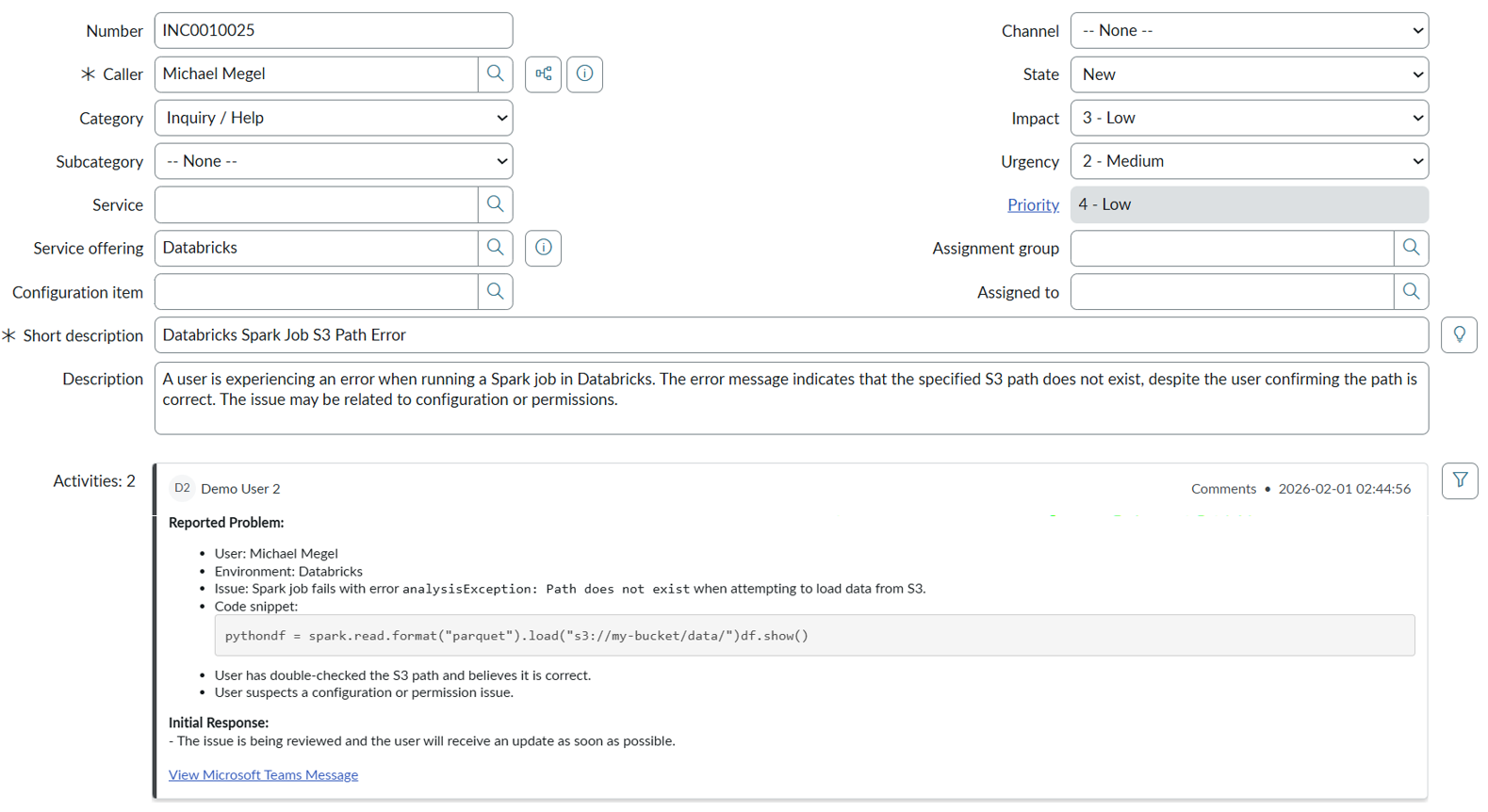
Fully populated ServiceNow incident with AI-enriched data and bidirectional link to Teams
Closing the Loop
Finally, the Incident Tracker posts back to Teams. An Adaptive Card appears in the channel where the user originally posted.
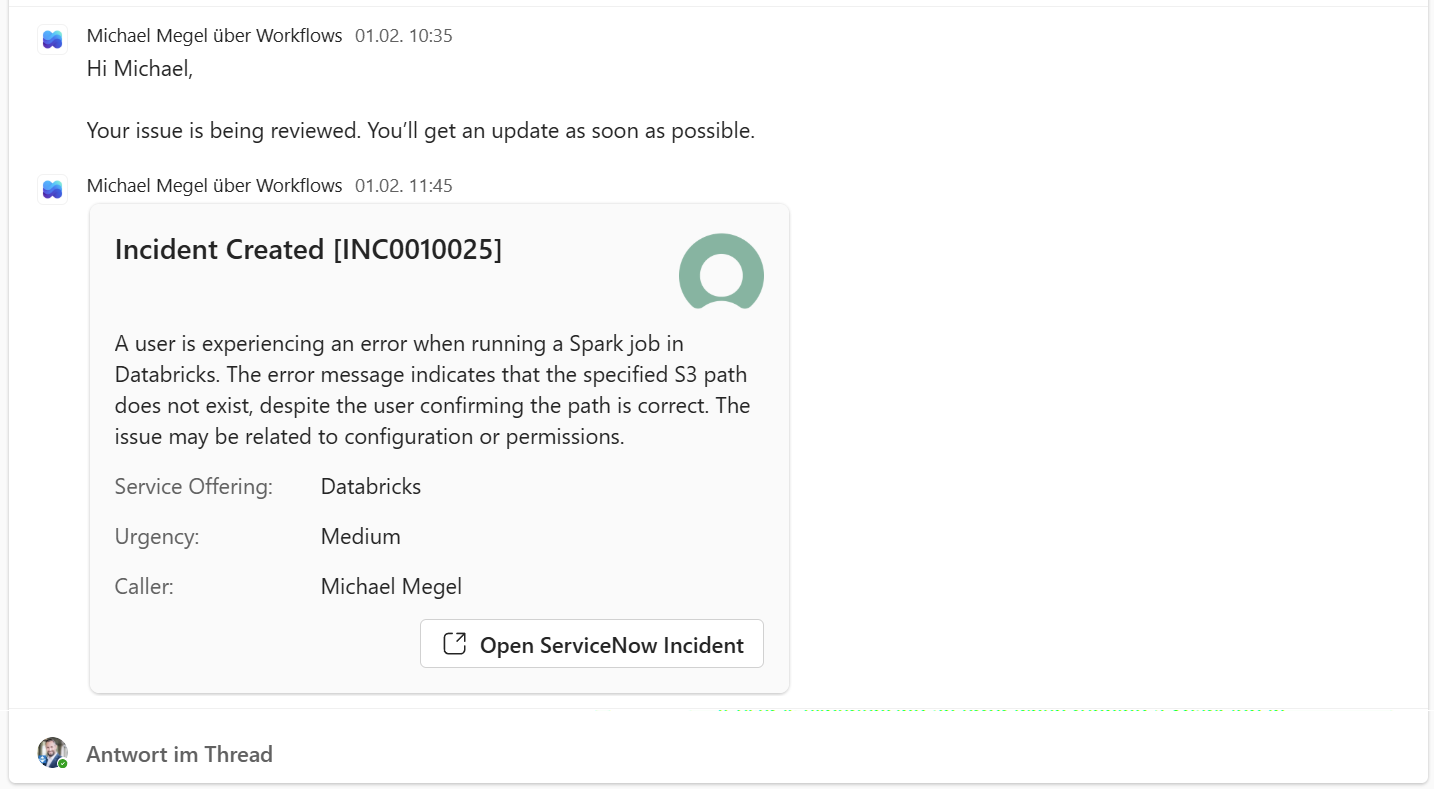
Automated response confirming incident creation with ServiceNow tracking number and link
Look at what the user gets. The incident number. A direct link to track progress in ServiceNow. They never left Teams. They just posted a message and got immediate confirmation.
Meanwhile, IT gets a properly tracked incident in ServiceNow. Complete context. Enriched data. Link back to the conversation.
Once you skip the review step, this entire Teams ServiceNow integration workflow runs automatically. I don’t touch anything. The agents handle it all.
Summary
Remember management wanting to ban Teams channels? I showed them a better way.
Teams ServiceNow integration powered by AI. Users stay in Teams. IT gets ServiceNow tracking. Bidirectional links connecting both systems. Complete audit trail. No one changed their behavior. The ITSM Copilot automation adapted to the people.
And the long-term value? Every captured message builds a knowledge base. The AI learns patterns. Future agents can prevent incidents before they happen.
This was the overview. I kept it high-level on purpose.
Want to build this yourself? More details about the Incident Collector and Incident Tracker agents follow soon. The Support Case Generator agent helped me create realistic test scenarios for this Teams ServiceNow integration.
Look at your own Teams channels and ITSM processes. Find out where users struggle with your ticketing system. That’s where Teams ServiceNow integration can bridge the gap.
Meet users where they are. Let the agents handle the rest.
That’s ITSM Copilot automation in action.