Hey Code, Specify!
I was deep into spec-driven development with GitHub’s Spec Kit. Writing detailed specifications. Describing what I wanted AI agents to build. And I was typing. A lot. My fingers became the bottleneck.
Then I thought: why am I typing when I could be talking?
I opened Copilot Chat and looked for a microphone. Nothing. Turns out there’s a small extension you need: “VS Code Speech for Copilot.” I installed it and the microphone appeared.
But then I discovered something better. The “Hey Code” keyword. Now I don’t even click the microphone. I just say “Hey Code” followed by what I need. No mouse. No clicking. Pure flow.
Voice lets me describe what I see and think, just like talking to a colleague. The AI gets it. Sometimes better than from typed text.
You can type paragraphs. Or you can just speak. This post shows you how. You’ll have voice working in about 2 minutes. Let’s go.
What You Need
You’re already using Copilot Chat. You just can’t find the microphone. Here’s what’s missing.
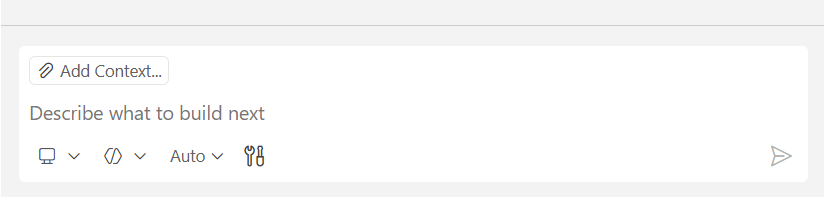
I stared at this view for a while. Checked the settings. Searched the menus. Nothing.
So I googled. Found a video about voice coding in VS Code. The person had a microphone button I didn’t have. That’s when I realized something was missing from my setup.
Turns out you need to install a specific extension: VS Code Speech for Copilot.
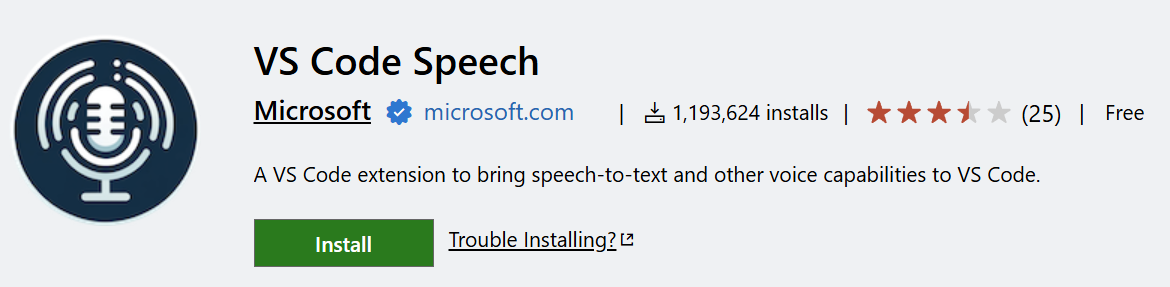
Search for it in the Extensions marketplace and install it. That’s the piece that enables the microphone.
You also need a working microphone. Built-in or external, doesn’t matter. As long as it works for calls or voice notes, it’ll work here.
One quick tip: check your OS microphone permissions before you troubleshoot VS Code. Windows, Mac, and Linux all gate microphone access at the system level. If VS Code doesn’t have permission, the extension won’t help.
That’s it. Install the extension, grant mic permissions, and the microphone appears.
Install and Enable “Hey Code”
Once you install the extension, the microphone appears in Copilot Chat. Click it. Grant microphone permissions when your OS asks. Then speak.
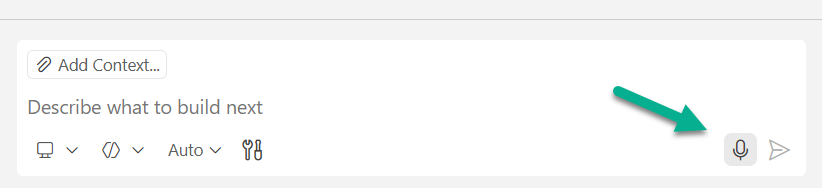
That’s the basic setup. But there’s something better.
Enable the “Hey Code” keyword in the extension settings. Once activated, you don’t even need to click the microphone. Just say “Hey Code” and start talking.
This changed everything for me. I’m looking at code, thinking through requirements, and I just speak. No context switching. No reaching for the mouse. Pure flow.
To enable it, open VS Code Settings (Ctrl+,) and search for “voice keyword.” You’ll see “Accessibility > Voice: Keyword Activation.” Enable it.
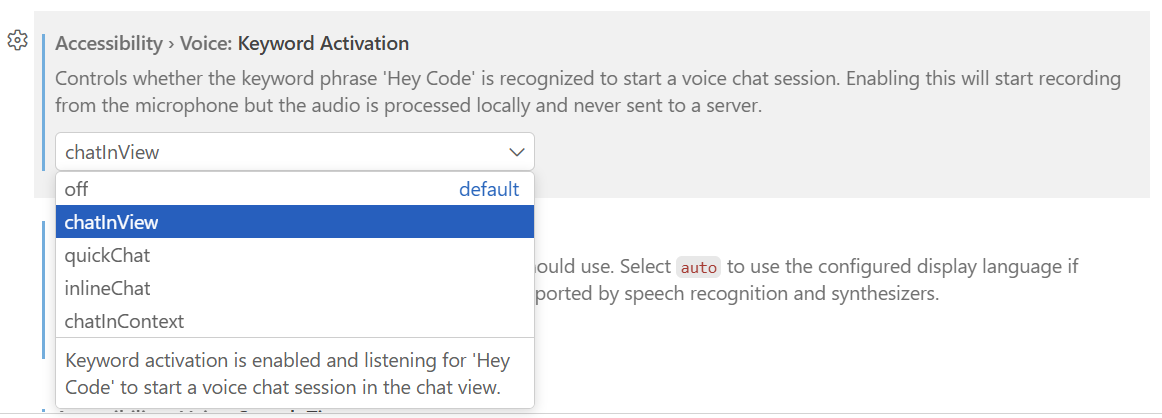
Note the description: the audio is processed locally and never sent to a server. Privacy matters.
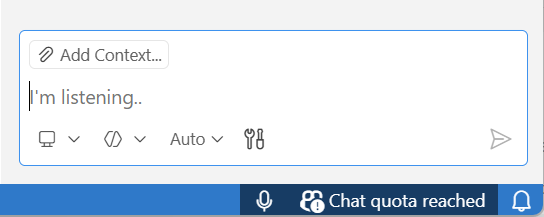
That’s it. Now say “Hey Code” followed by your question or request. The extension activates and starts listening.
Why Voice Works for Specs
When you’re doing spec-driven development with GitHub’s Spec Kit, voice changes everything.
Here’s the workflow. You specify what you want to build. Agents help you clarify inconsistencies and add missing details. Afterwards, they analyze your codebase and create a plan. Then they generate tasks. Finally, they implement.
The bottleneck is the conversation. From specify to clarify to refine.
You need to explain requirements. Furthermore, you describe the context and call out edge cases. In other words, you define what success looks like. You answer clarifying questions and deliver insights to the agents. You refine the plan based on feedback. That’s a lot of typing.
With voice, you skip the typing. Instead of writing paragraphs about validation logic, you just say it. Naturally. Like talking to a colleague.
“Hey, I need a function that validates user input. You know, checks for empty strings, trims the whitespace. Oh, and make sure it returns an error object with field-specific messages for each issue.”
Copilot agents understand conversational context. You can describe what you see on screen, explain your thinking, and add nuance that’s tedious to type. The agent extracts exactly what you mean. Sometimes better than from written text, because spoken explanations are richer.
I’ll cover the full Spec Kit workflow in a future post. This is just a taste of why voice matters for specification work.
Try these voice examples:
- “Create a unit test for this function”
- “Refactor this code to use async/await”
- “I’m looking at this API response and it’s missing the user ID field. Can you update the interface and add error handling?”
The third one is key. Notice how you can explain context naturally. You describe what you’re seeing, then what you need. That’s hard to type quickly. But easy to say.
So that’s why voice works. It removes the typing bottleneck from the conversational parts of spec-driven development. The parts where you think, explain, and refine.
Summary
You installed the extension. You enabled “Hey Code.” Now you can talk to Copilot instead of typing everything.
For me, it’s about speed. Spec-driven development means describing complex requirements. Voice is faster and more natural than typing paragraphs.
But I use a mix in practice. Voice shines when I’m explaining what I want. Context. Requirements. The big picture. I describe it naturally, like talking to a colleague.
The keyboard still has its place. Adding file references to the chat. Pasting code snippets. Formatting technical details. The mouse and keyboard aren’t going away. They’re just no longer the bottleneck.
Voice handles the thinking. The keyboard handles the artifacts. Together, they’re powerful.
The setup is simple. Install the VS Code Speech for Copilot extension. Say “Hey Code.” Start talking.
Your fingers will thank you.