AgentOps – From Manual to Automated Tasks
Automation has been part of my work for years, but something changed when Copilot Studio made building agents practical. Suddenly, I wasn’t just automating steps. I was thinking about how tasks move through a system, who owns them, and what happens when things fail.
And that raised bigger questions for me. Where do you even start when agents enter the picture? How do you stay in control? And how do you turn manual, messy work into something agents can pick up safely?
After a lot of experiments, I realized I was missing the bigger picture. Automating a task isn’t just “let the agent do it.” It’s understanding how tasks flow, where humans still matter, and how agents can coordinate work instead of causing chaos.
In short, this post tells the story of transforming a stream of workflow alerts into structured tasks. I show how team members and agents come together inside Microsoft Teams to work on these tasks side by side. Teams becomes my AgentOps workspace – a place where humans and agents collaborate transparently on visible, actionable work. In the end, agents handle the busywork. People stay in control. The whole process finally feels coordinated instead of chaotic.
Manual Task Management
Before I start automating tasks, let me first break down what a task really means in the context of automation. One thing I’ve learned across many automation projects is this: every automated system will fail at some point. Because of that, I stopped assuming success and started deliberately observing my most critical workflows.
From Detection to Action
In my previous post, Lightweight Monitoring for Critical Workflows, I shared an approach to gain visibility into failures. I introduced a Dataverse-based solution that tracks important workflow runs and captures errors in a structured way. I know, Application Insights can do better. But I also like this low-code approach without adding heavy monitoring overhead.
My setup already solved an important problem: I could reliably detect when a workflow failed. But detection alone isn’t enough. Once an error is tracked, it immediately becomes a manual task that someone needs to pick up, investigate, and resolve.
In other words, I need a notification process.

The diagram above shows how I implemented this. When a workflow runs into an error, it triggers a custom unbound Dataverse action. This action is subscribed by a Power Automate flow here in my example. My flow TM | ⚡ On Workflow Error acts as the central dispatcher for workflow issues. In other words, its responsibility is to turn a technical failure into something the team can actually work with.
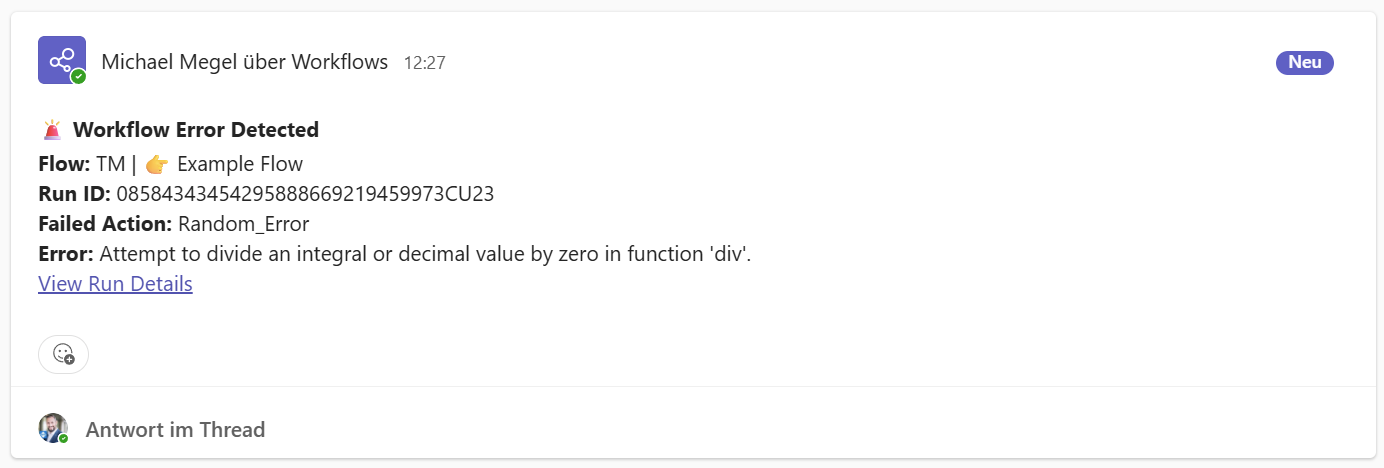
For this my flow generates first an Adaptive Card. Furthermore, my flow post this adoptive card to a dedicated Microsoft Teams channel called Workflow Issues. This channel acts as a shared inbox for operational problems. Everyone on the team is immediately notified, and all relevant context is available right where the conversation happens.
The card contains direct links to the failed flow run as well as to collected error information in Dataverse. Here I’m using a generated link to the corresponding record in my model-driven app. This avoids context switching and makes investigation straightforward – no searching, no guessing, no hunting for logs.
At this point, the process is still intentionally simple and flexible. One team member takes responsibility by clicking Assign to me. This adoptive card action submits a response back to the flow, that is waiting. Now, my flow replaces the original adoptive card with an updated version that clearly shows who took ownership and when.
This small detail turns a broadcast notification into an accountable task. The issue is no longer “someone should look at this” but “someone is looking at this.”
While this approach is reliable, it exposes a clear limitation: everything after the notification is still manual. Humans have to react, decide, act, and analyze the workflow issue by inspecting the details themselves.
And that’s exactly the point where AgentOps starts to become interesting to me.
From Notifications to Automated Tasks
Once you look at the manual process closely, a pattern starts to emerge. A workflow issue is not just a notification – it’s a task with a clear intent. Someone is expected to analyze the problem, understand the context, and propose a solution.
To make this explicit, I introduced a new concept: an Automated Tasks table.
This table becomes the contract between the operational system and my agents. Instead of hard‑coding logic into flows, I define what needs to be done in a clear, structured way. Each record turns into a task that an agent, a human, or both together can work on.
At a minimum, an automated task contains:
Task Type, what kind of task this is (for example, Analyze Workflow Issue)Instructionis a clear, goal-oriented description and explains the goal of the taskParameters, references to relevant data, logs, workflow runs, or recordsStatus, open, in progress, escalated, completed, or canceled
As one of the first task types I will introduce “Analyze Workflow Issue.
Step 1: Creating the Task and the Conversation Automatically
Instead of relying on a human action, I create the Automated Task automatically. For this I’m changing my existing Power Automate Flow TM | ⚡ . When the flow detects an issue, it creates the task and opens the Teams conversation. Every incident enters the system consistently and without delay.On Workflow Error
At a high level, the flow starts with the trigger When an action is performed. Here, I subscribe to my unbound Dataverse action On Perform Track Workflow. As part of the trigger logic, I evaluate whether the action parameters indicate a workflow error. For this, I use a condition named Is Workflow Error:
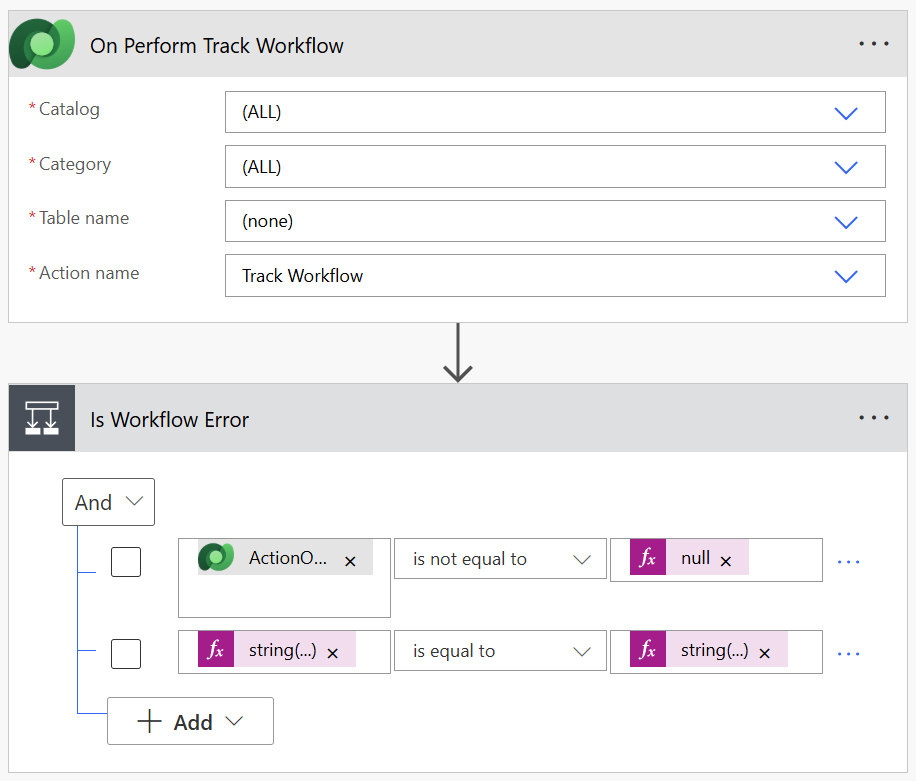
If the condition evaluates to true, the flow first loads the corresponding record from my Workflow Runs table. This gives me full access to the execution details of the failed workflow, including error messages and metadata.
Next, I’m passing this information into a prompt that prepares the context for the task Analyze Workflow Issue:
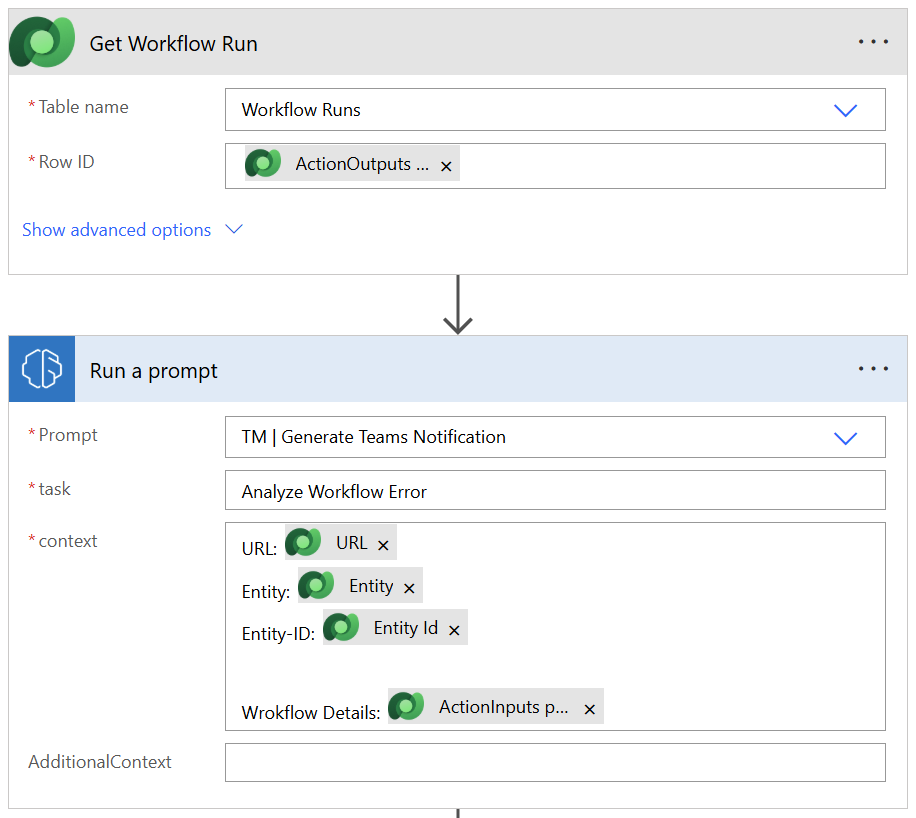
The prompt extracts and structures the relevant information needed by an agent later on. To persist this context, I prepare it as hidden metadata before posting anything to Teams:
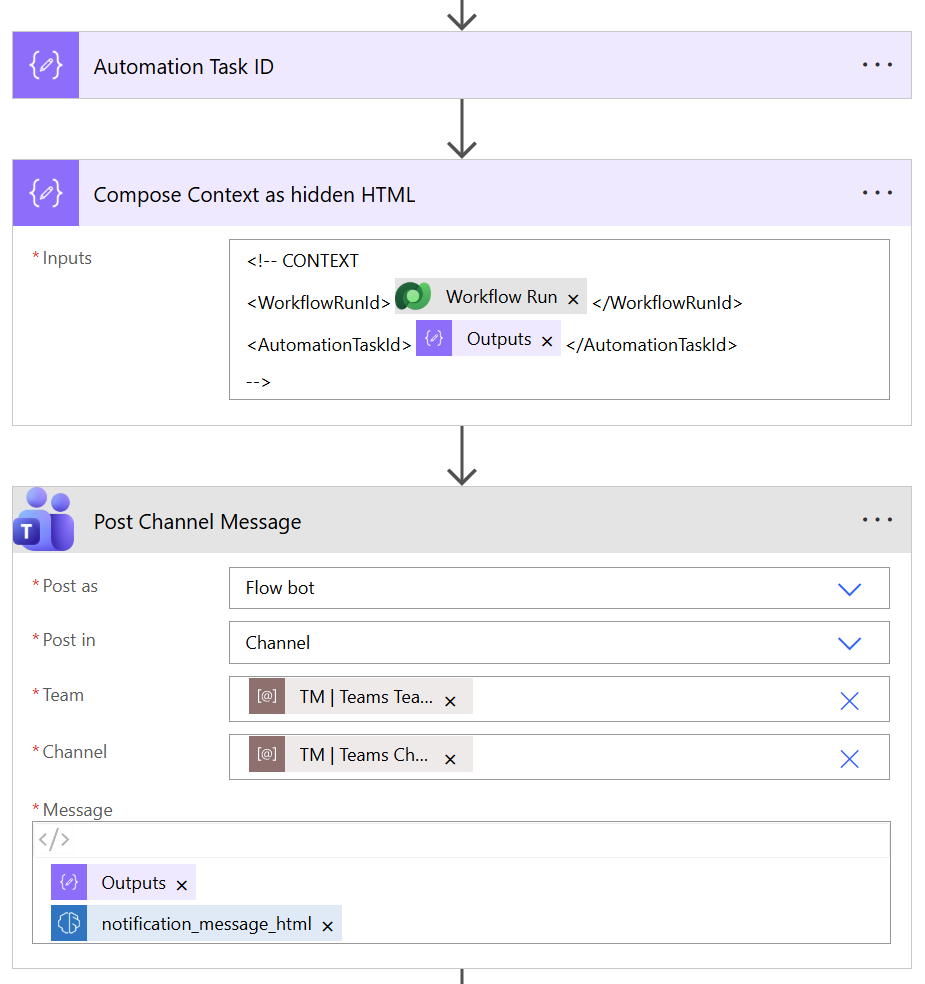
As you can see in the screenshot, I add an invisible HTML comment to the Teams message. This hidden block contains context information, including the future AutomationTaskId. In Microsoft Teams it’s not visible to users. But, it allows downstream processes – especially agents – to reliably reconnect the conversation with the underlying task record.
As a result, my flow posts the first message to the Microsoft Teams channel for workflow issues. The team sees the problem immediately and can start working on it.
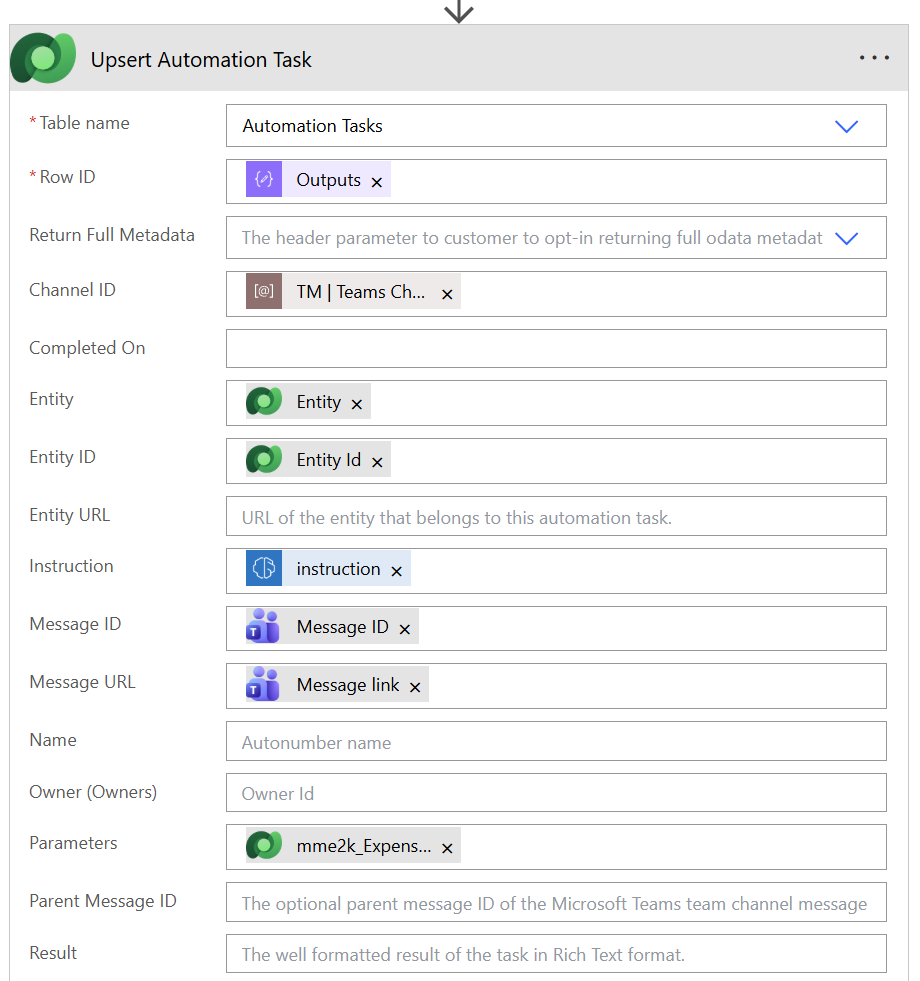
In the next step, my flow inserts (or updates) a record using Upsert Automation Task in my Automation Tasks table. Here, I persist all information required to complete the task and to communicate transparently with end users. In detail, I’m storing the task type, instruction, context references, and linkage to the Teams conversation:
From this point on, I hand over communication and execution to an agent.
Step 2: Creating the Task Coordinator Agent
After I create an Automated Task, I face the next challenge: coordination. At this point, I don’t want every agent to independently parse messages, extract context, or update task metadata and status. Instead, I introduce a dedicated Task Coordinator agent.
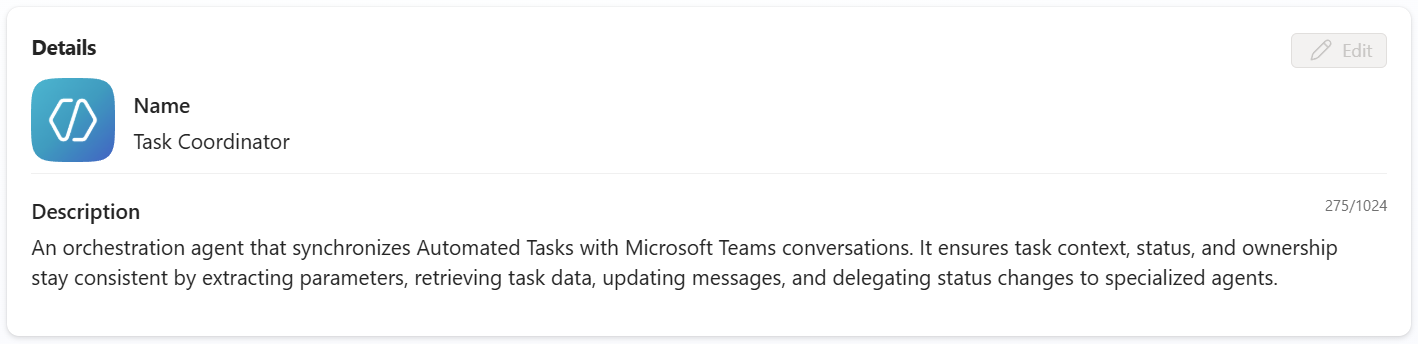
This agent acts as the central control plane for an Automated Task. Its responsibility is not to solve the problem itself. Instead, it keeps the task, the conversation, and the system state in sync.
Agent Trigger: TM | ⚡ On Automation Task Created
The primary entry point for the Task Coordinator agent is the trigger TM | ⚡ On Automation Task Created. As soon as a new record is added to the Automation Tasks table, this trigger fires and starts the agent.
At this moment, the agent does not yet assume that all information is available. Instead, it validates its input and fills in any missing context.
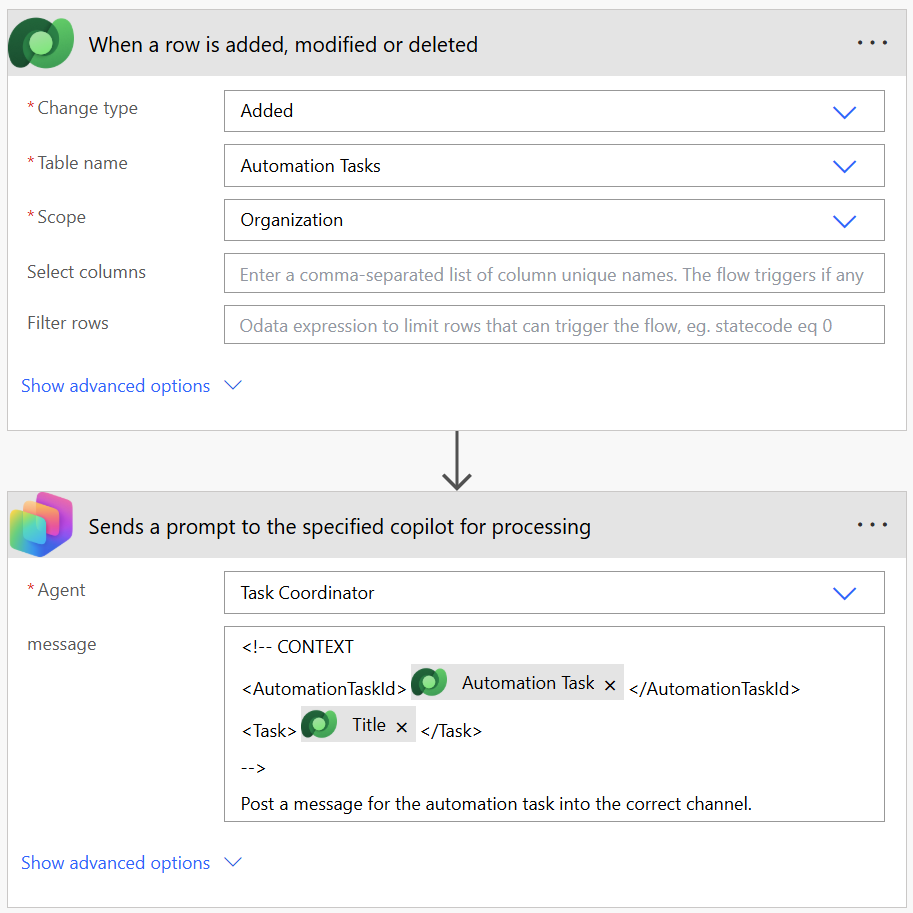
You see, I also include hidden context information into my copilot message. This includes details such as the row id of the Automation Task.
Extracting Context with a Child Agent
To reliably access my Automated Task, the Task Coordinator agent uses a child agent that extracts information from given context. Here I’m using child agent Parameter Extractor. This agent is small, specialized, and its responsibility is very narrow. It ensures all required parameters are available before the main coordination logic continues.
Therefore, my Parameter Extractors instruction is intentionally minimal:
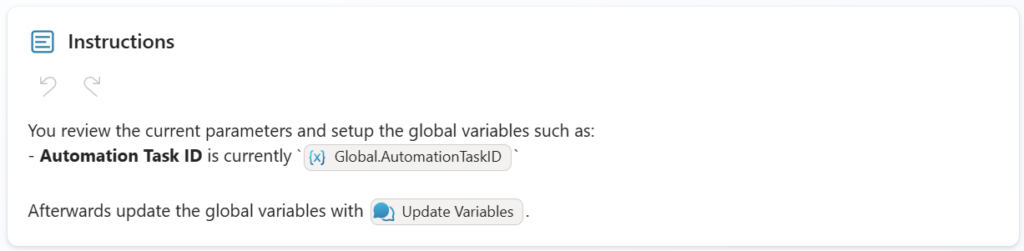
The agent inspects the current execution context and checks whether the Automation Task ID is already present. If it’s missing, the agent extracts it from the available inputs. The hidden HTML comment embedded in the Microsoft Teams message is the most notable source.
Once my child agent identify the information, it writes the ID into the global variable store. From this point on, all downstream agents and tools can reliably reference the same task. They do not need to repeat extraction logic.
This pattern keeps the main agent focused on orchestration, while my delegated child agent handles the parameter extraction.
Updating the Communication Channel
Once the task data is loaded, the Task Coordinator Agent uses the flow tool 🤖 Update Automation Task. The purpose is to enrich the existing Teams message. The original notification is replaced. The new notification is an Adaptive Card and offers a more detailed and up-to-date representation of the task:
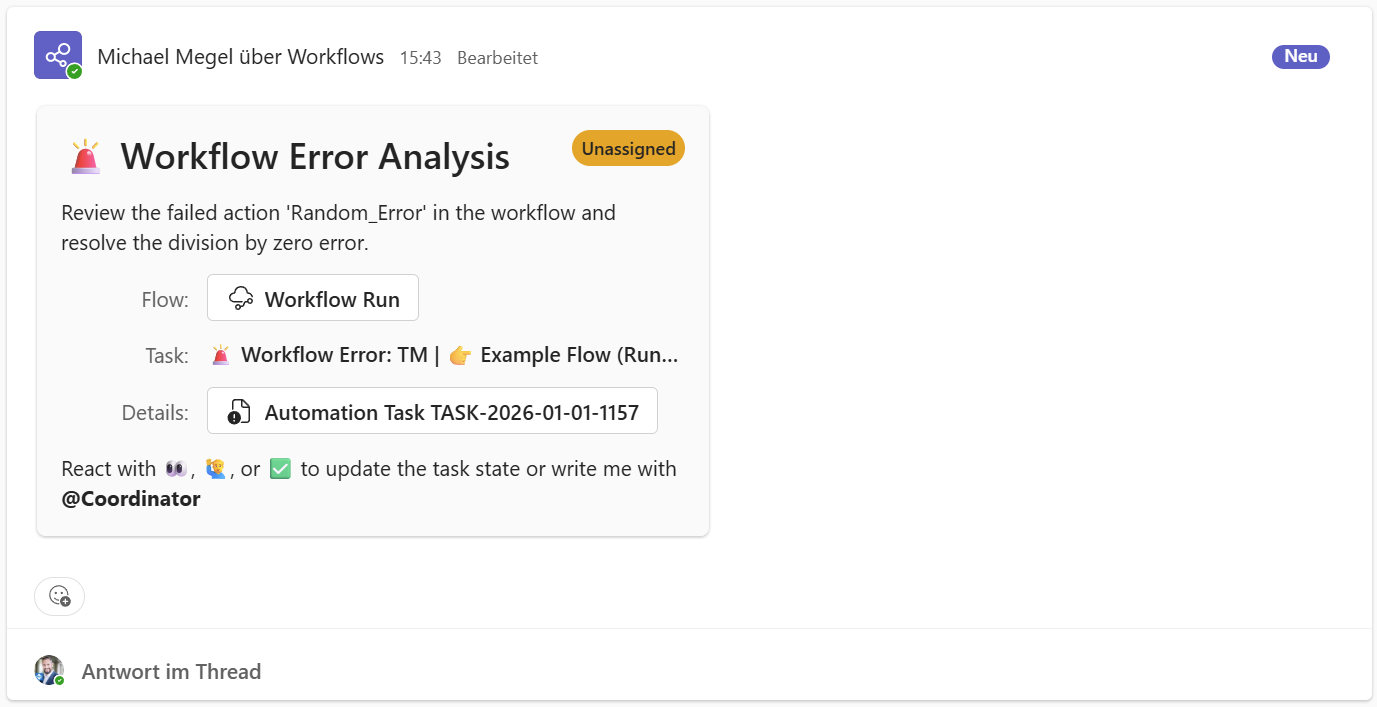
As you see, it includes status, task information and links. This ensures that the Teams thread always reflects the current state of the task. Much better, this reduces the communication without creating additional noise or duplicate messages in my Microsoft Teams thread.
Step 3: Managing Task State Through Conversation
Once tasks and coordination are in place, the next challenge is state management. Instead of introducing additional forms, buttons, or dashboards, I deliberately chose to derive task state directly from the conversation itself.
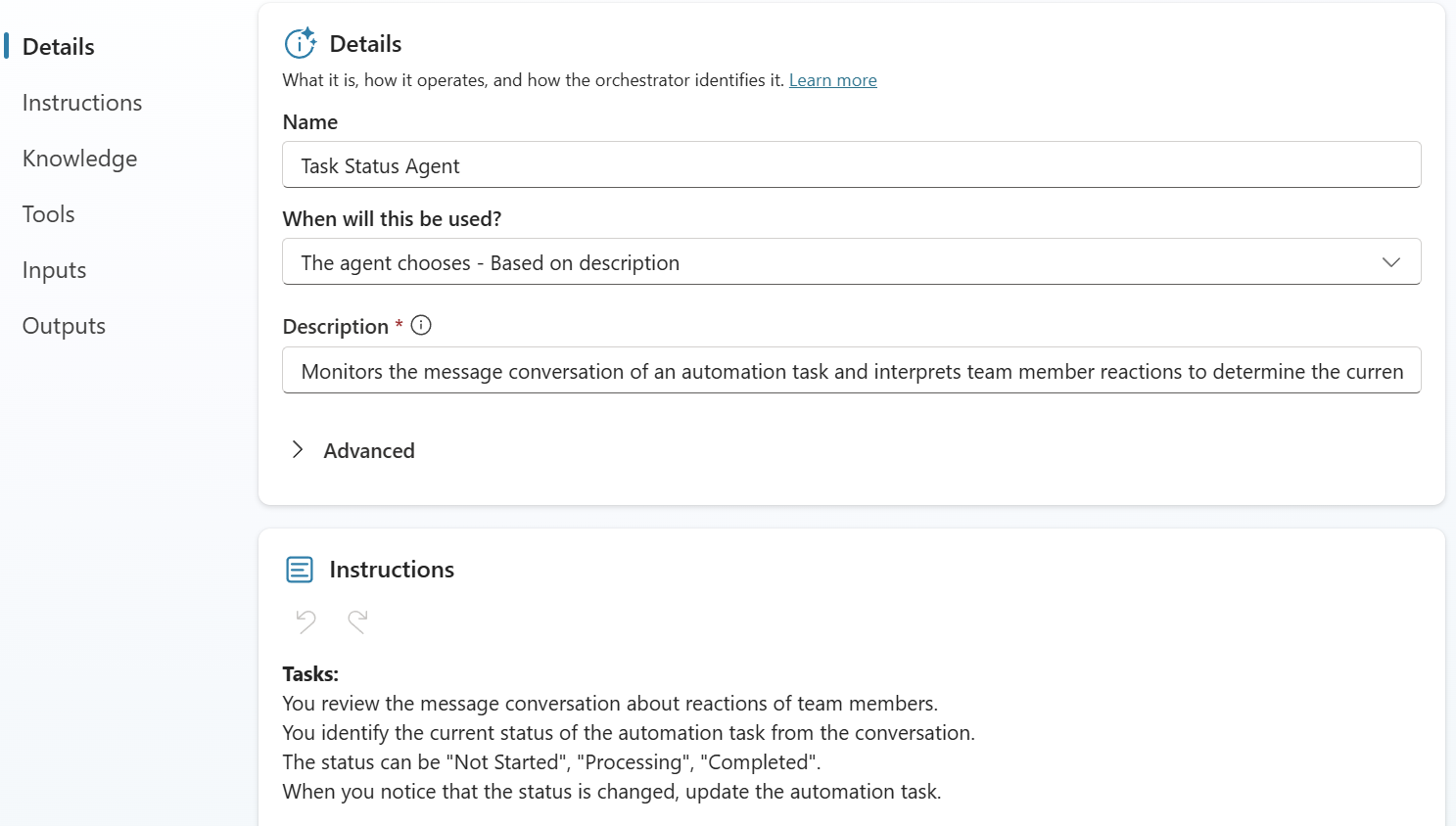
This responsibility is handled by a dedicated child agent: the Task Status Agent.
Conversation as the Source of Truth
The Task Status Agent continuously reviews the message thread associated with an Automated Task. Its goal is simple: understand what is happening by observing how team members interact with the conversation.
Reactions on the initial task message are treated as signals:
- 👀 or 🙋♂️ indicate that one or more users are actively working on the task
- ✅ indicates that the task, or a relevant part of it, has been completed
By interpreting these lightweight interactions, the agent can infer the current task status without interrupting the team’s natural workflow.
When updating or completing a task, the agent generates a Task Summary Report. In detail, my agent writes a report for business and end users. The report itself answers three simple questions:
- What is the current status?
- Who is working on it?
- What is the outcome or progress?
Here, my agent resolve user identities from reactions and skip technical IDs on purpose. This keep the focus on clarity and accountability.
From an implementation perspective, my agent retrieves the full message thread, including reactions. It also resolves user information. In addition, my agent updates the task using dedicated tools for processing or completion.
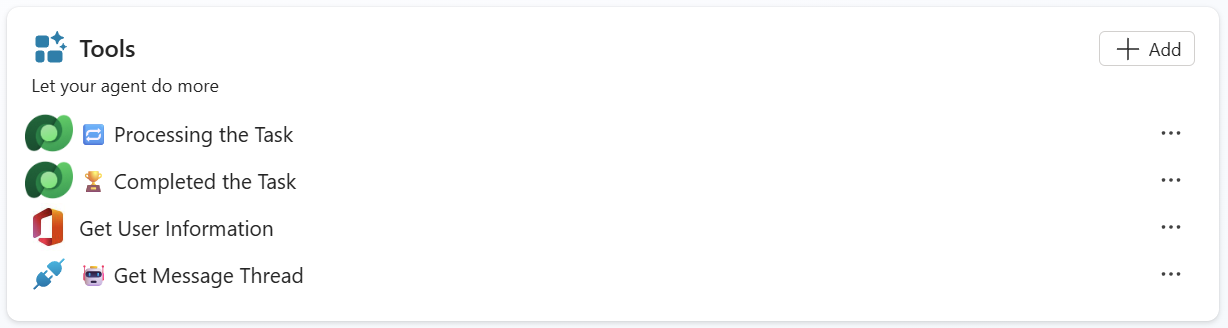
The important part is not the tooling – it’s the effect. My task state stays accurate without interrupting how people work.
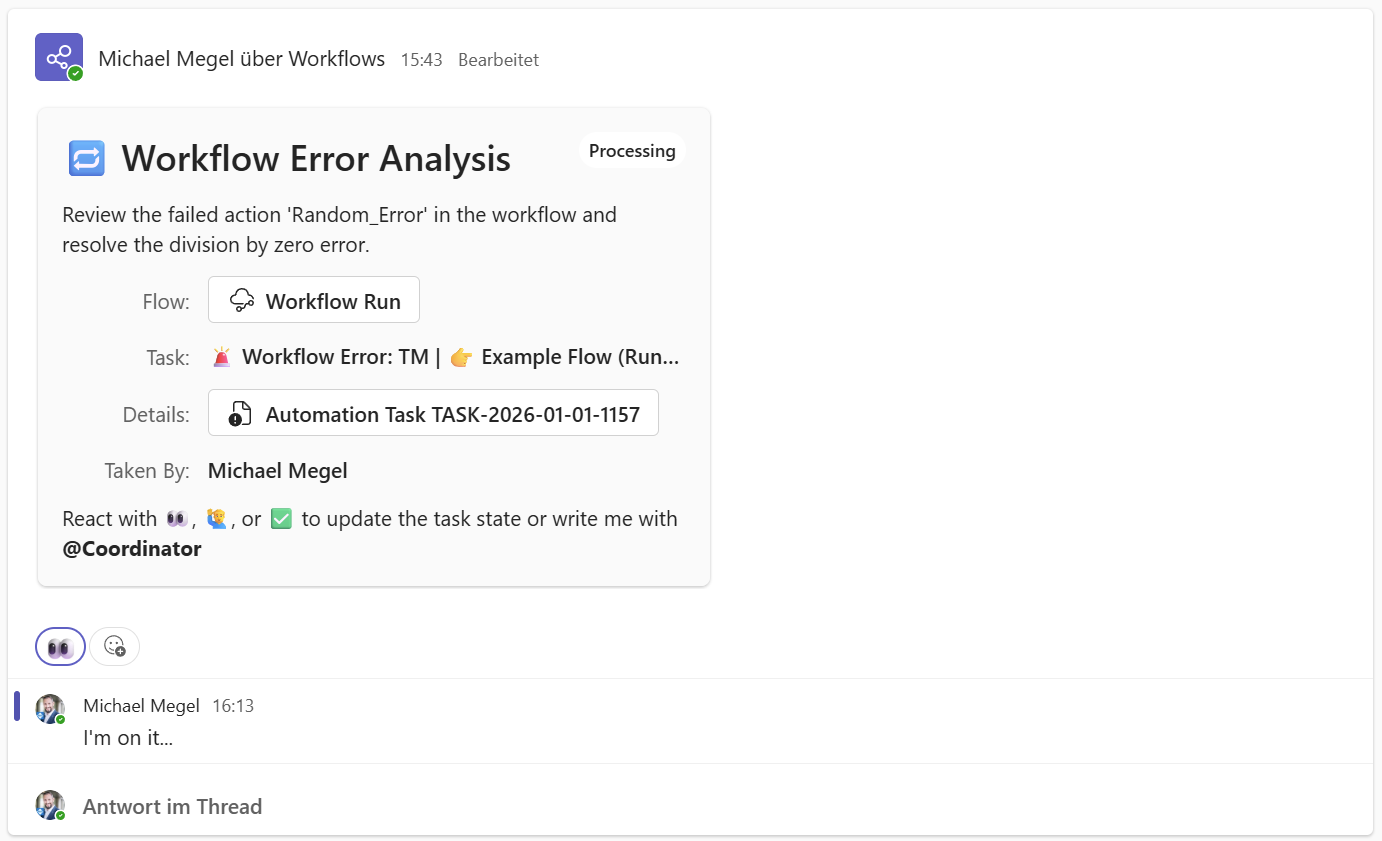
In other words, my team members react and communicate. The agent listens, interprets, and keeps the system consistent.
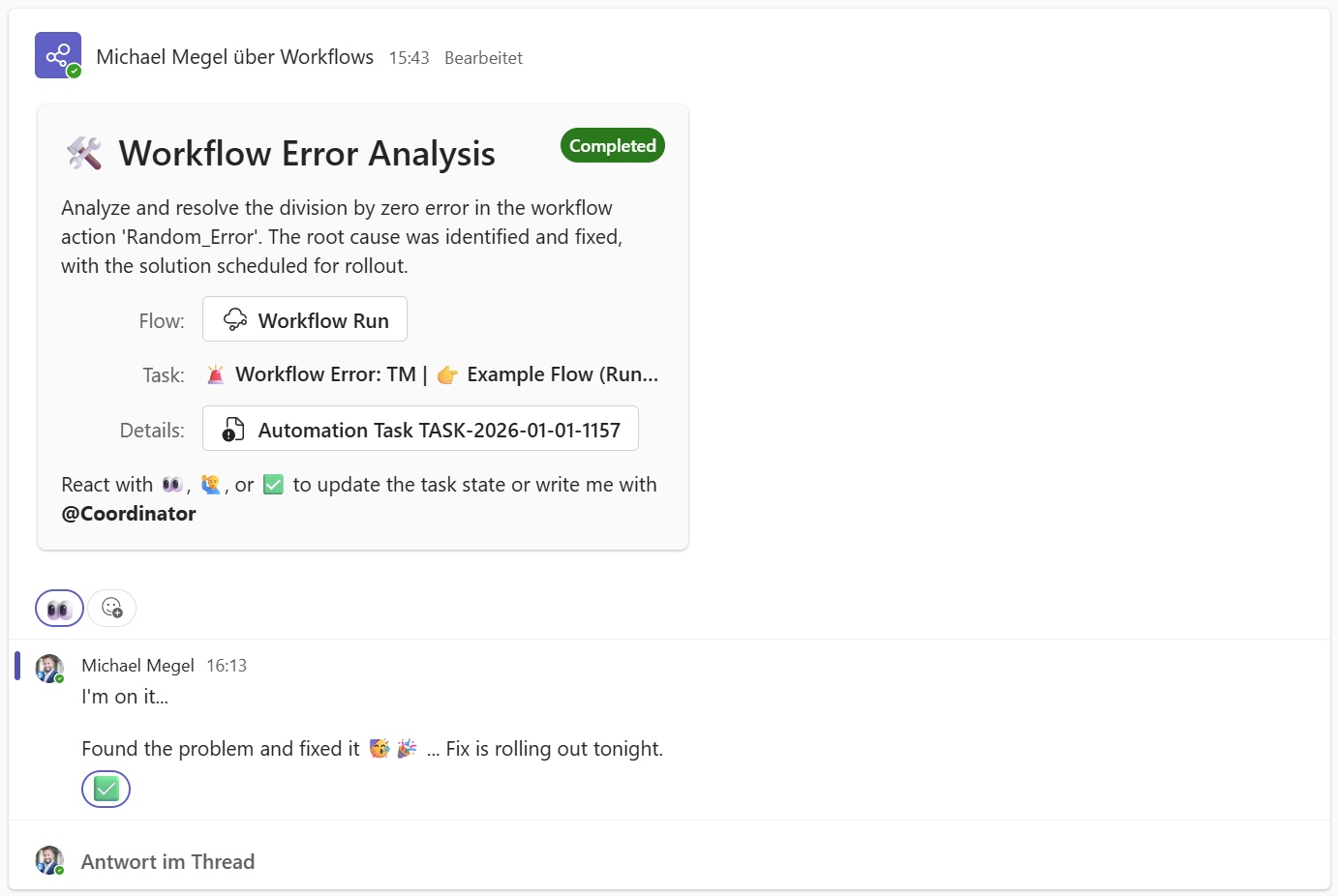
Perfect, my AgentOps workspace is live and supported with my first agent.
Summary
This journey showed me that workflow alerts aren’t just noise. They’re small tasks hiding inside an issue. Once I stepped back and watched how we handled failures, the pattern became obvious. We didn’t need more notifications – we needed structure.
So I introduced the Automated Tasks table. Instead of waiting for someone to react, I now create and manage these tasks and their conversations automatically. From there, I moved from manual automation to agent‑supported automation. My Task Coordinator agent took over the work I used to manage manually and kept everything aligned. It even delegates to specialized child agents. For example, the Task Status Agent listens to our Teams conversations and updates tasks without interrupting anyone. Watching these pieces work together inside Teams made the process feel natural.
Now, my team and the agents collaborate transparently on visible, structured tasks. The agents handle the busywork. We stay in control. And the whole workflow feels smoother and more predictable. It’s a small start, but it’s the foundation of my AgentOps approach. And yes, it already makes a real difference in how we work.
Even better, this pattern scales. More agents can join the process. Stay tuned – I’ll share the next insights soon.