Lightweight Monitoring for Critical Workflows
Some time ago, I built a larger Dataverse solution that included a whole bunch of automated workflow tasks. Everything worked fine during development. Then I deployed the solution and quickly realized a painful truth: all these workflows were running completely unobserved.
I found myself waiting for a result that simply didn’t appear. I couldn’t see what went wrong in real time. I only got clarity at the end of the day when one of those delayed summary emails showed up. It told me that several of my critical flows had timed out or they had failed somewhere along the way.
That’s not great. And definitely not the kind of monitoring I wanted for a production setup. Here I need more control. I need something that tells me when the workflow starts and when it finishes. Most importantly I need something that informs me immediately when it runs into trouble.
So, I decided to build my own pattern. Something simple, reusable, and reliable enough to drop into every important workflow without rebuilding the same logic again and again.
The Pattern Idea
After running into these issues, I started thinking about what kind of monitoring I actually need. I don’t want a big, complex monitoring framework. I don’t want to manually check each flow. And I definitely don’t want to wait for those delayed emails anymore.
As result, I began working on a simple pattern that I can add to any critical workflow. The idea is straightforward: every workflow should report when it starts, when something goes wrong, and when it finishes successfully. And all this information should land in one place where I can review it instantly.
Creating the Tracking Table
Before I can start building the reusable blocks, I need a place where all workflow information comes together. In conclusion, I’m creating a simple Dataverse table that stores every run of my critical workflows. For this, I’m using an Elastic Table. This is because it gives me exactly what I need. In detail, Elastic table provides fast writes, low cost, and the ability to store lots of workflow runs. All this without worrying about capacity. In addition, an elastic table supports automatic deletion by defining the time-to-live in seconds of a record.
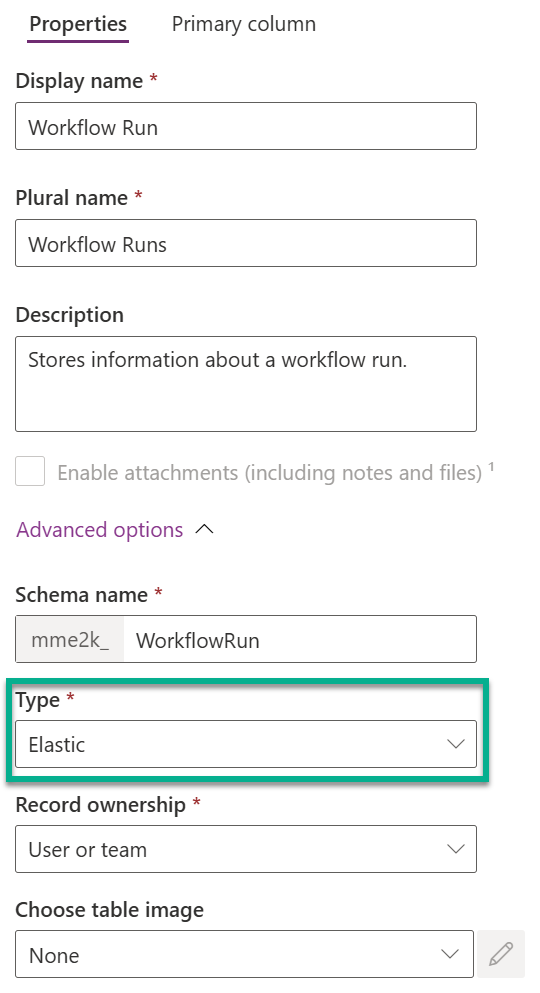
First, I’m creating a new table Workflow Run to my solution. Here I’m configuring as table Type to Elastic:
In this table, I’m adding these columns:
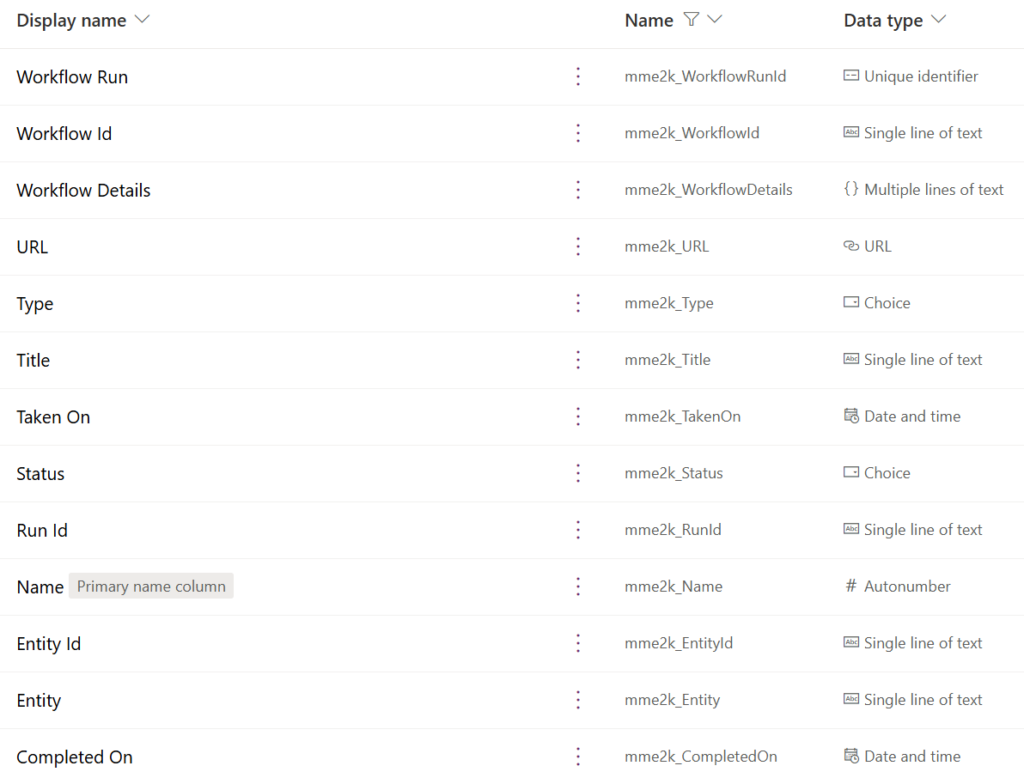
First, I configured the Name to an # Autonumber with format:
RUN-{DATETIMEUTC:yyyy-dd-MM}-{SEQNUM:4}Next, I’m using the Title for the name about my workflow. Furthermore, I will store the Workflow Id and the Run Id of my flow runs. The fields Entity and Entity Id I’m planning to store information that are related to my current workflow run. In my opinion it is useful to know which Dataverse record is affected by an error.
For column Workflow Details I’m using here the data type JSON:
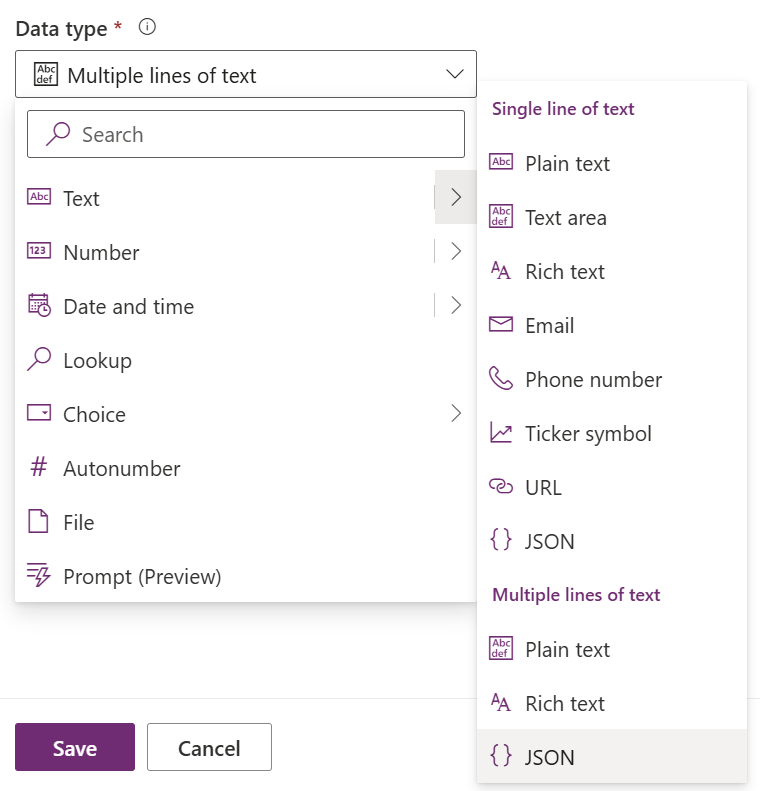
This is to store there all information of my workflow run in JSON format. Here I’m planning to include error messages and additional details, so I can dig deeper when something unexpected happens.
My column Status gets this choices and will visualize for me the workflow status:

As result, I have a central point of truth for all my critical workflows. Every workflow can report its status in real time. Moreover, now I can open the table whenever I need to see what’s going on.
Tracking Workflow Details
Now where my tracking table is in place I need something to store the information. In other words, here I need something that allows me to pass on my generic data. I’m choosing for this a Dataverse Function. The function has clear parameters and results. Furthermore, I can react with a trigger on such a function call.
I start by creating a new function Track Workflow:
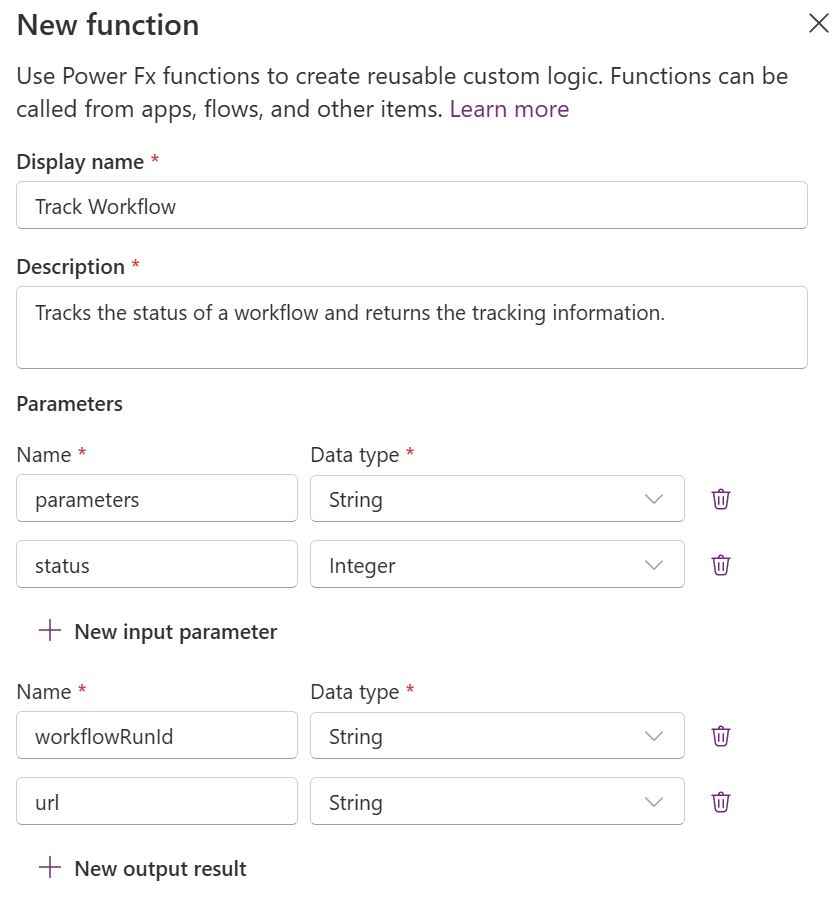
I’m including also as table reference my table Workflow Run. This is needed to store my runtime information of my workflow:
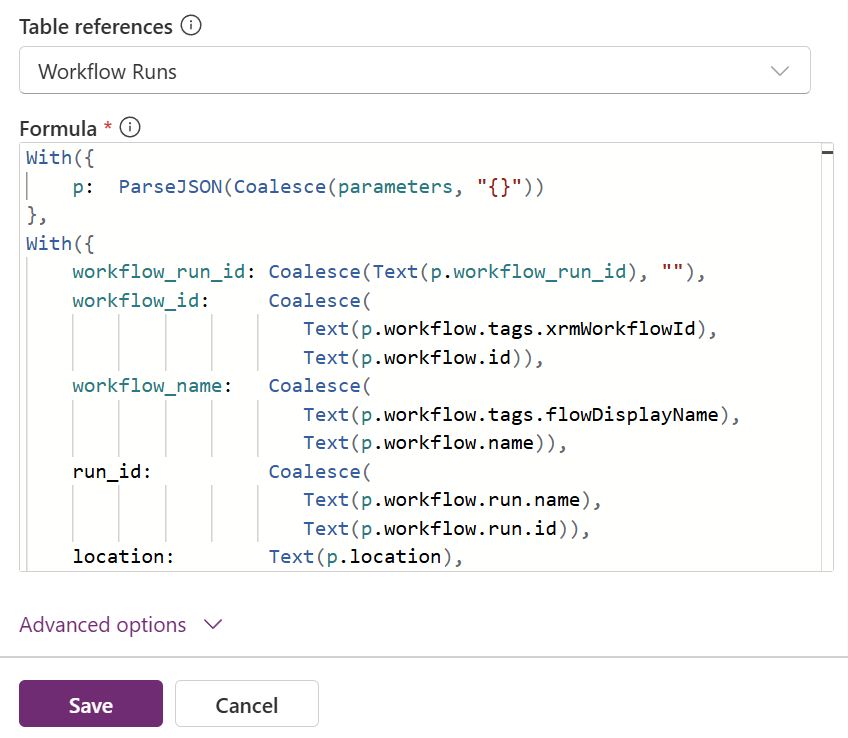
The full Power Fx code of my function is this:
With({
    p:  ParseJSON(Coalesce(parameters, "{}"))
},
With({
    workflow_run_id: Coalesce(Text(p.workflow_run_id), ""),
    workflow_id:     Coalesce(
                        Text(p.workflow.tags.xrmWorkflowId),
                        Text(p.workflow.id)),
    workflow_name:   Coalesce(
                        Text(p.workflow.tags.flowDisplayName),
                        Text(p.workflow.name)),
    run_id:          Coalesce(
                        Text(p.workflow.run.name),
                        Text(p.workflow.run.id)),
    location:        Text(p.location),
    environment_id:  Text(p.workflow.tags.environmentName),
    entity:          Text(p.entity),
    entity_id:       Text(p.entity_id),
    completed_on:    Text(p.completed_on),
    is_xrm:          ! IsBlankOrError(Text(p.workflow.tags.xrmWorkflowId))
},
With({
    title:     Coalesce(Text(p.title), workflow_name, "not defined"),
    azure_url: "https://portal.azure.com/#view/Microsoft_Azure_EMA/DesignerEditorConsumption.ReactView/id/"
},
With({
    url:  Coalesce(
        $"URL: {Text(p.url)}",
        If(is_xrm,
               $"https://make.powerautomate.com/manage/environments/{environment_id}/flows/{workflow_id}/runs/{p.workflow.run.name}",
               $"{azure_url}{EncodeUrl(Concatenate(
                  workflow_id,
                  "/location/",
                  location,
                  "/isReadOnly~/true/isMonitoringView~/true/runId/",
                  run_id
              ) )}"
        ),
        Blank())
},
With({
    run: Coalesce(
        If(! IsBlankOrError(workflow_run_id) && Len(workflow_run_id) > 0,
            LookUp('Workflow Runs' As r, r.'Workflow Run' = GUID(workflow_run_id)),
            Blank()
        )
        ,
        Collect('Workflow Runs', {
            'Workflow Id':      workflow_id,
            'Run Id':           run_id,
            Name:               Blank(),
            Title:              title,
            URL:                url,
            Entity:             entity,
            'Entity Id':        entity_id,
            'Workflow Details': JSON(p, JSONFormat.IndentFour),
            'Completed On':     If(! IsBlank(completed_on), DateTimeValue(completed_on), Blank()),
            Status:             Switch($"{status}",
                "1", 'Status (Workflow Runs)'.'🔁 Processing',
                "2", 'Status (Workflow Runs)'.'🏆 Completed',
                "3", 'Status (Workflow Runs)'.'⚠️ Error',
                Blank()),
            // 30 days * 24 hours * 60 minutes * 60 seconds
            'Time to live':     2592000
        })
    )
},
{
    workflowRunId: Coalesce(Text(run.'Workflow Run'),workflow_run_id),
    url: url
}
)))))
The code looks a bit complex, because I must introduce a couple of variables by using the With function. In detail, I’m transforming the given information into input parameters to add a new record in my table Workflow Run. I do this in case I can’t find an existing record.
I also define the Time to live for my elastic table record. Here I’m using the value 30 days in seconds. In consequence, my record is automatically removed from the table after these 30 days.
Finally, I’m returning the workflowRunId of my created record and the calculated url.
Important, I can’t update a record here. This is because Dataverse function does not support modifying records.
Updating the Workflow Run Details
My created Dataverse function can’t change existing record. This means, I must update the information in another way. Here I will set up a Power Automate flow. Moreover, I’m using a flow with a trigger When an action is performed:
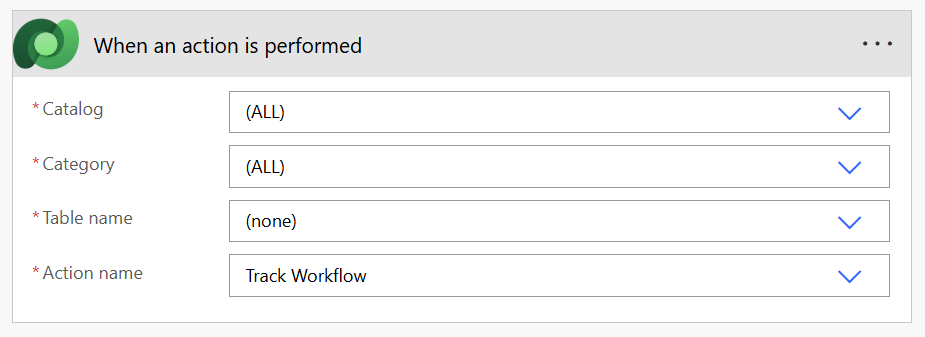
My whole workflow is simple. First, I’m initializing a variable status based on my trigger parameter status. Next, I’m parsing the given JSON from trigger parameter parameters. Then, I try to get the existing record from table Workflow Run:
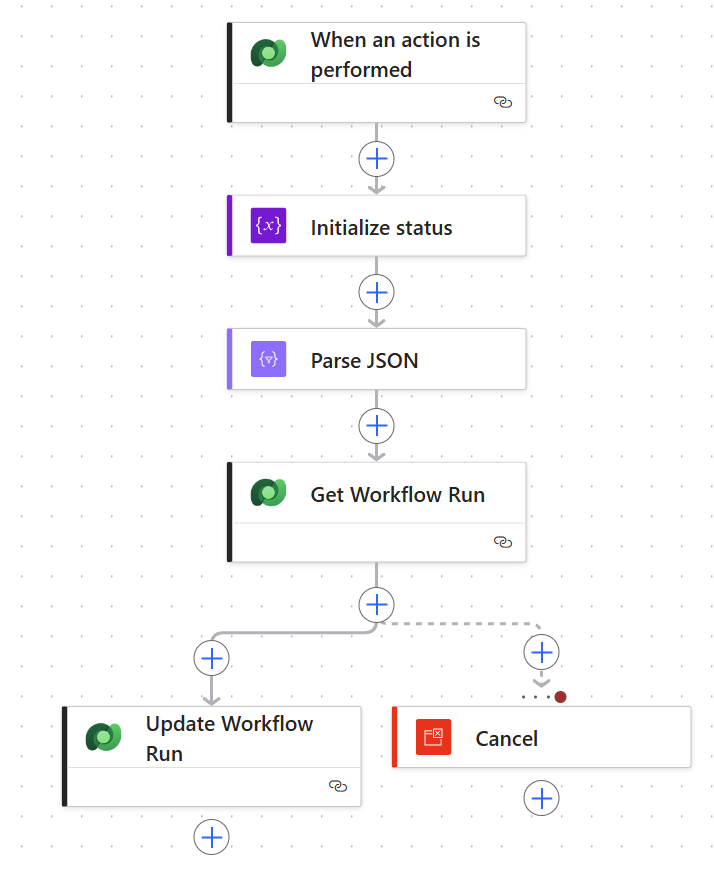
If this is successful, I’m updating my record with the given parameters. In other words, I’m completing the information collected:
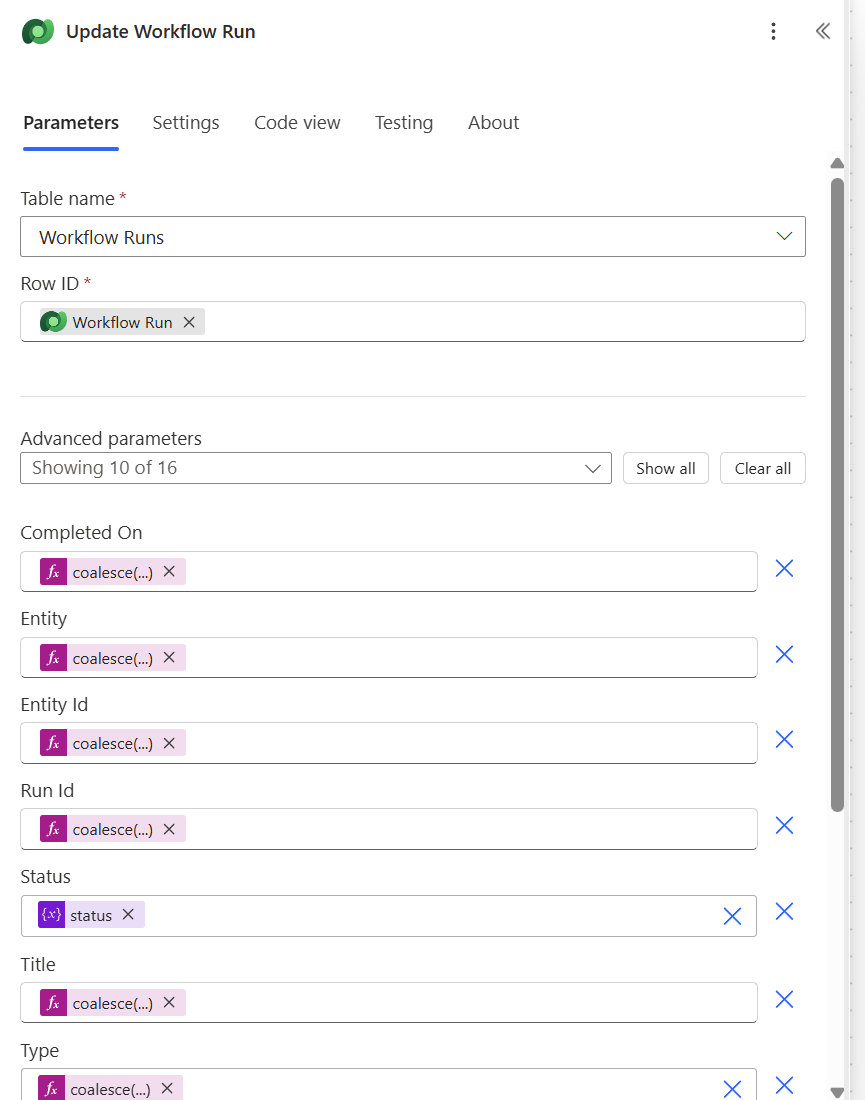
Finally, when action Get Workflow Run fails, then I want to cancel the current workflow. This is because my Dataverse Function will insert and initialize the new record. Therefore, I’m adding as parallel action to Update Workflow Run a Terminate action Cancel. Here I’m configuring Run after property with Has failed:
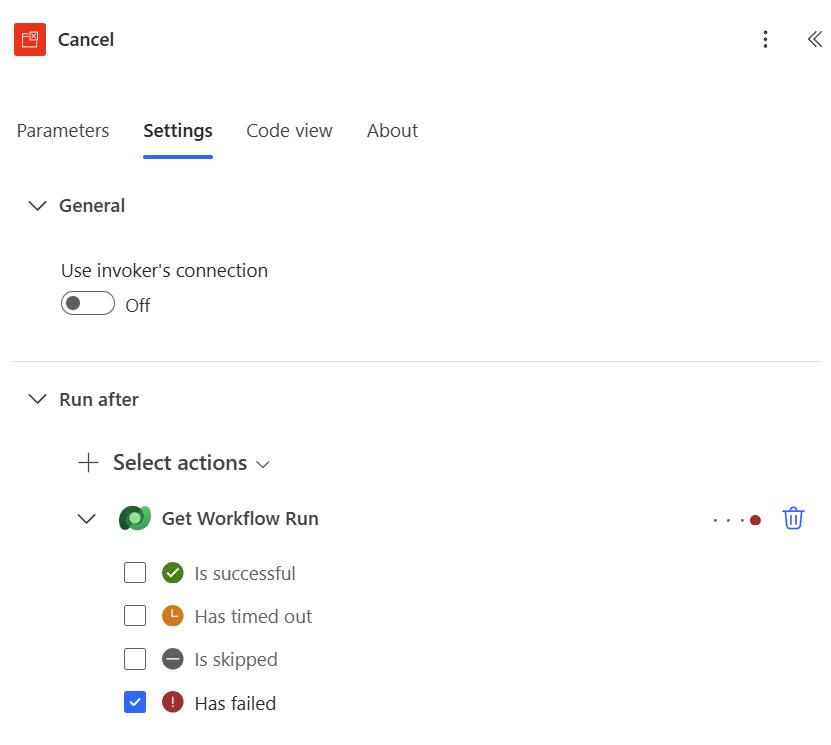
That should be sufficient to update my record Workflow Run.
Building the On Start, On Error, and On Success blocks
First, I create a new Power Automate flow that acts as my template. Inside this flow, I’m adding three Scope blocks that I can easily copy into any other workflow. These scopes represent the three key moments I want to track. The first is when the workflow starts. The second is when something goes wrong. The third is when the workflow finishes successfully.
In addition, I’m adding a fourth block that I use later to place the actual workflow actions.
Here is a picture of how this should look:

You can see that there is also a block called Initialize Variables between the scopes On Start and Try. This is the place where I add all the Initialize Variable actions that must be placed outside of Scope blocks.
You can also see the Run after settings for the On Success and On Error blocks. Here I define when each of these two scopes will run. Typically, On Success runs only if everything inside the Try scope succeeds. On Error runs when something inside the Try scope fails.
On Start
In my On Start block I’m adding the Dataverse action Perform an unbound action. This will send initial details of the workflow run to my tracking function.
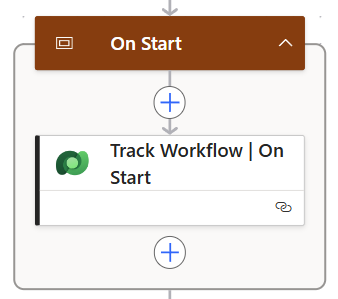
As parameters I’m adding a JSON with workflow details and as status my code for Processing:
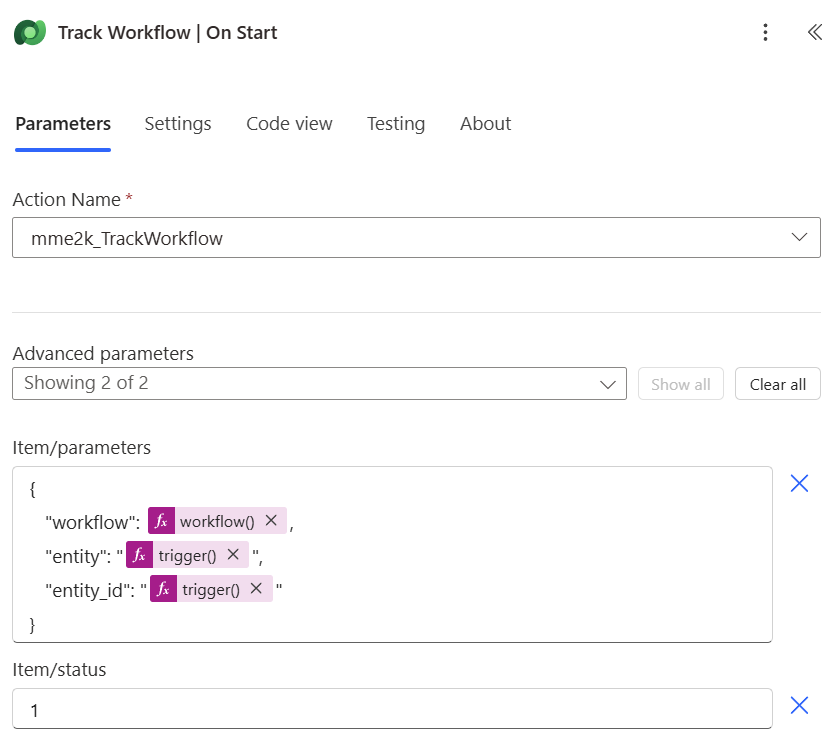
This JSON itself contains details about the workflow itself during run time. Here I’m utilizing the function workflow(). In addition, I’m extracting the optional information about the entity from the trigger. Here is the parameter code:
{
   "workflow":  @{workflow()},
   "entity":    "@{trigger()?['inputs']?['parameters']?['subscriptionRequest/name']}",
   "entity_id": "@{trigger()?['outputs']?['body']?['ItemInternalId']}"
}
Try
In my Try block, I’m adding some example actions. Here I’m generating a random error:
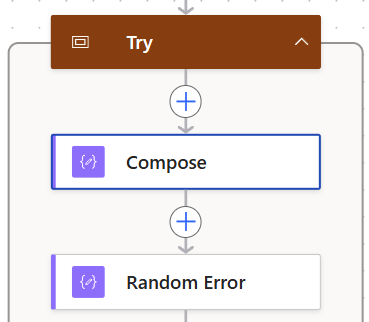
My expression in Random Error utilizes the function rand(min, max) to enforce a random division by zero error:
@{div(1, rand(0, 2))}This is a small trick to simulate an error of my workflow that appears randomly.
On Success
Here I’m reporting that the workflow has finished successfully and writing the final status to my tracking table. I do this again with my Dataverse function Track Workflow:
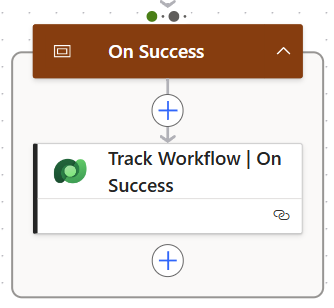
This time my JSON contains some more details such as the workflow_run_id. This is because I want to update my workflow run.
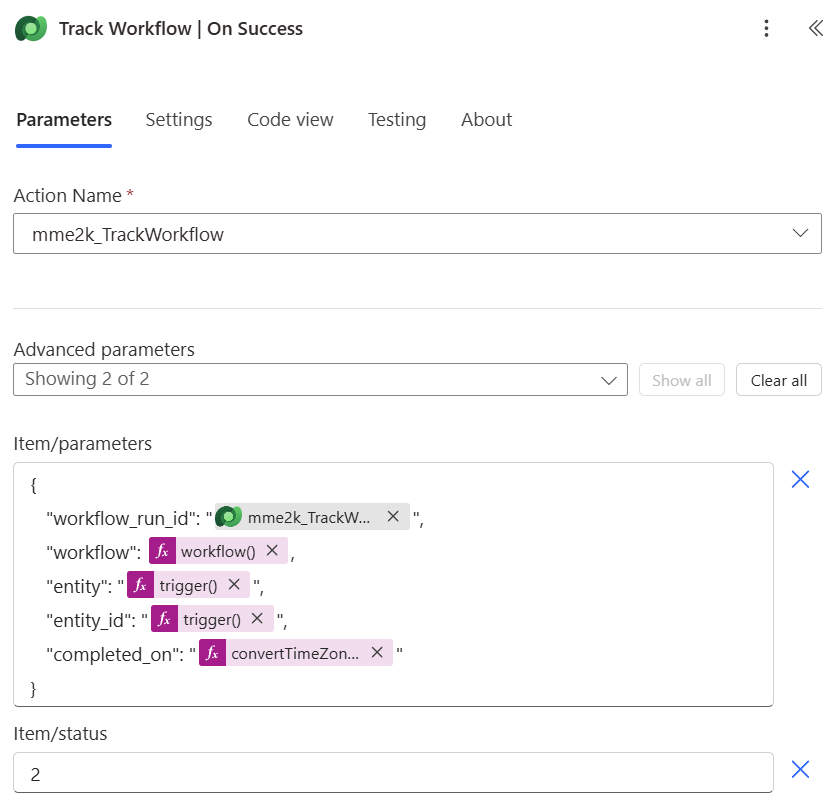
The full code from parameters is this:
{
   "workflow_run_id": "@{outputs('Track_Workflow_|_On_Start')?['body/workflowRunId']}",
   "workflow": @{workflow()},
   "entity": "@{trigger()?['inputs']?['parameters']?['subscriptionRequest/name']}",
   "entity_id": "@{trigger()?['outputs']?['body']?['ItemInternalId']}",
   "completed_on": "@{convertTimeZone(utcNow(), 'UTC', 'Central European Standard Time')}"
}
On Error
Finally, I’m catching in On Error any errors of my Try block. Here I’m sending the error details to my tracking function so I can see exactly what went wrong.
To do this, I’m filtering per example the result of my Try flock for actions of status Failed and TimedOut.
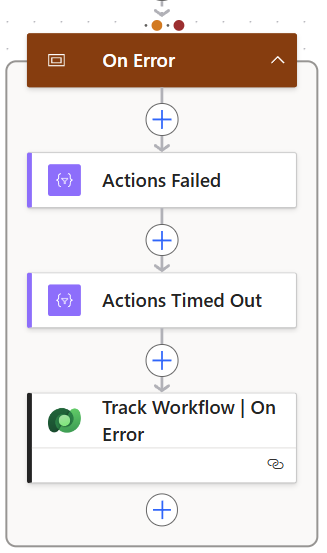
Afterwards, I’m adding the collected error details to my JSON. I’m using the workflow_run_id as well and as status 3 to indicate this is an error:
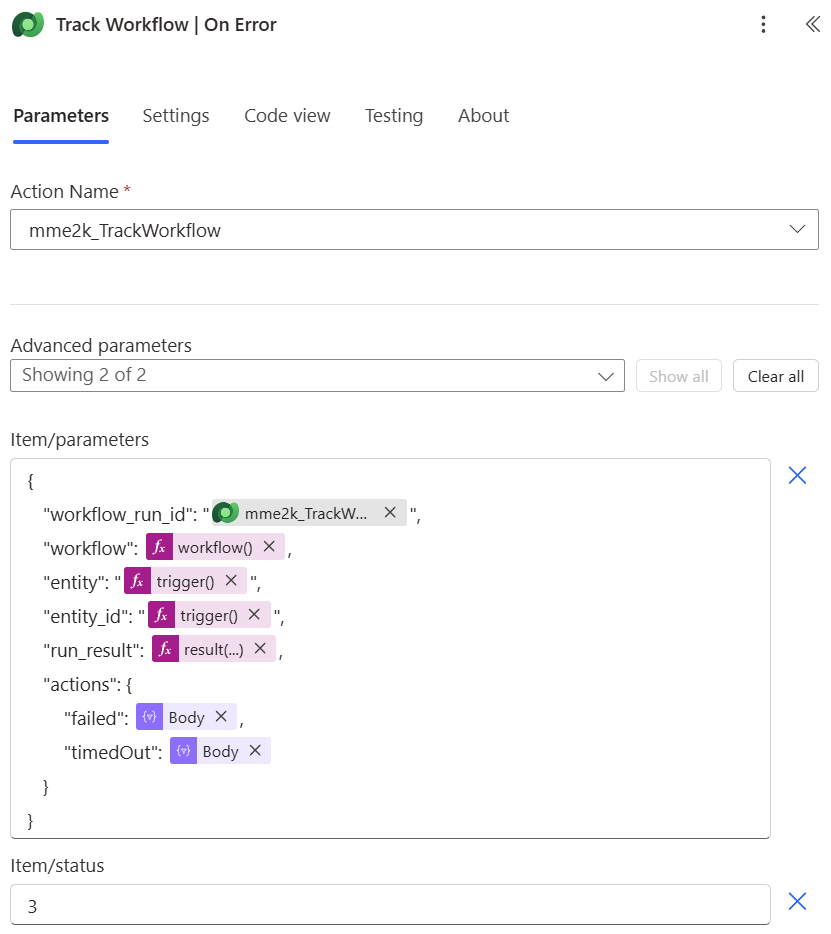
The full parameters expression is this:
{
   "workflow_run_id": "@{outputs('Track_Workflow_|_On_Start')?['body/workflowRunId']}",
   "workflow": @{workflow()},
   "entity": "@{trigger()?['inputs']?['parameters']?['subscriptionRequest/name']}",
   "entity_id": "@{trigger()?['outputs']?['body']?['ItemInternalId']}",
   "run_result": @{result('Try')},
   "actions": {
       "failed": @{body('Actions_Failed')},
       "timedOut": @{body('Actions_Timed_Out')}
   }
}
My Blueprint for Monitoring Critical Workflows
In the end, I can now copy my blueprint workflow whenever I start building a new critical automation. This gives me a consistent structure with defined tracking points. I don’t have to rebuild the monitoring logic repeatedly.
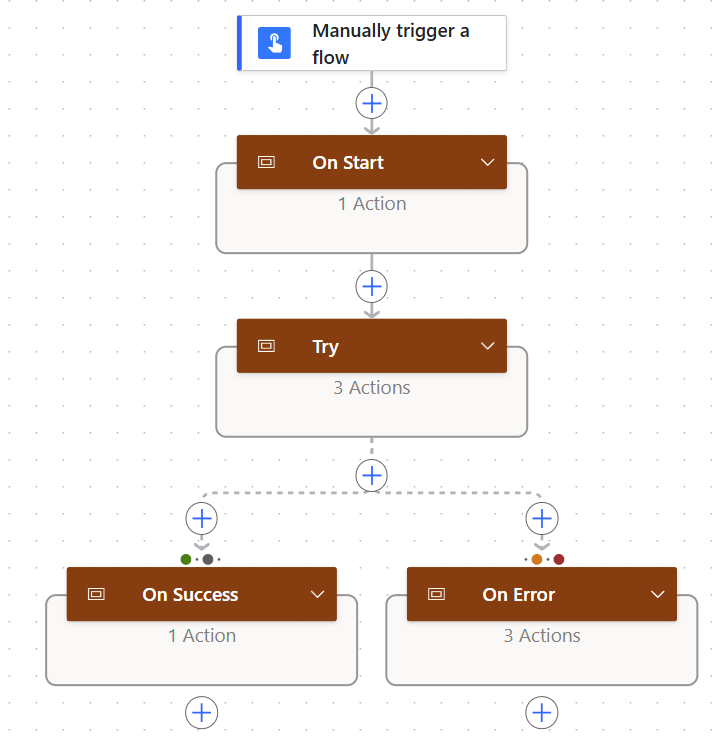
On the other hand, for existing workflows, I can simply insert these four blocks into the flow. Then, I wrap the existing actions inside the Try scope. This way, I don’t have to rebuild anything from scratch. I just restructure the flow a bit. I instantly get the same monitoring logic applied.
Monitoring and Test
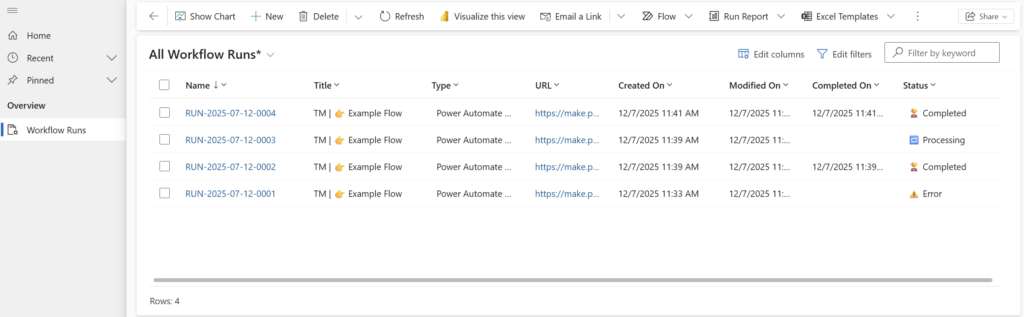
Now that the blueprint is ready, I want to see my blueprint in action. For this, I created a small model-driven app that shows all workflow runs stored in my Dataverse tracking table. It gives me a quick overview of what’s happening, which flows are running, and whether something failed along the way.
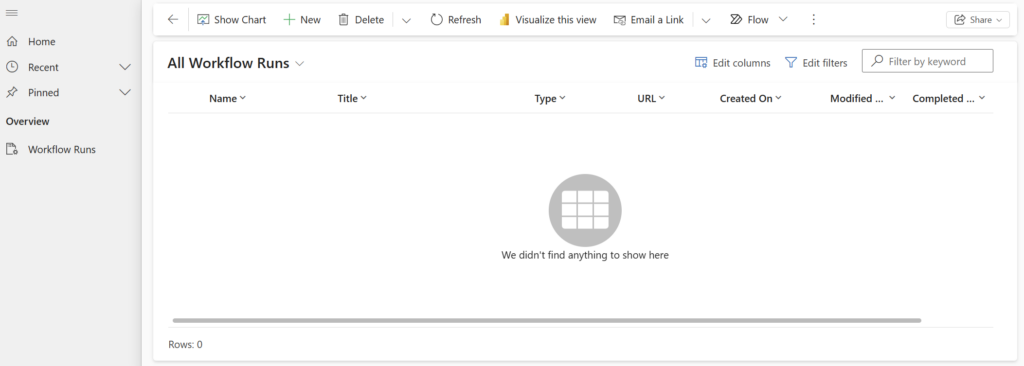
To test my setup, I’m triggering a few workflows until I’m getting the random error:
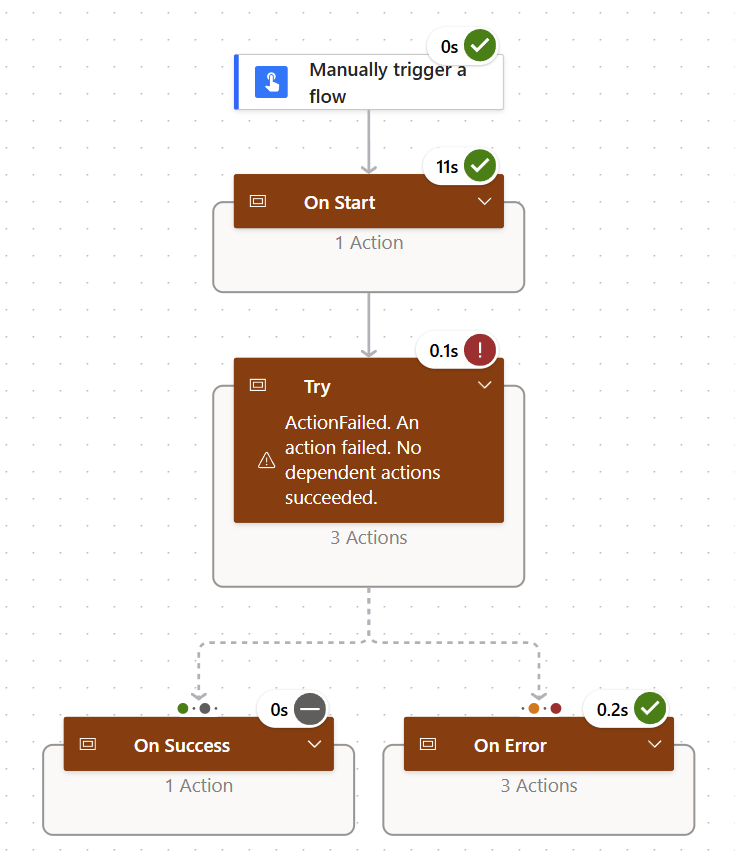
As soon as a workflow starts, I see the new entry in my app. When it reaches the end, the status updates.
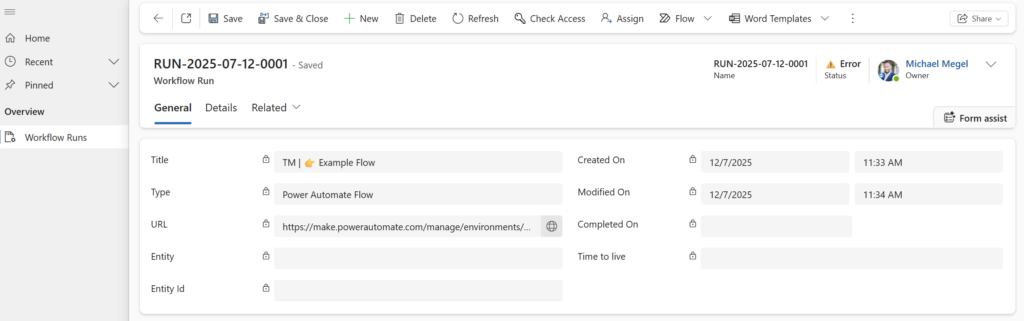
Furthermore, if something goes wrong, I can open my failing workflow run:
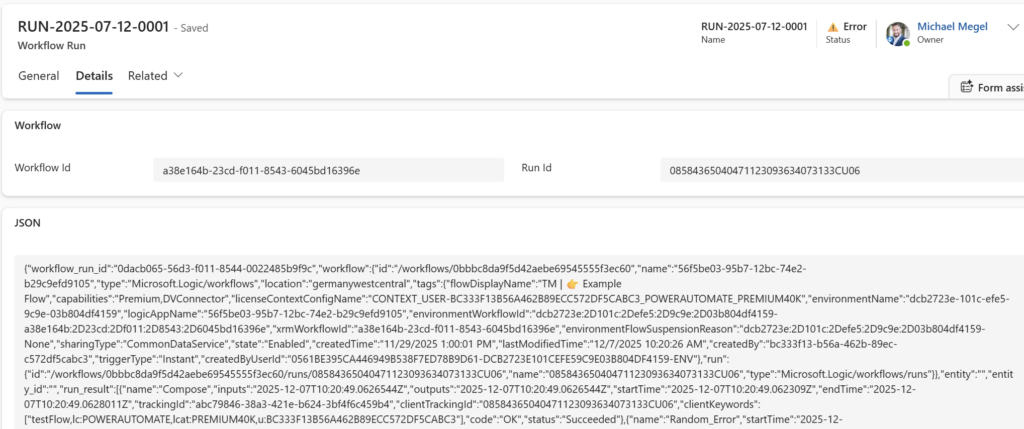
When I need more insights, I can directly navigate into Details section and analyze the JSON:
Summary
This pattern now gives me clear visibility into my critical workflows. I no longer rely on delayed emails. I don’t manually check each flow. Instead, I track the three events that matter most: start, success, and error.
The solution is simple and lightweight. I use a single Dataverse table to track all workflow runs. Because it’s an elastic table, I avoid performance bottlenecks. In addition, with Time-To-Live, I can automatically control how long each record stays. I also introduced a Dataverse function that emits tracking information by calling an unbound action. A small Power Automate flow then updates the record whenever a workflow reports its current status. On top of that, I created a reusable Power Automate blueprint with start, success, and error monitoring built in. I can now apply this pattern to any flow in seconds. All data ends up in one place, and I can review everything instantly.
It’s not a full monitoring system, but it’s fast, simple, and reliable. Most importantly, it helps me catch issues early, understand workflow failures, and keep my automation running smoothly. Bests, it works for Power Automate as well as for Logic Apps. And as a small teaser for my next post: I also built a Copilot that automatically analyzes those workflow issues. Stay tuned!