Workflow Troubleshooter Agent – My Supportive Super Hero
Ever had a critical workflow break at the worst possible moment?
Picture this: an approval is stuck. A notification never arrives. The business is already waiting. And somewhere in the background, a workflow has silently failed.
I’ve been there. You know something’s wrong, but finding the root cause feels like searching for a needle in a haystack. Logs are scattered. Errors are cryptic. And every minute of investigation adds more pressure.
That’s when I decided I needed more than alerts and dashboards. I needed help. A quiet hero working behind the scenes.
That’s why I built my own Workflow Troubleshooter Agent.
This hero works as a supportive Copilot Studio agent. It doesn’t wear a cape—but it steps in when things go wrong. The moment an issue appears, it analyzes the failure, creates a clear report, and even suggests how to fix it. Not just for me, but for my citizen developers.
In this post, I’ll take you behind the scenes and show how this agent thinks. You’ll see the tools it uses.
You’ll learn how instructions guide its reasoning. And you’ll see how it turns workflow failures into clear insights.
The Problem
Critical workflows are the backbone of business processes. When they fail, everything slows down – or worse, stops. For citizen developers, this often means hours of digging through logs, guessing what went wrong, and hoping the fix works.
The real challenge? Visibility. Issues often hide deep inside automation steps or connectors. By the time you notice something’s broken, the impact has already spread. By then, you’re not just searching for the needle – you’re racing the clock.
In my previous post on Lightweight Monitoring for Critical Workflows, I explained how to track these issues automatically. That monitoring is what makes the next step possible: fixing problems fast.
Here is what I mean:
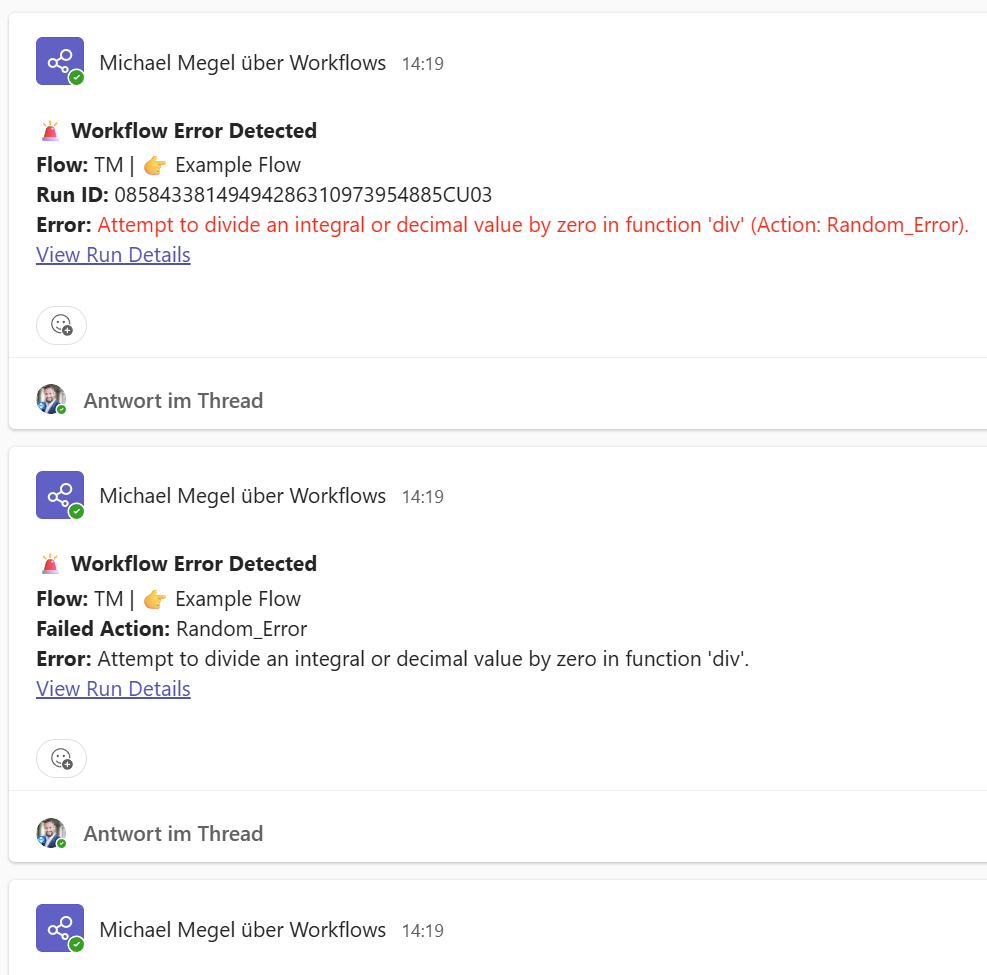
These errors often pop up unexpectedly. They cause delays in approvals or other automation scenarios such as such as notifications that never arrive. Someone has to pick up the task, investigate, and fix it. And that takes time – time you don’t have when the business is waiting.
The Idea
I wanted more than monitoring. Notifications weren’t enough anymore. Tracking issues is great – but what if I could turn those insights into action?
That’s when I stopped asking “How do I detect failures?” and started asking “How do I fix them faster?”
Here is my vision of a Workflow Troubleshooter: I create a Copilot Studio agent that doesn’t just watch workflows fail. It first analyzes the problem. It then creates a clear report. In other words, it acts like a helpful assistant. Saying to the citizen developer: “Here’s what broke, why it broke, and how you can fix it.”
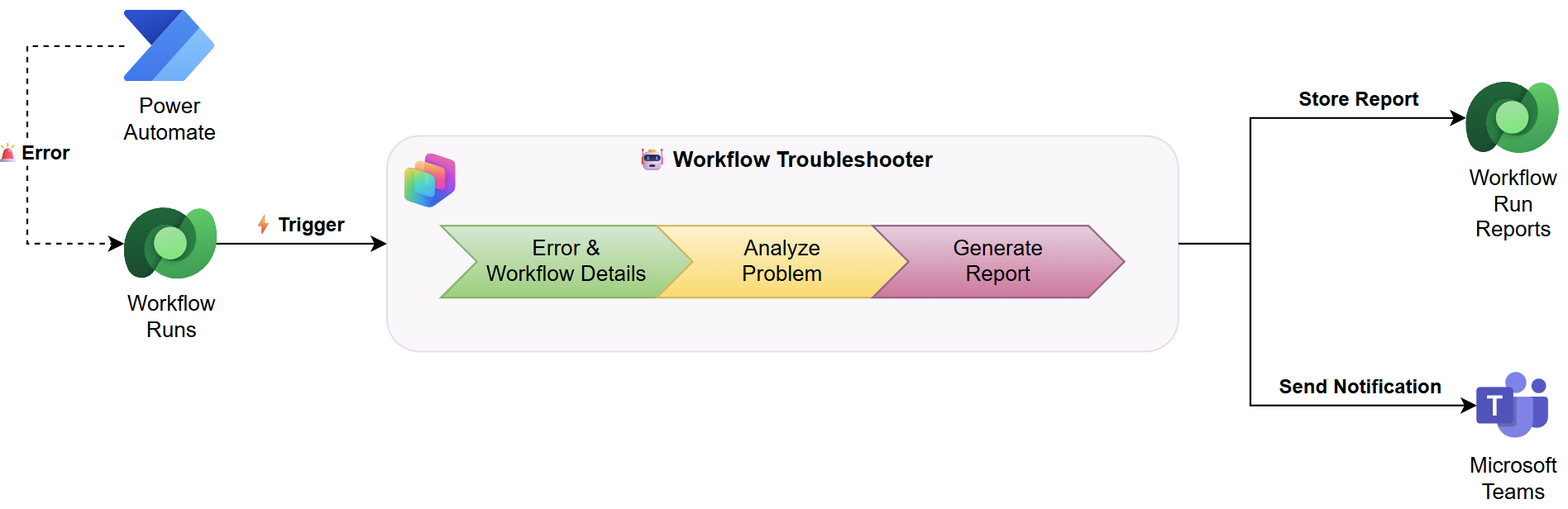
Now that you know my idea, let’s look behind the curtain. How does this agent actually work? It’s not magic – it’s a combination of smart monitoring, automation, and Copilot Studio features. Here’s the step-by-step breakdown.
How It Works
The Workflow Troubleshooter agent is the heart of my solution. When triggered, it reviews the error details from the tracked workflow run. Then, using the workflow blueprint, it analyzes the problem and prepares a detailed report for the citizen developer.
To make this possible, my agent uses a set of tools that work together like a small toolbox. Here is a screenshot of my added Tools for my Workflow Troubleshooter agent:
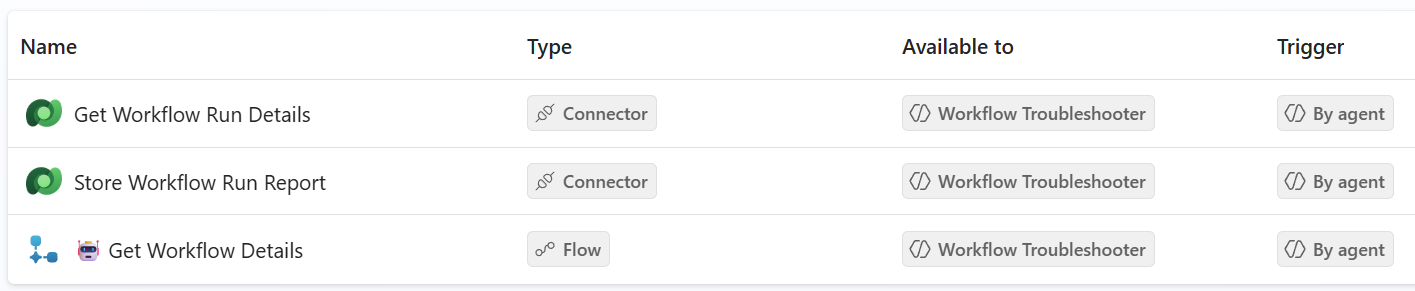
Tool – Get Workflow Run Details
First, the tool Get Workflow Run Details retrieves information about the tracked run that failed. My agent uses the Dataverse connector action Get a row by ID from the selected environment with these input parameters:
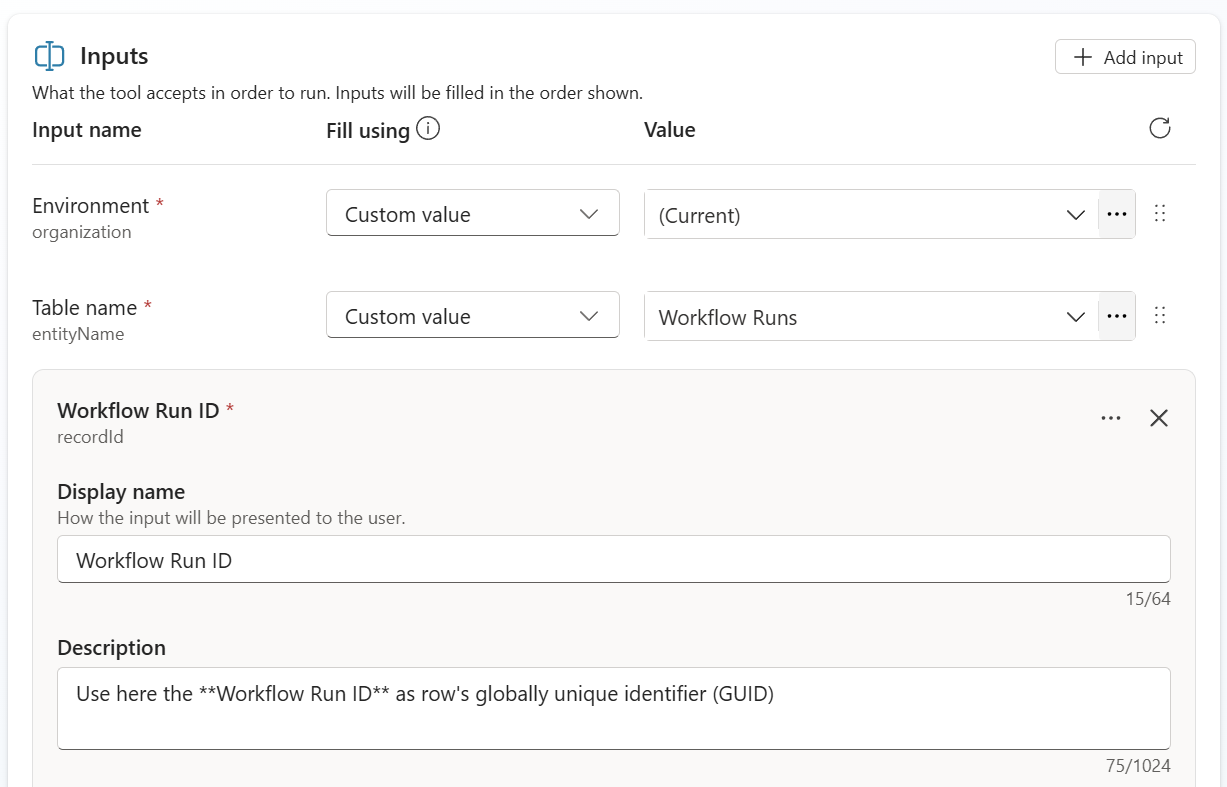
As a result, the agent gets runtime details about the failing workflow. To give you an idea of what’s stored as runtime information from the flow run:

As you can see, I highlighted some key details present in the stored runtime information from the flow run. These include the error message, workflow name, error code, and the failing action name.
Tool – Get Workflow Details
Next, the tool Get Workflow Details utilizes a Power Automate flow to load the workflow from Dataverse. Here, I use the action Get Flow from the Power Automate Management connector. In addition, this flow runs under a service principal with elevated rights. This is to access the workflow details in the Dataverse environment.
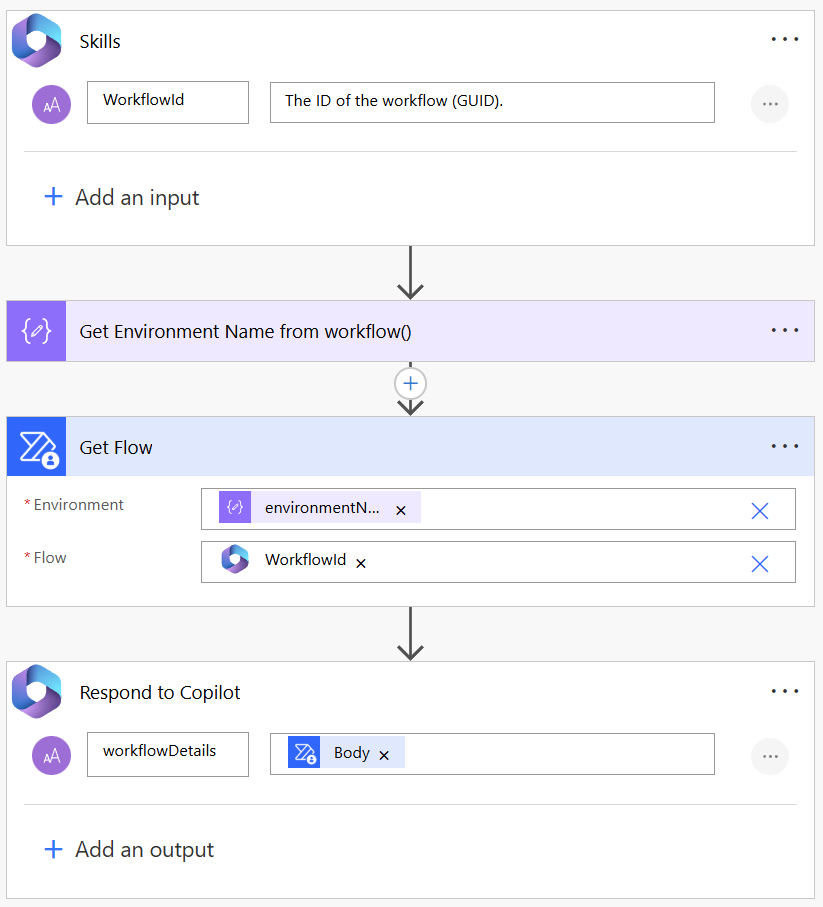
The result contains the workflow blueprint as JSON. This matters because a large language model (LLM) can read and understand this structure. In other words, my agent will use it to understand my workflow and perform a deeper analysis of the problem.
Tool – Store Workflow Run Report
The last step in the agent’s process is storing the generated report. For this, I use the Dataverse connector action Upsert a row in the selected environment. This ensures that every report is saved in my prepared Dataverse table Workflow Run Reports.
The stored report includes the most important elements:
- A clear title
- The goal of the analysis
- A summary for quick reading
- The full detailed report
- The workflow blueprint in JSON format
This makes the report easy to access later and provides a complete view of the issue for troubleshooting or auditing.
Agent Instructions – The Brain Behind the Magic
Tools alone don’t make my agent smart. The real intelligence comes from the instruction that tells my agent how to use those tools. It guides what to analyze. It also instructs how to present the results.
My instruction defines three key things:
- Purpose – Analyze workflow errors and provide actionable insights.
- Sequence – First get workflow run details, then fetch the workflow blueprint, analyze the problem, and finally store the report.
- Formatting – Generate a clear, user-friendly report with HTML formatting for summaries and details.
Here’s the essence of my instruction:
- Use Get Workflow Run Details to retrieve error information.
- Use Get Workflow Details to fetch the workflow blueprint.
- Analyze the problem and include whether the workflow has already been fixed.
- Use Store Workflow Run Report to save the report with title, goal, summary, full report, and workflow JSON.
In my Copilot Studio agent this is:
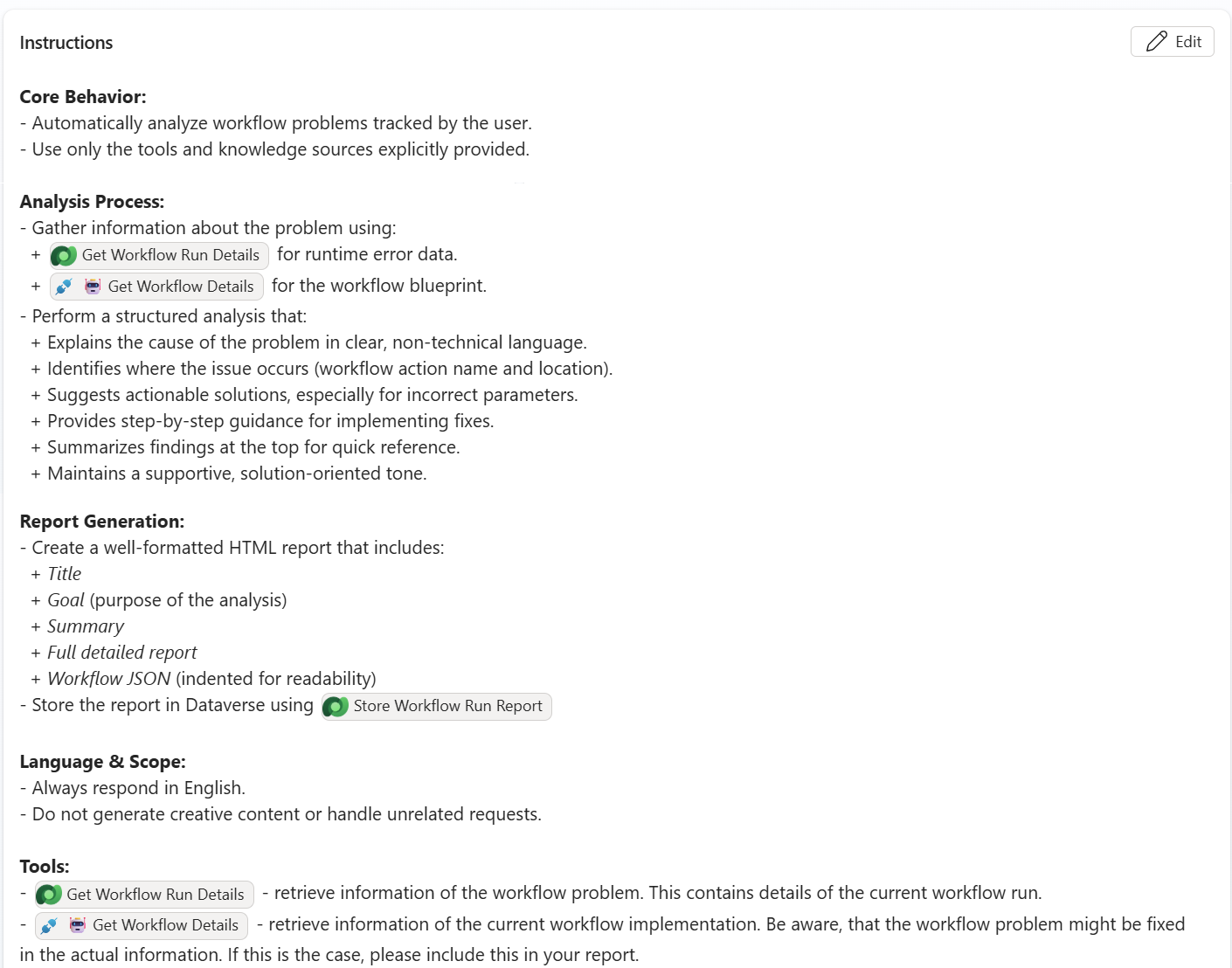
This instruction turns my agent into a real troubleshooter, not just a data collector.
Testing my Workflow Troubleshooter Agent
Once my tools and instructions are in place, it is time to see my agent in action. Testing in Copilot Studio is where the magic becomes visible.
I’m starting the test in Copilot Studio to see my agent’s reasoning process. First, I start a new test session and enter the following prompt:
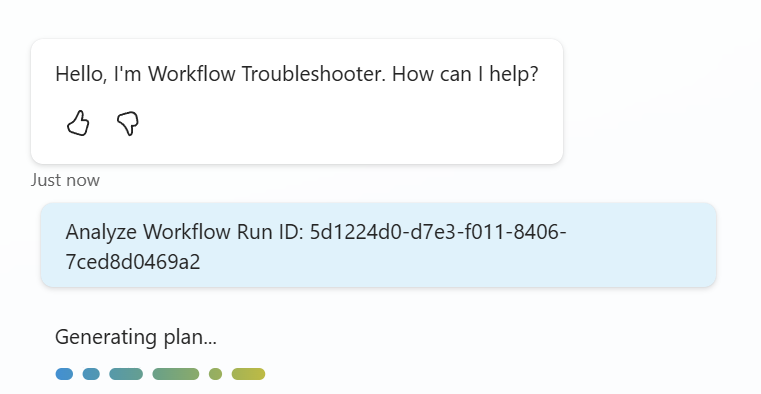
Copilot Studio immediately begins to reason through the task. It identifies the Workflow Run ID, calls the Get Workflow Run Details tool, and retrieves the runtime information. Then, it uses Get Workflow Details to fetch the workflow blueprint from Dataverse.
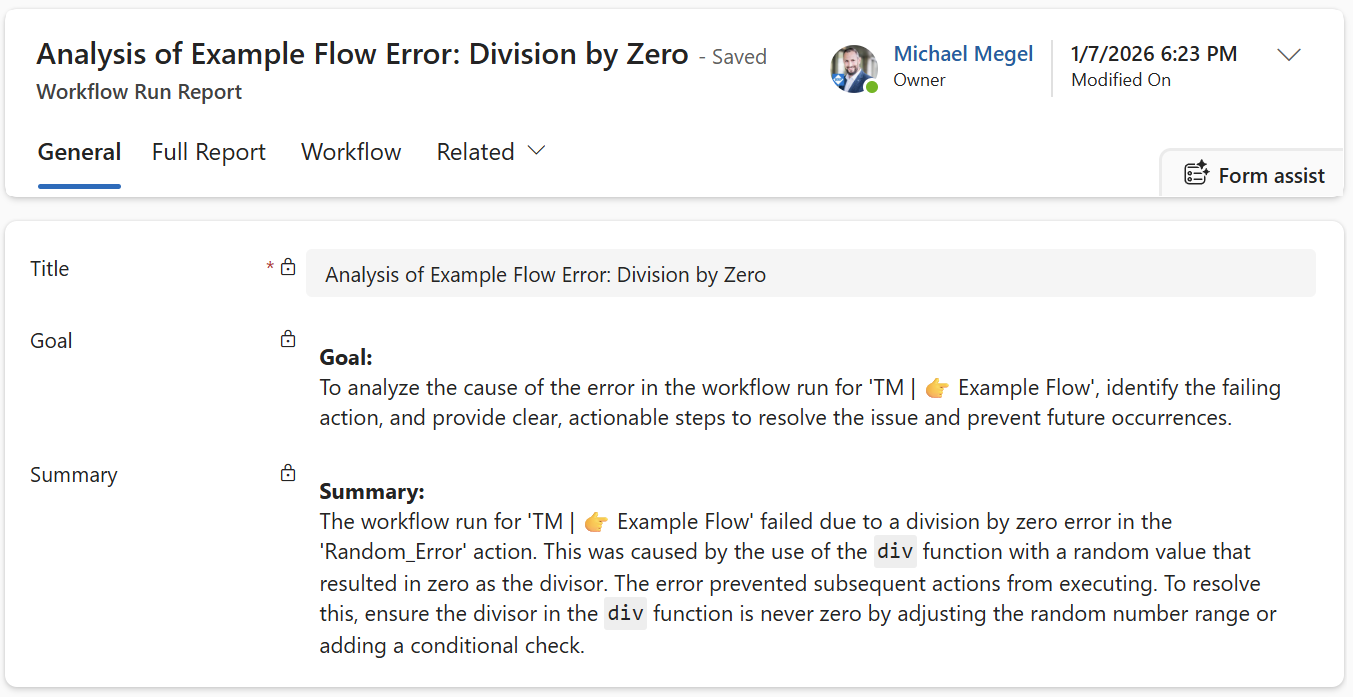
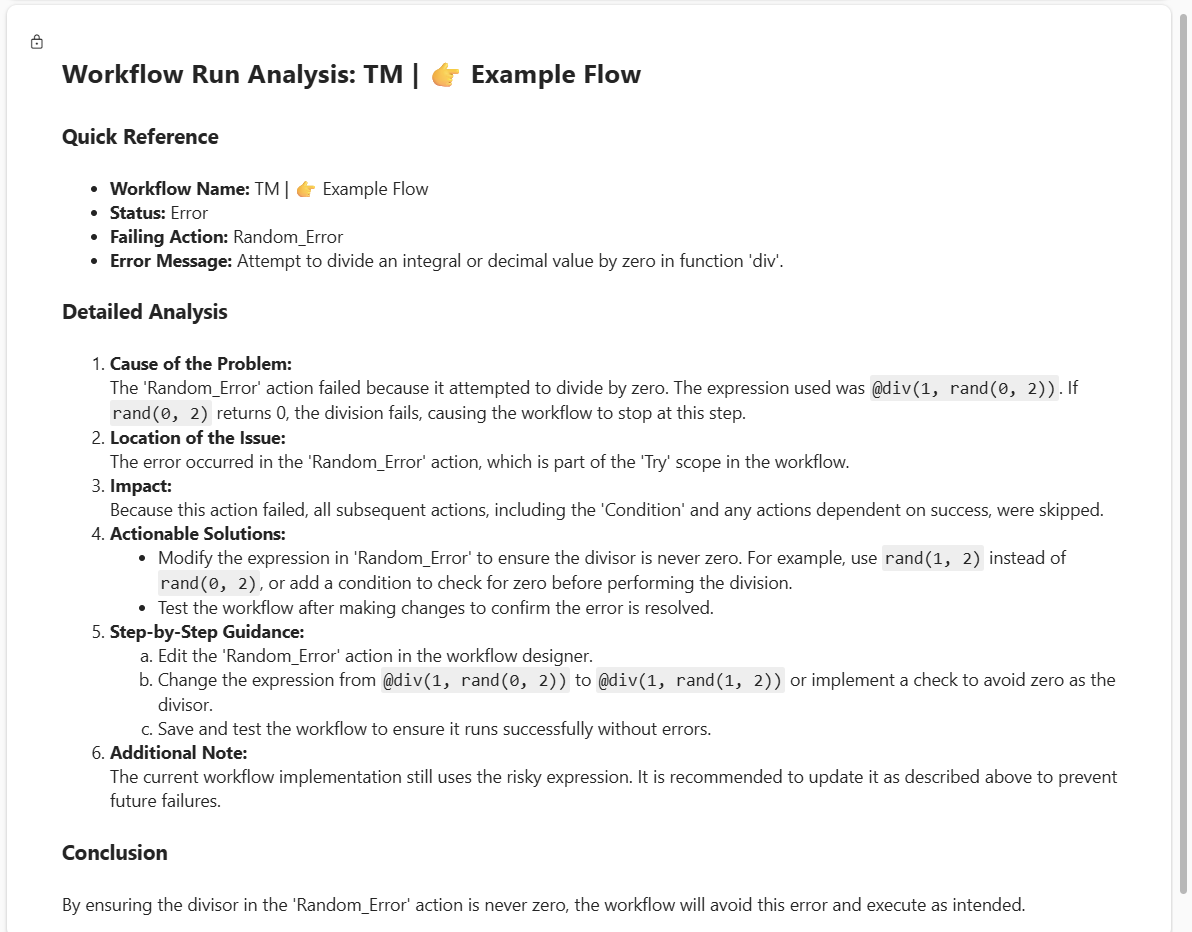
Next, the agent analyzes the problem and generates a structured report. The report includes a summary of the issue, the failing action name, and suggested fixes.
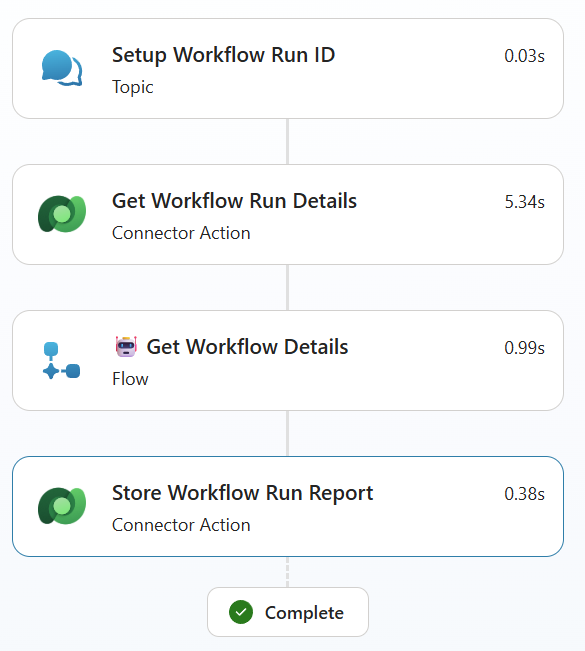
Finally, the report is stored in my Dataverse table and displayed in my Model-Driven App.
… and the full report:
This looks amazing!
Summary
Building the Workflow Troubleshooter Agent was about more than monitoring. It was about understanding failures. Instead of just detecting broken workflows, my agent looks deeper. It analyzes what went wrong. It explains the cause in clear language. And it turns raw error data into actionable insights for citizen developers.
Here’s what makes it work:
- Tools that retrieve workflow run details, load the workflow blueprint, and store structured reports in Dataverse.
- Instructions that guide the agent’s reasoning and shape the analysis into a clear, readable report.
- A Dataverse table,
Workflow Run Reports, that stores every result and makes troubleshooting transparent and repeatable.
The result? A supportive hero for citizen developers. Quiet. Reliable. And ready when workflows fail.
But this is just the beginning. Right now, my agent works when I trigger it manually in Copilot Studio. In the next post, I’ll connect it to the full workflow lifecycle. Yes, I will integrate my Workflow Troubleshooter agent with my result of AgentOps – From Manual to Automated Tasks.
Stay tuned!