Building a Copilot Studio Incident Collector for Microsoft Teams
Your Teams channel is busy. Messages come in constantly – questions, announcements, status updates, and a well known “I have a quick question…” that turns into a long thread. But how do you know which ones are actually incidents?
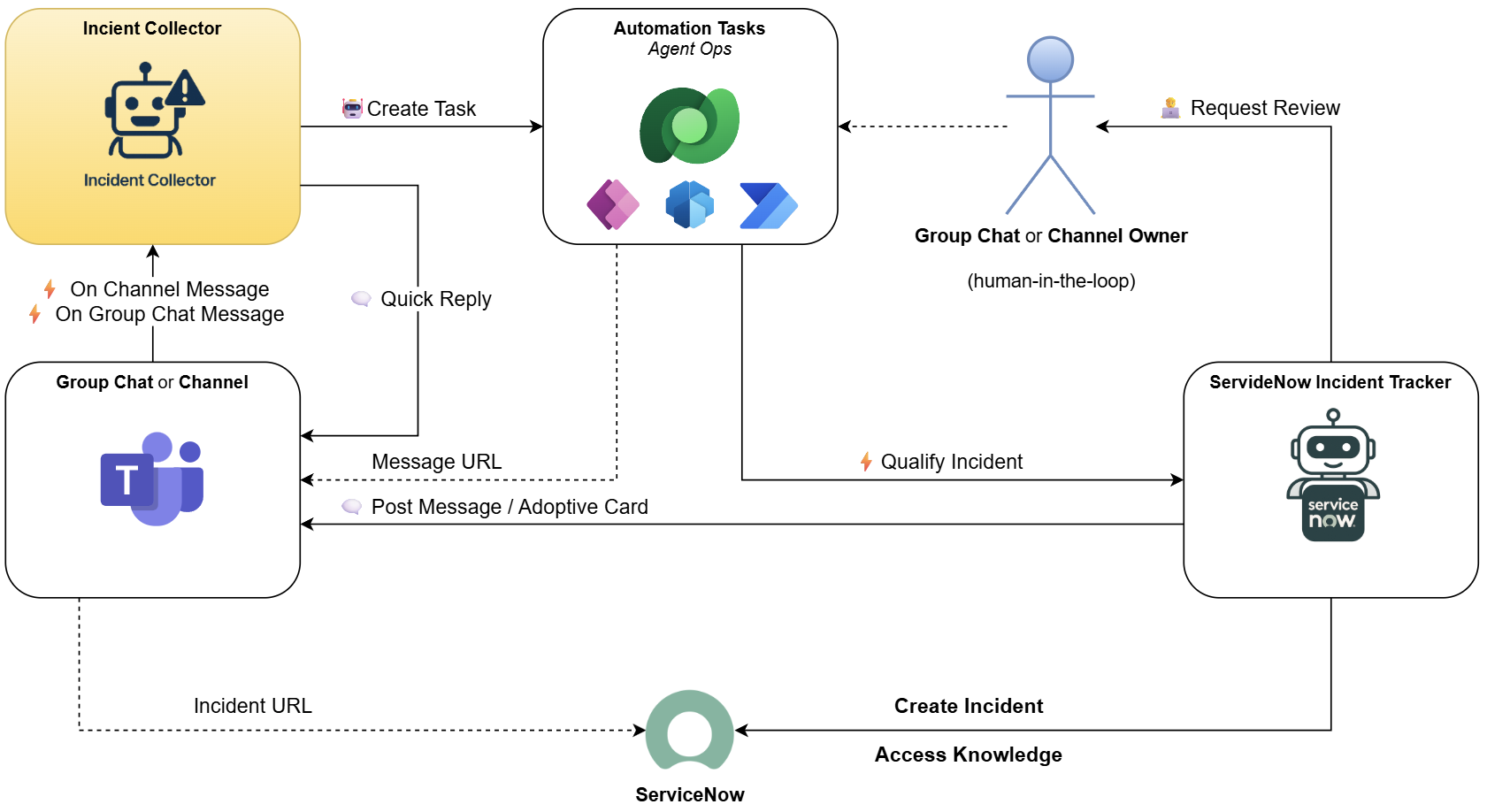
In my previous post, I introduced a multi-agent ITSM system built with Copilot Studio. One agent qualifies incidents, another tracks them in ServiceNow. But before any of that happens, someone needs to watch the channels.
That’s the job of the Incident Collector – my Copilot Studio incident collector with one clear responsibility: classify incoming messages and route the real ones forward.
Let me show you why I built it this way.
Why Focus Matters
When I started building the ITSM agent system, the temptation was clear: just add more logic to the existing agent. One agent, all the things. Simple, right?
Not really.
The problem is the scope. The more you ask a single agent to do, the harder it becomes to maintain, debug, and trust. Every new capability is another thing that can go wrong.
So I followed a simple rule: one agent, one job.
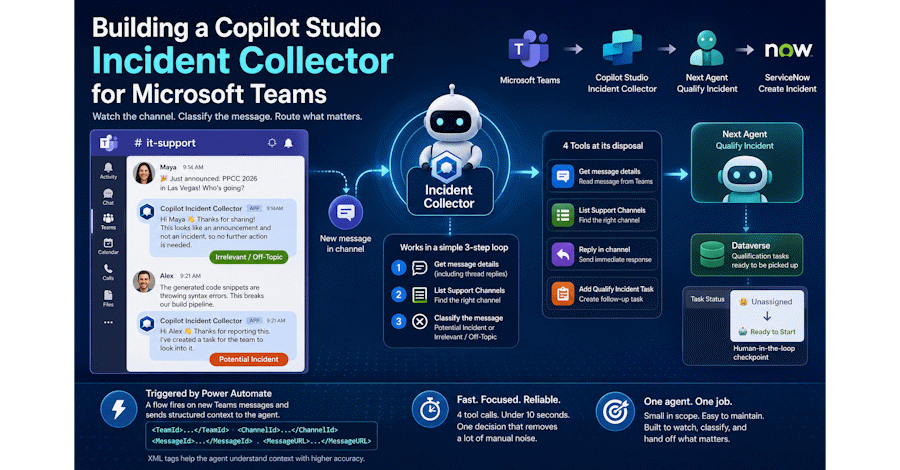
My Copilot Studio incident collector does exactly one thing. It watches a Teams channel, reads incoming messages, decides if they are relevant, and hands off the ones that matter. That’s it. What happens next – qualifying the incident, creating records in ServiceNow – that’s a job for the next agent in the chain.
This separation keeps the Incident Collector small and focused. And a small, focused agent is a reliable one.
Building the Copilot Studio Incident Collector
The Incident Collector is built inside Copilot Studio. Three things define how it works: the instructions, the tools, and the trigger.
The Instructions
The agent follows a simple 3-step loop. First, it retrieves the message details – and not just the initial message. Thread replies often contain additional context that matters for classification. Then, it looks up the relevant support channel. Finally, it classifies the message as either a “Potential Incident” or “Irrelevant / Off-Topic”.
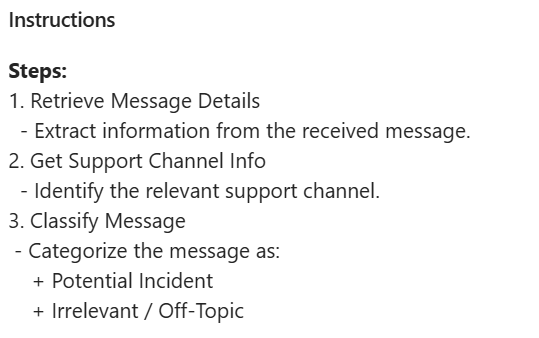
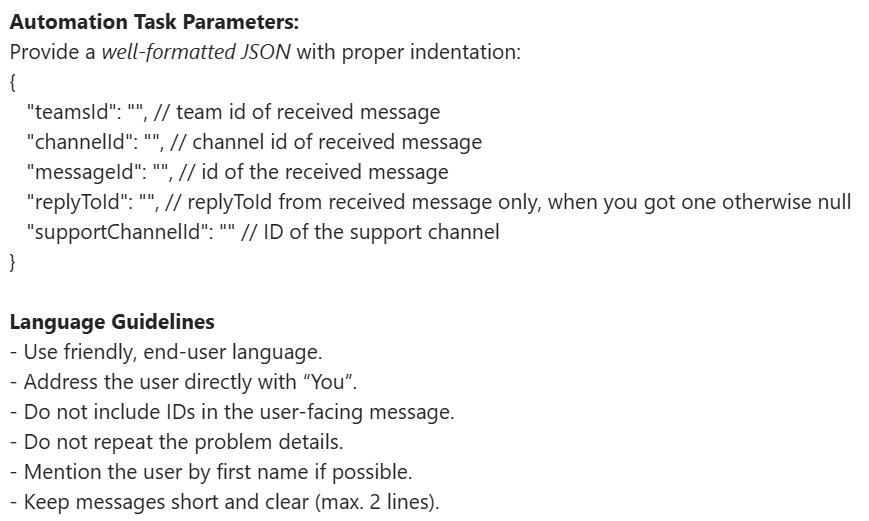
One detail I really like: the language guidelines. I baked them directly into the instructions. The agent addresses users by first name, keeps replies to two lines maximum, and never includes technical IDs in the message. It sounds human – not like an automated system.
The Tools
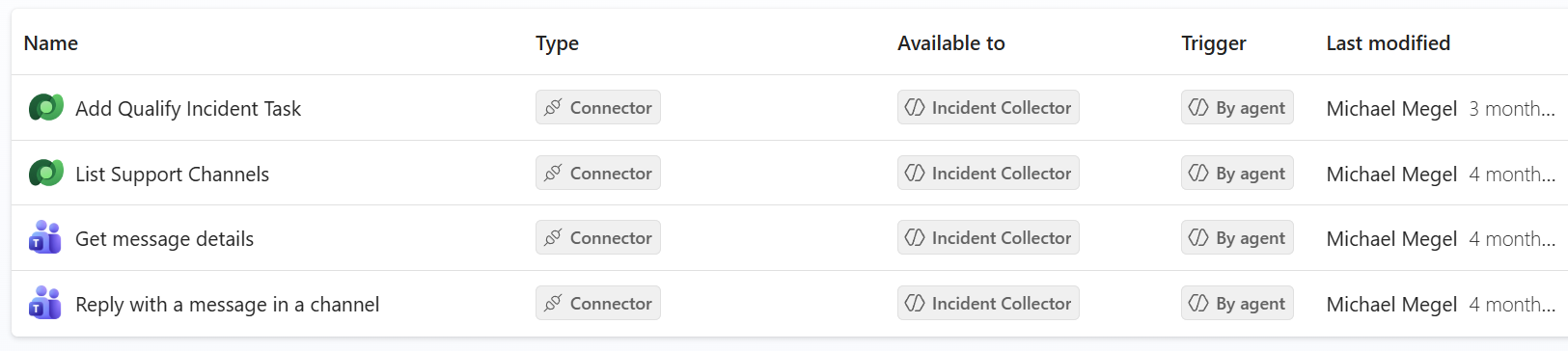
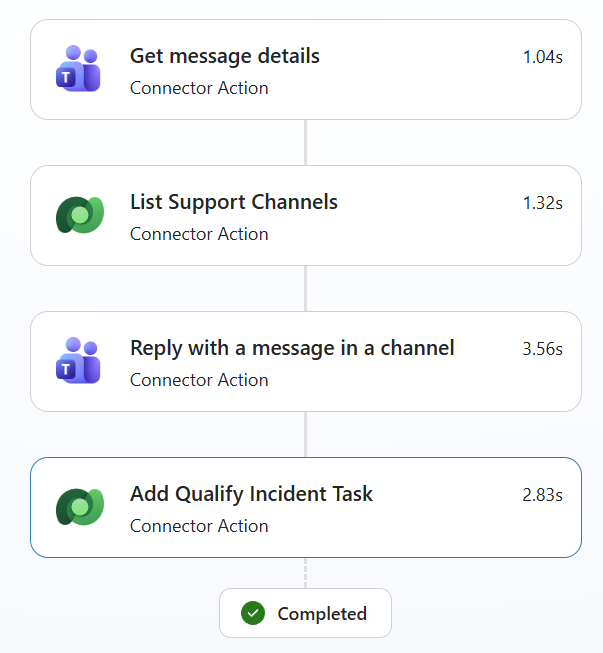
The agent has four connector actions wired up as tools. Each one is set to “By agent” – meaning the agent decides when to call them.
– Get message details – reads the incoming message from Teams
– List Support Channels – finds the right support channel
– Reply with a message in a channel – sends the immediate response to the user
– Add Qualify Incident Task – creates the follow-up task for potential incidents
The Trigger
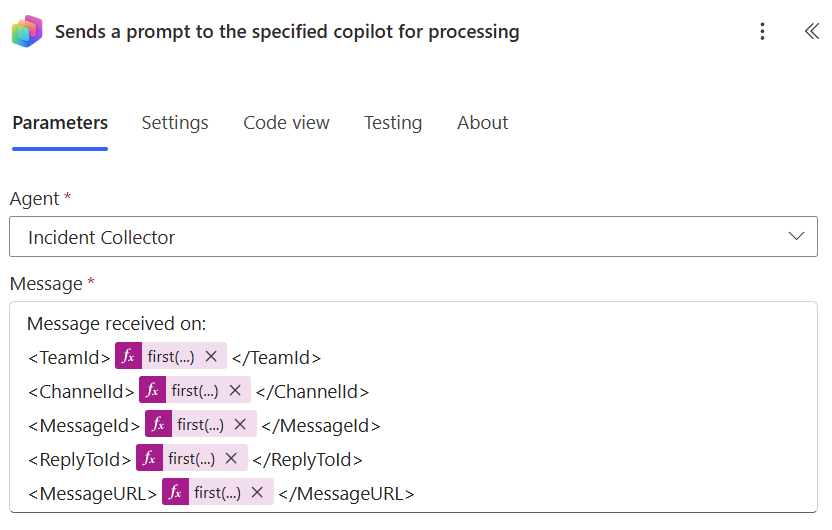
A Power Automate flow fires the agent whenever a new message arrives in the monitored channel. It sends a structured prompt containing the TeamId, ChannelId, MessageId, ReplyToId, and MessageURL.

The corresponding Power Automate action assembles and sends that prompt – as shown below.
The agent receives this context and gets to work immediately.
One thing I deliberately chose: wrapping the prompt values in XML tags like and . Plain key-value pairs work too, but I find that XML tags help the AI model understand the structure and purpose of each value much more reliably. It is a small detail that makes a real difference in how consistently the agent behaves.
Incident Collector in Action
Let me show you two real runs – one for each classification path. For the demo, I used my Support Case Generator to create realistic test messages – a handy agent I introduced in an earlier post.
Example A: Irrelevant Message
Someone posts a conference announcement in the channel – PPCC 2026 in Las Vegas. Exciting news, but definitely not an incident.
The agent reads the message, checks the support channels, and correctly classifies it as irrelevant. Within seconds. Here the sender gets a friendly reply, but in production you might choose to skip the reply for irrelevant messages – it’s up to you.
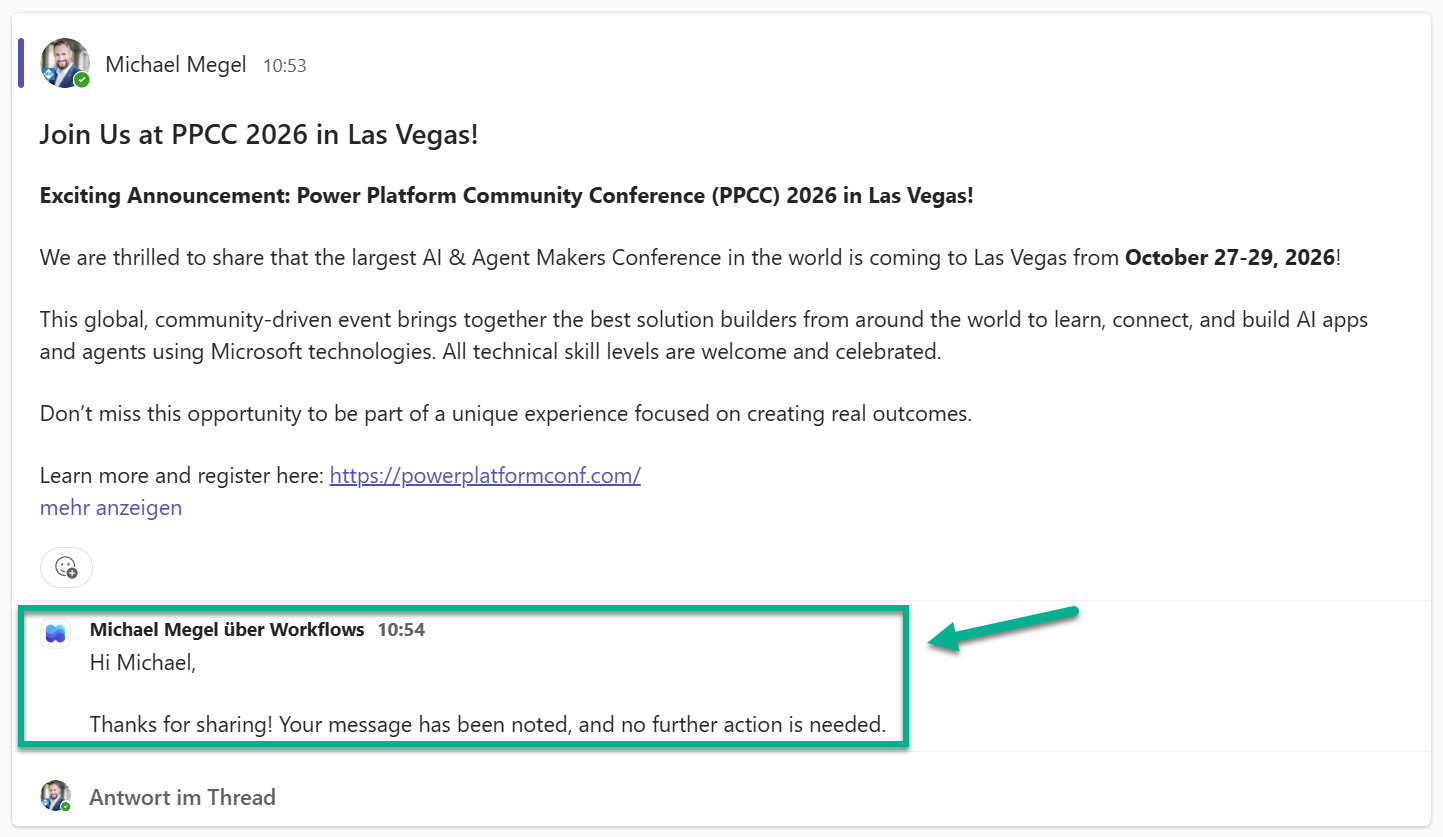
As a result, no follow-up task is created — no noise for my next agent.
Example B: Potential Incident
Now someone reports a real problem – generated code snippets with syntax errors. That one needs attention.
Therefore, the agent classifies it as a potential incident. It replies immediately to acknowledge the report, and creates a qualification task in the background.
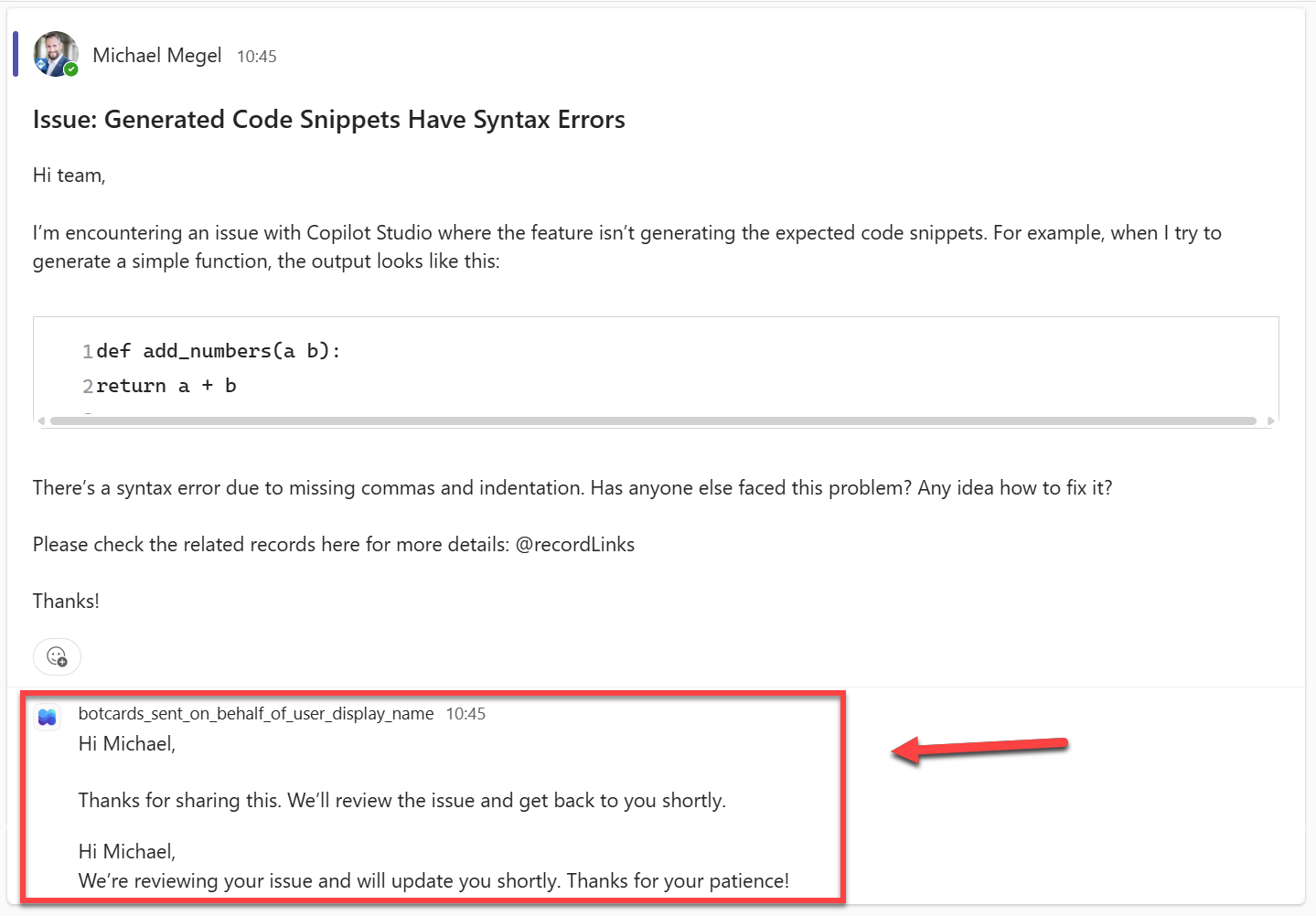
You might notice something: the reply appears twice. That is a known behaviour worth watching. In some runs the agent calls the reply tool more than once. It is harmless, but worth building a guard against in production. But for my demo, I left it as is to show the raw output from the agent.
The created task lands in Dataverse, ready for the next agent to pick up. The task record contains the instruction for the next agent, and – very handy in practice – a direct URL back to the original Teams message so you can navigate there with one click.
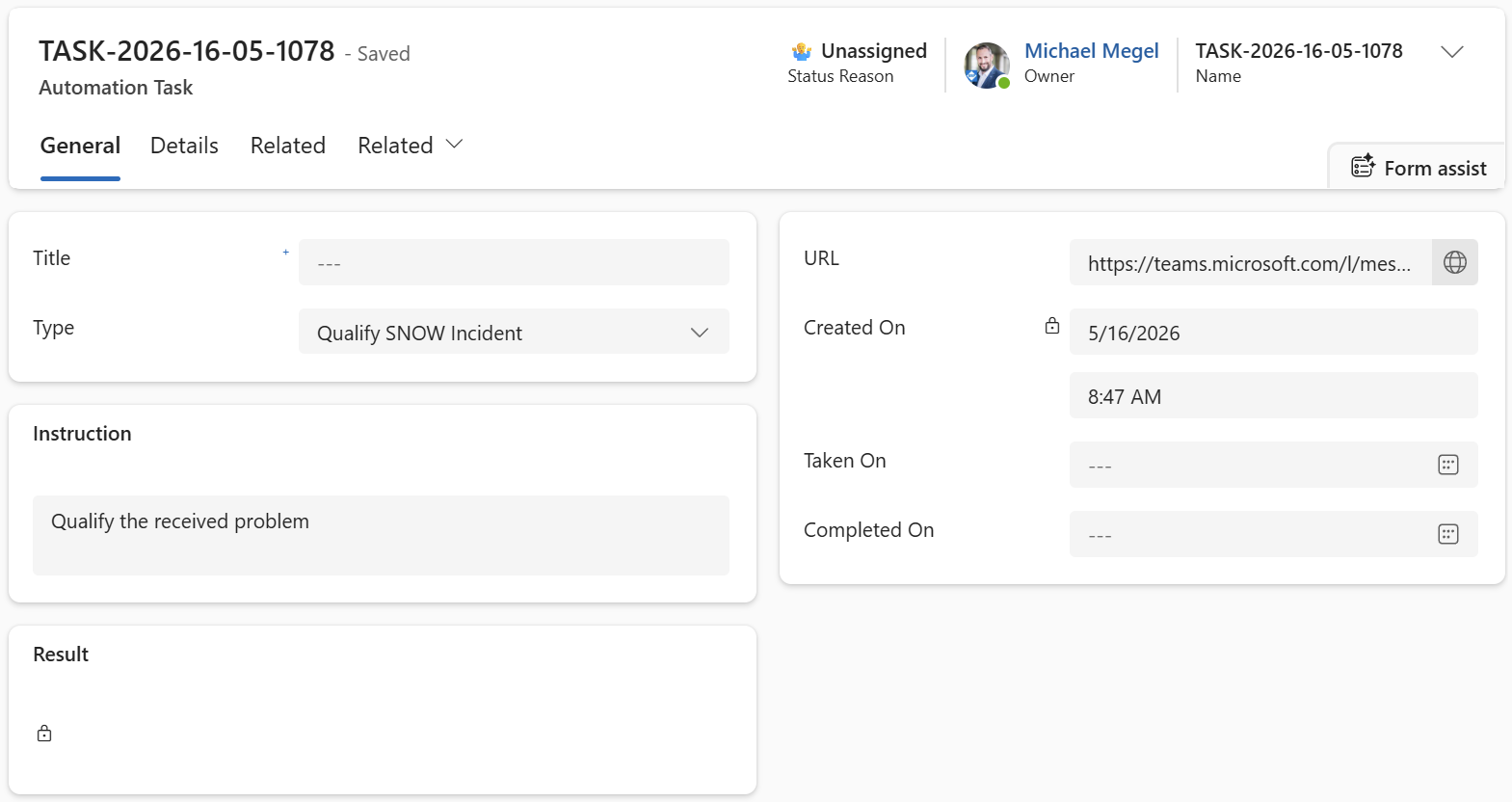
Did you notice the status: “🤷♂️ Unassigned”. This is intentional. A human reviewer can inspect the task first and decide whether to proceed. Once they flip the status to “🤖 Ready to Start”, the next agent picks it up automatically. That is the human-in-the-loop checkpoint built right into the workflow.
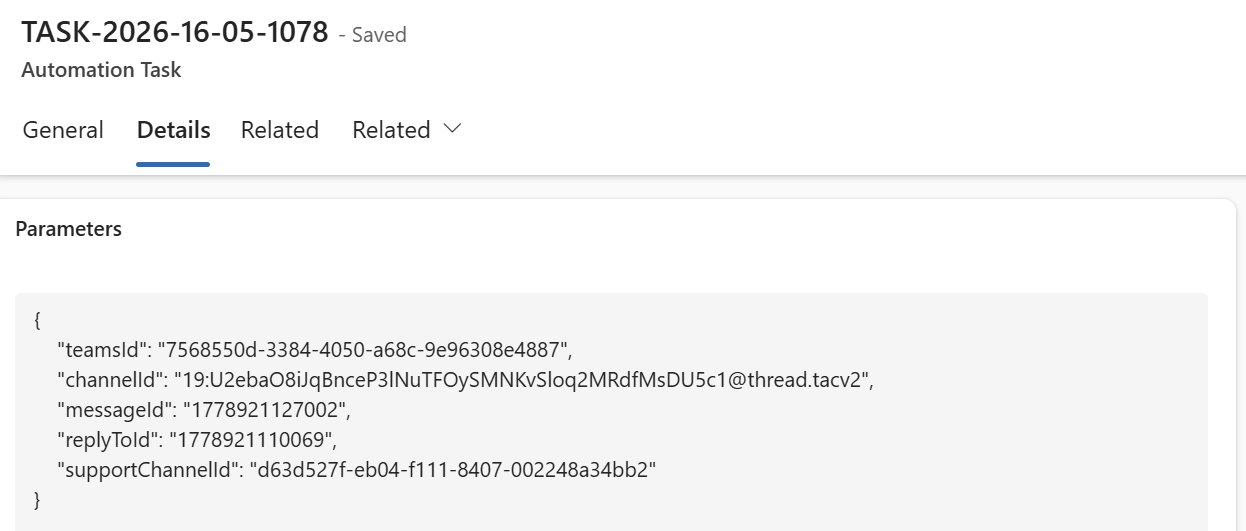
The task also carries the full structured context – teamsId, channelId, messageId, and more – so the next agent has everything it needs without asking twice.
The whole run – four tool calls – completes in under 10 seconds.
Perfect!
Summary
My Copilot Studio incident collector is one of the smallest agents I have built. And one of the most useful.
It does not try to solve everything. It watches a channel, reads messages, and makes one decision: is this worth escalating? That single decision – made consistently, in seconds – removes a lot of manual noise from the process.
Furthermore, the pattern is reusable. You could apply the same approach to any Teams channel where you want automated triage: a helpdesk, a DevOps alerts channel, a customer support group.
The qualification tasks are now sitting in Dataverse, waiting. What happens next is a story for another post. However, I am curious – which channel in your organisation would you put under observation first?