
GitHub Actions OIDC for Azure: No More Expired Secrets
Happy Halloween! 🎃 Let me tell you a horror story. Recently, my pipeline stopped deploying. No code change, no failing test, just a red run. I wondered why, until it clicked: the client secret of my old service principal had expired. A zombie secret, haunting my pipeline. Annoying? Yes. Avoidable? Absolutely. The better way is GitHub Actions OIDC for Azure.
It removes the secret completely. First, GitHub proves who your workflow is with a short-lived token. Next, Microsoft Entra ID checks that token against a trust you configure once. Then Azure hands out an access token that expires within the hour. Nothing to store, nothing to rotate.
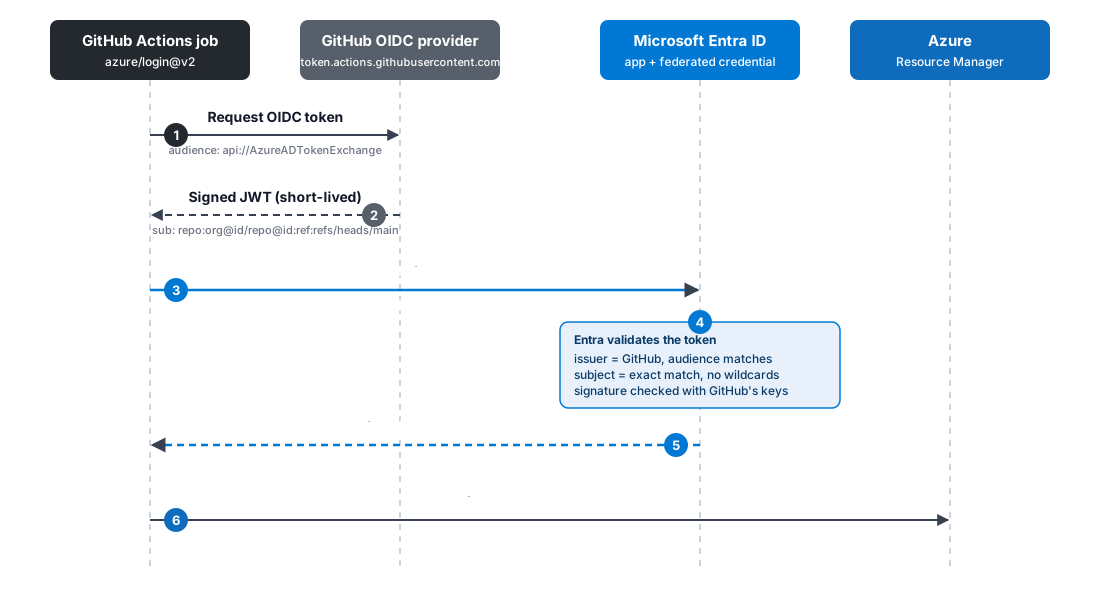
This is the setup behind the pipeline in my Azure foundation post. Here, I walk you through it in three steps: find the subject claim in GitHub, create the federated credential in Entra, and point your workflow at it. Everything happens in the portal, so you see every setting. No cloud background needed.
Let’s start with the one value everything else depends on.
Find the GitHub Subject for OIDC
First things first: we start in your GitHub repository. Before Entra can trust your workflow, you need to know how GitHub identifies it.
What Is the Subject Claim?
Every time your workflow runs, GitHub issues a token. Inside that token sits a sub claim. Think of it as a name badge: it tells Azure exactly which repository, and which branch or pull request, is knocking.
Later, Entra compares that badge with the federated credential you create. If both match exactly, the exchange works. Otherwise, it fails. No wildcards, no “close enough”. Remember this, because it saves you debugging time.
Why Use the Immutable Format?
The classic badge carries names only: repo:owner/repository. For example, someone can delete a repository and create a new one with the same name. Your trust would then accept their workflows. Not great.
The immutable format adds the numeric IDs of the owner and the repository, like repo:org@123456/repo@456789. Names can be reused. However, IDs can’t.
Turn It On
Open your repository and go to Settings > Actions > OIDC. Tick Use immutable subject claim, then save. GitHub now shows the subject prefix for your repository. The yellow parts are the organization ID and the repository ID.
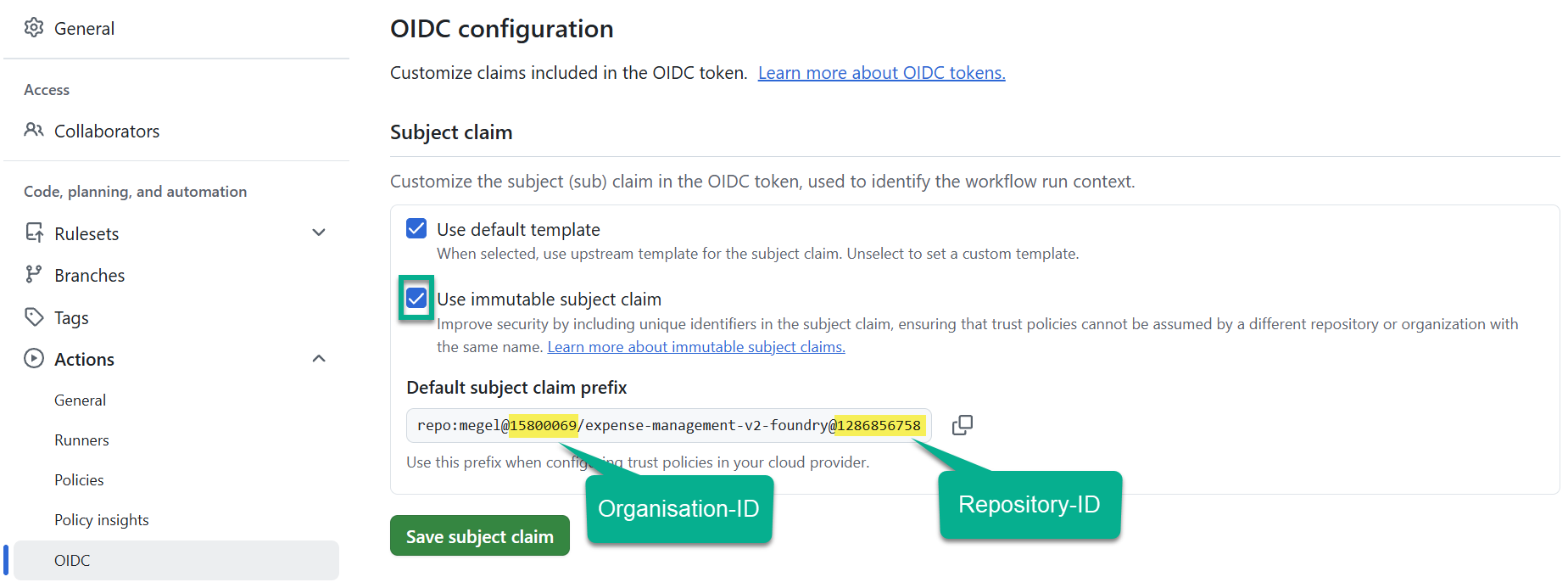
💡 Pro tip: Repositories created after July 15, 2026 use the immutable format by default. Older ones need to opt in. Switch before you create any federated credential. Otherwise, credentials built on the old format stop matching.
You now hold both IDs. In fact, Entra asks for them in the next step. Time to build the trust.
Create the Entra App for GitHub Actions OIDC
Next stop: the Azure portal. Search for Microsoft Entra ID and open it. Here you create the identity your workflow will use, and tell Entra which GitHub workflow it may trust.
How Do You Create the App Registration?
First, go to App registrations and select New registration. Give the app a clear name, keep Single tenant only, and skip the redirect URI. Then select Register.
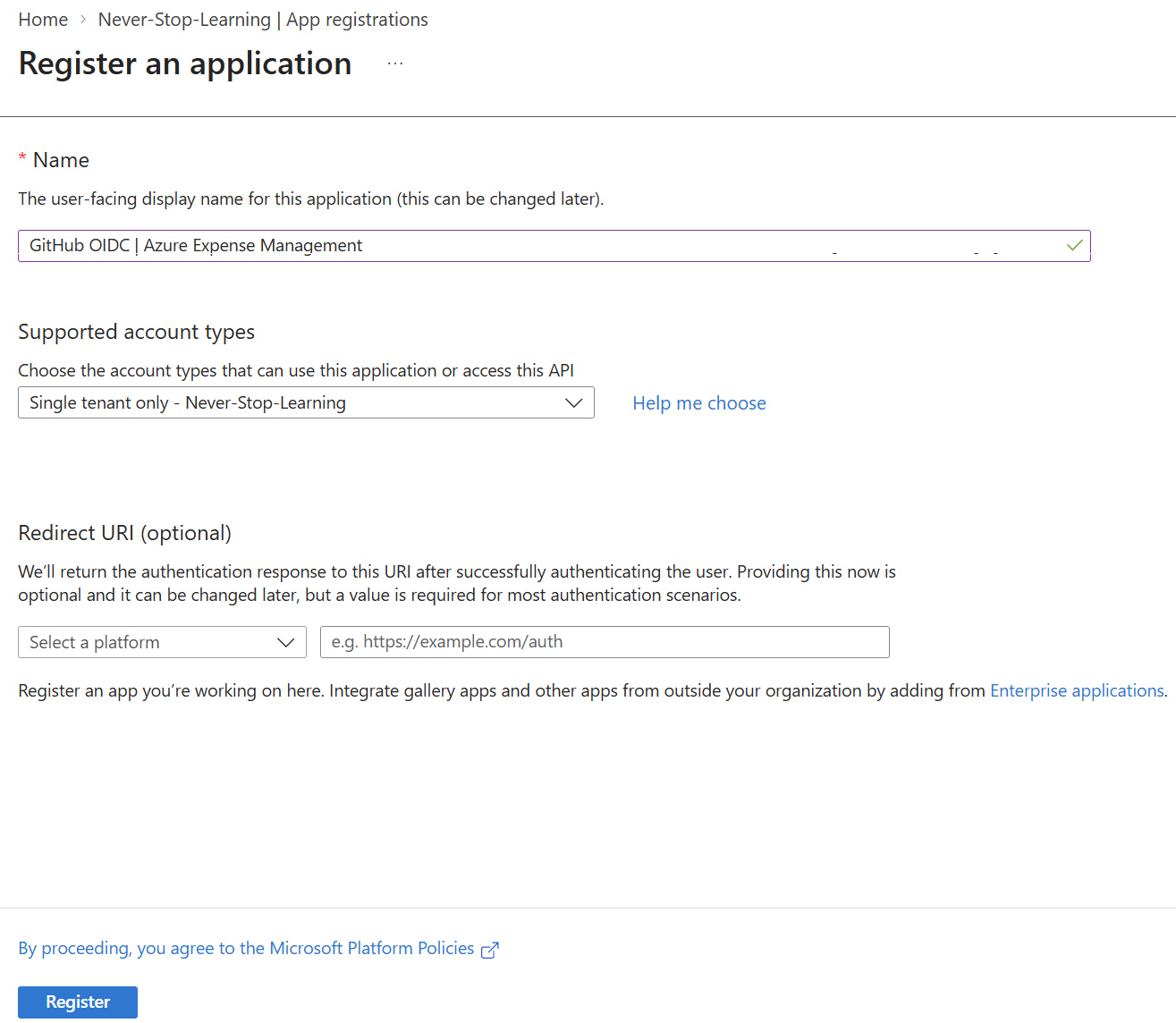
That’s it. No client secret, no certificate. In fact, that is the whole point.
On the Overview page, copy the Application (client) ID and the Directory (tenant) ID. Together with your subscription ID, you need them later when configuring your GitHub workflow.
How Do You Add the Federated Credential?
Open Certificates & secrets and switch to the Federated credentials tab. Notice the counters: Certificates (0), Client secrets (0). They stay that way. Select Add credential.
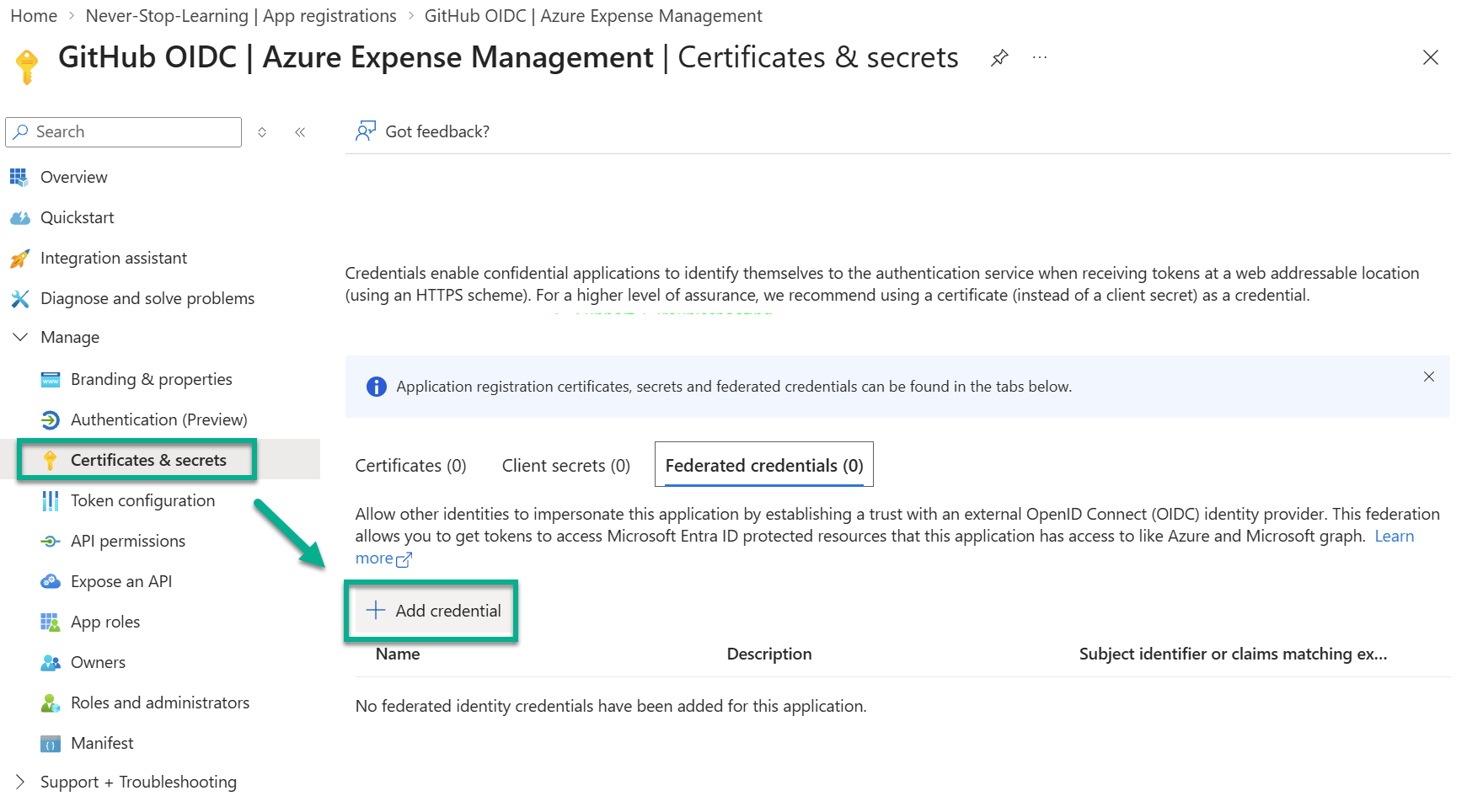
First, pick the scenario GitHub Actions deploying Azure resources.
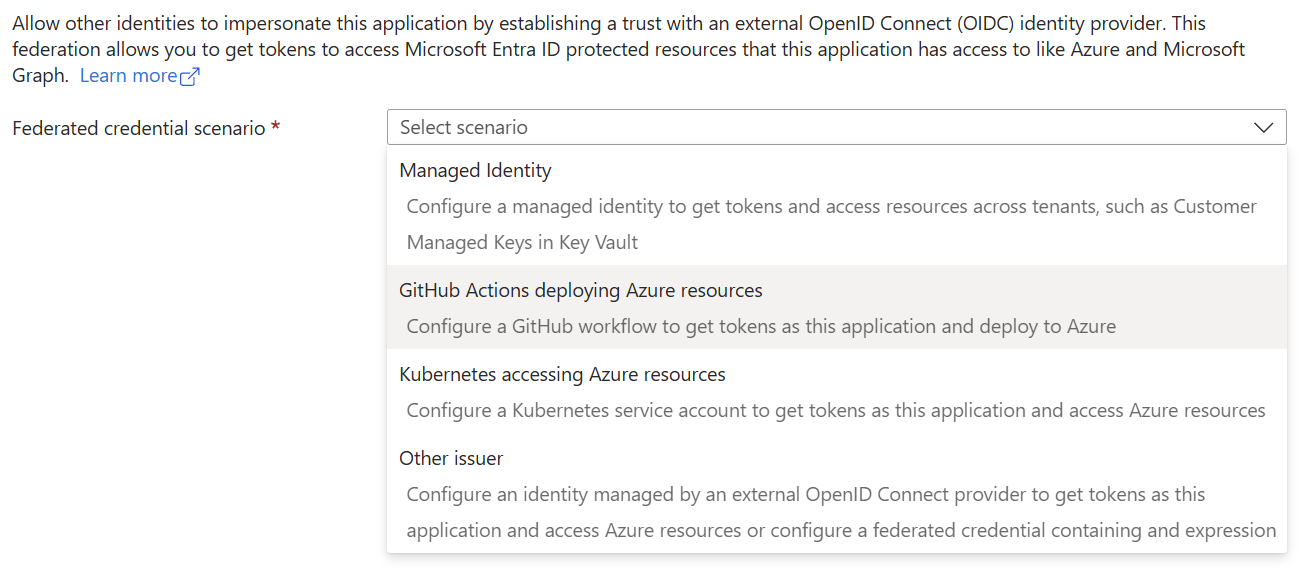
Now the form asks for what you collected in GitHub:
– Organization and Organization ID – Repository and Repository ID – Entity type: Branch, with the branch name main
Entra builds the Subject identifier from your input. Because you entered the IDs, it produces the immutable format from the previous chapter. Leave the Audience at api://AzureADTokenExchange, give the credential a name, and select Add.
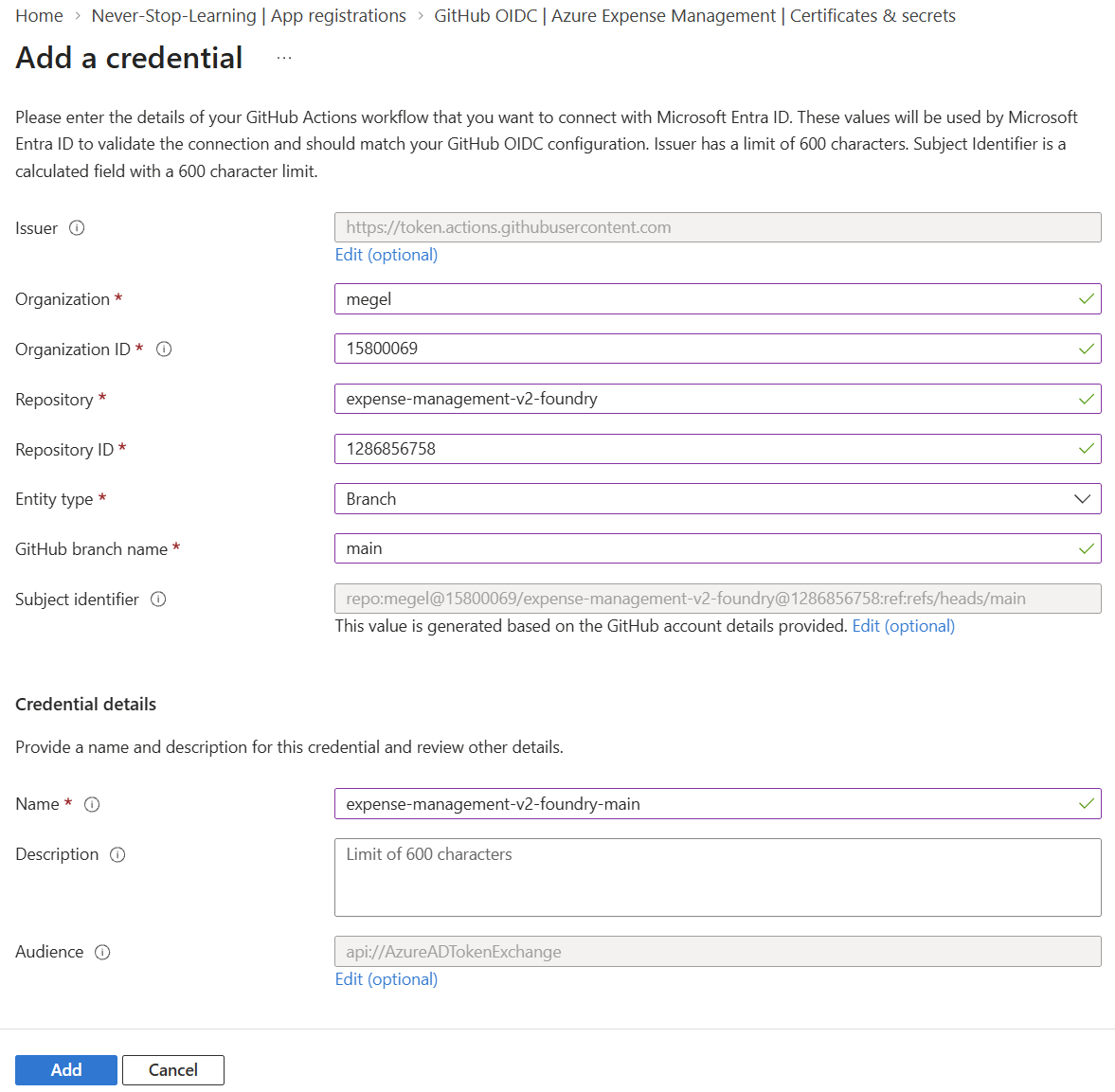
Next, repeat the steps for pull requests. Choose the entity type Pull request instead of Branch. Otherwise, runs triggered by a pull request cannot log in.
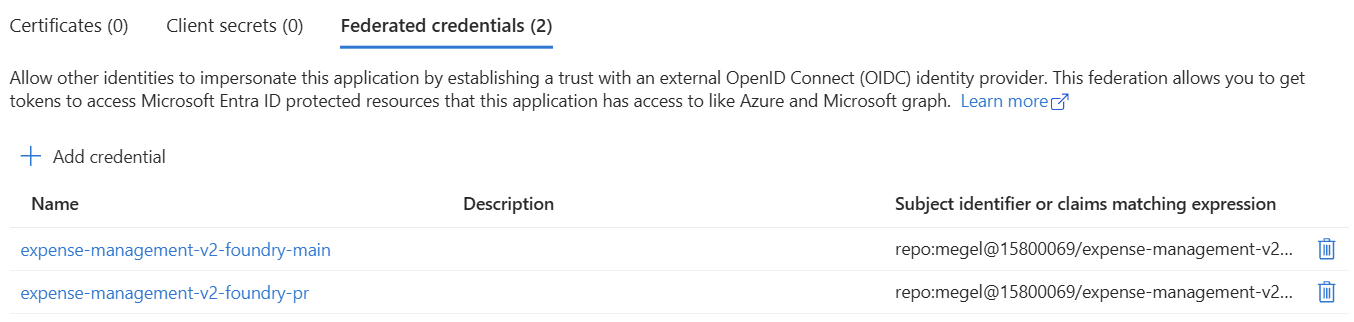
Two credentials, zero secrets.
Branch, Pull Request or Environment?
Here is the catch: the subject must match exactly. A job that uses a GitHub environment sends a different subject, for example ...:environment:prd. A credential for the main branch won’t match it.
Do you want an approval gate before production? Then create credentials with the entity type Environment, one per environment. My own pipeline works this way, with dev and prd. For this walkthrough, the branch setup keeps things simple.
One Last Piece: Azure Permissions
The app can sign in now, but it can’t do anything yet. Assign it the Azure role your deployment needs, on the subscription or resource group. Which role depends on your templates. My deployment creates resources and role assignments, so my app gets Contributor plus a restricted Role Based Access Control Administrator.
Configure GitHub Actions OIDC for Azure
Back to GitHub. Two things are left: tell the workflow which identity to use, and let it request a token.
Which Values Does GitHub Need?
Open your repository and go to Settings > Secrets and variables > Actions. Then create three repository secrets:
– AZURE_CLIENT_ID: the application (client) ID of your app – AZURE_TENANT_ID: your directory (tenant) ID – AZURE_SUBSCRIPTION_ID: the subscription you deploy to
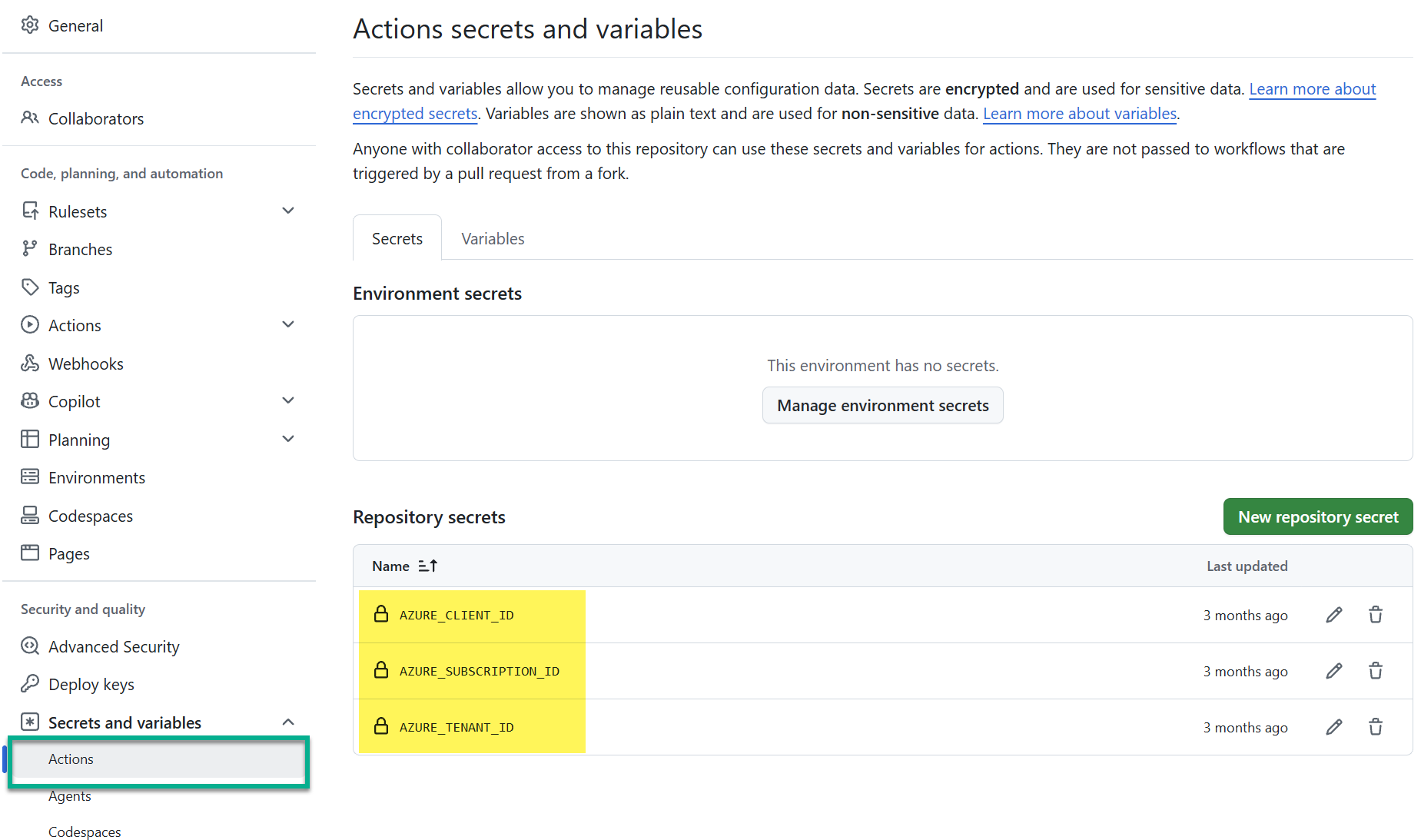
Wait, secrets? Yes, but look closely. These are identifiers, not credentials. There is no password in this list. Without a token from your matching workflow, the three IDs open nothing. Microsoft’s guide stores them as secrets, and so do I. Instead, treat them as configuration you don’t need to share.
💡 Pro tip: In a public repository, use environment secrets instead. A job can’t read them until a required reviewer approves.
What Does the Workflow Look Like?
Two settings do the work. First, the job needs permission to request the OIDC token:
permissions:
  id-token: write   # lets the job request a token from GitHub
  contents: read
This permission does not grant write access to your repository. Instead, it only allows the token request. Second, the Azure login step uses the three IDs:
- name: Azure login (OIDC)
  uses: azure/login@v2
  with:
    client-id: ${{ secrets.AZURE_CLIENT_ID }}
    tenant-id: ${{ secrets.AZURE_TENANT_ID }}
    subscription-id: ${{ secrets.AZURE_SUBSCRIPTION_ID }}
Notice what is missing: a client-secret input. Here is how it looks in my deployment workflow:
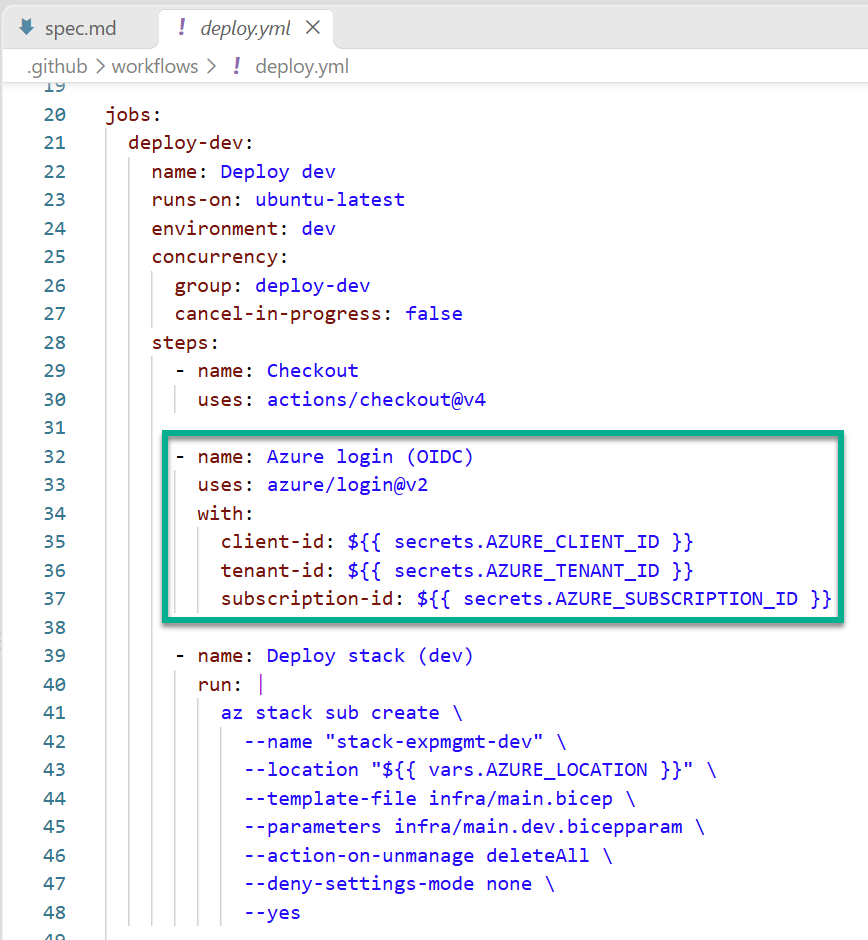
Behind the scenes, the action follows the flow from the diagram. It requests the token, exchanges it at Entra, and signs in. After that, every az command in the job runs as your app. My next step deploys the Bicep template from the Azure foundation post as a deployment stack.
Does It Work?
Push to main or start the workflow manually. Then open the run and check the Azure login (OIDC) step. It turns green without any stored password. The token lives only for this run.
⚠️ Warning: If the login fails, read the error message closely. Entra reports the subject it received. Compare it character by character with the subject of your federated credential. Branch name, organization ID or repository ID are the usual suspects.
Summary
That’s the whole setup. You found the immutable subject claim in GitHub, created an Entra app with federated credentials, and pointed your workflow at it with three IDs and id-token: write. The result: GitHub Actions OIDC for Azure deploys without a stored password. No password also means nothing that can expire or leak. My pipeline can’t die on an expired client secret anymore. No more zombies.
Still have a pipeline with a client secret? Try this setup there, then bury the secret for good. 🪦 The Microsoft Learn guides on Azure Login with OpenID Connect and trusting an external identity provider cover more scenarios. In addition, the GitHub OIDC reference explains every claim in the token.