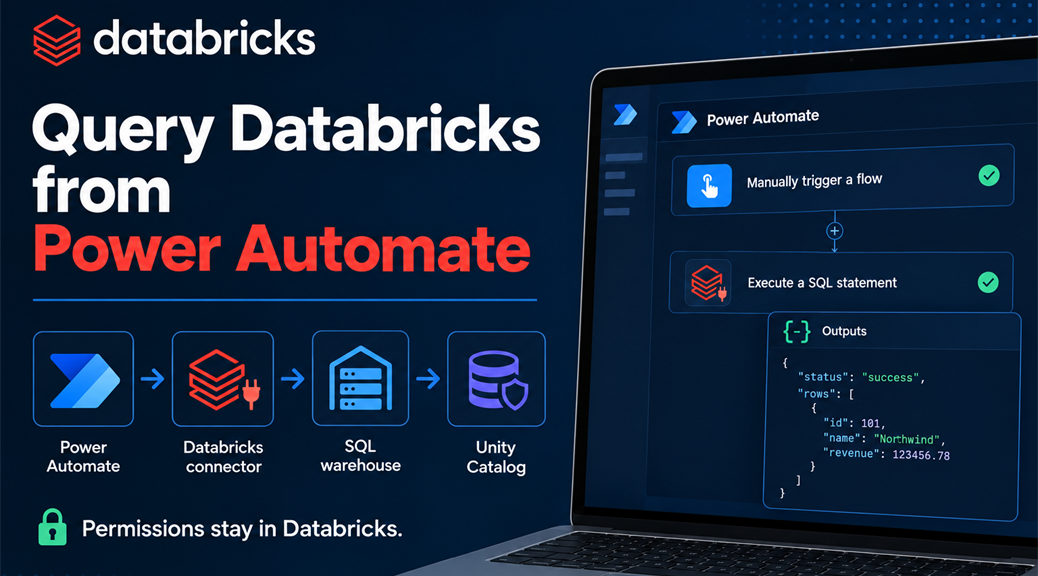
Query Databricks from Power Automate with the Databricks Connector
In my last post on document extraction with Genie Code, Genie turned my receipts into a clean table in Unity Catalog. Nice. But a table nobody can reach is just a fancier file, and my flows and apps cannot see it yet. Time for the Power Automate Databricks connector.
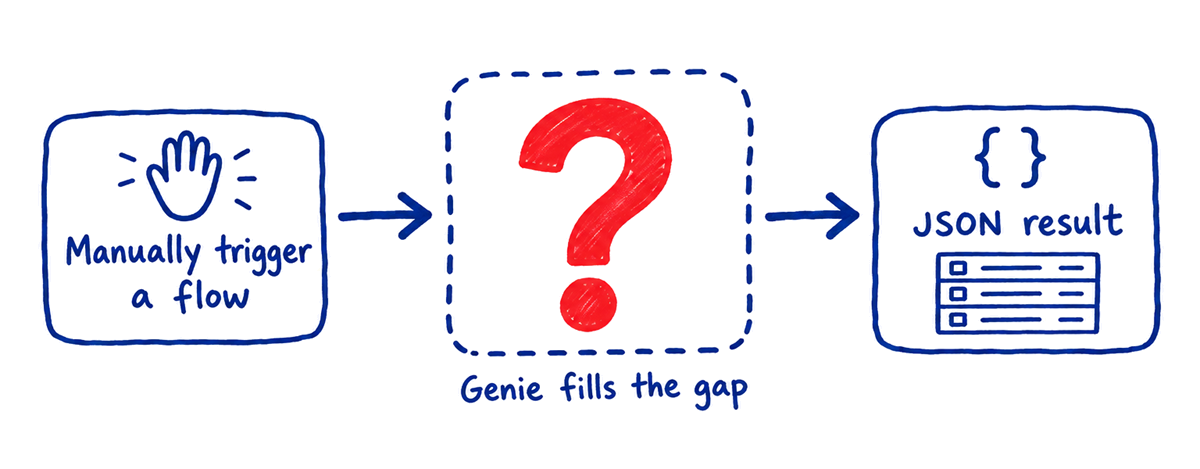
The good news: it is a standard connector, already part of Power Platform. It runs SQL on your SQL warehouse and hands the result back as JSON. You don’t need a custom connector or an HTTP action with a hand-made token.
Today I connect Power Automate to my Databricks Free Edition workspace and run one SQL statement. Genie writes the SQL for me. Then the flow gets my expense rows back, and it only sees what my Databricks permissions allow.
Create the Databricks Connection
Before the flow can run any SQL, it needs a connection. You set it up once and reuse it in every flow. All you need is three values and one sign-in.
Step 1: Copy the connection details from your SQL warehouse
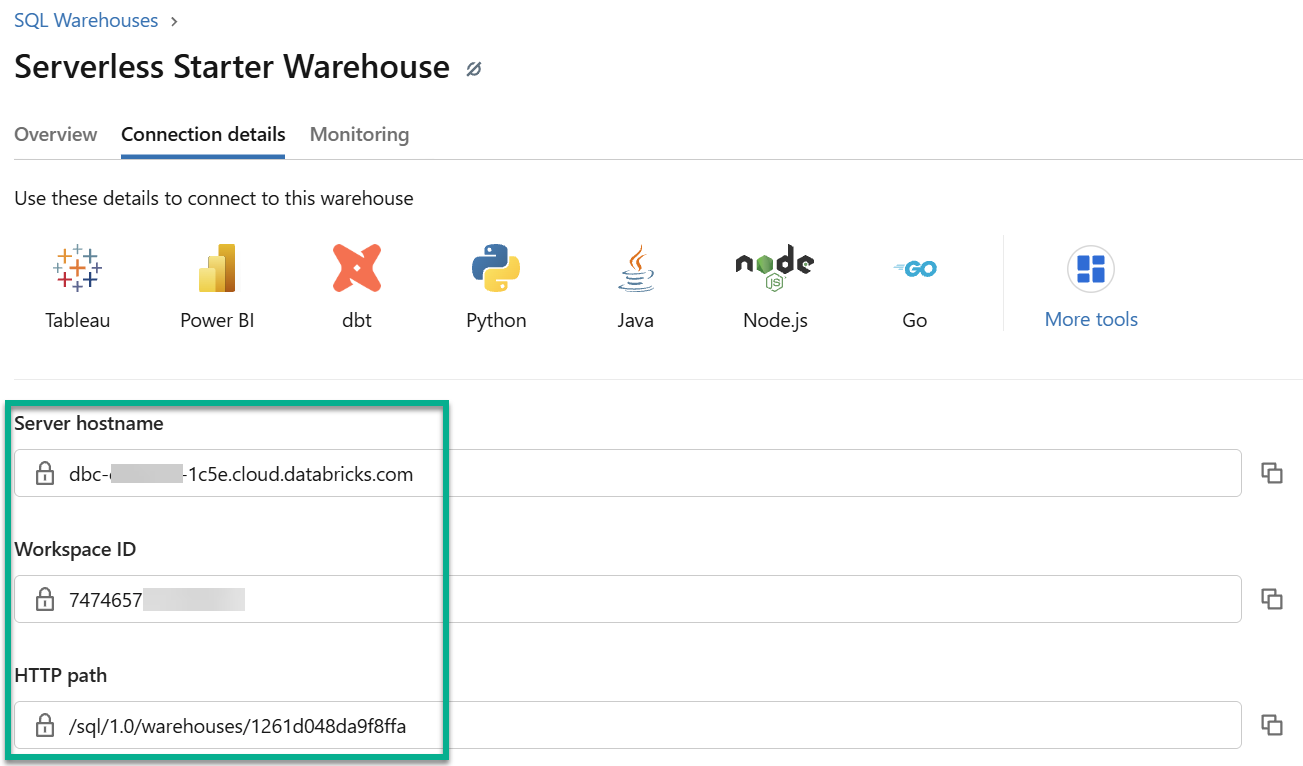
In Databricks, open SQL Warehouses and select your warehouse. I use the Serverless Starter Warehouse that comes with Free Edition. Then switch to the Connection details tab and copy the Server hostname, the HTTP path and the Workspace ID.
Step 2: Add the Power Automate Databricks connector
You can create the connection in two places. The better way is a solution: add a connection reference for the Databricks connector. Your flows use the reference, so you can point it to another connection when you move the solution to test or production. The quick way is directly in a flow. Add a Databricks action, and Power Automate asks for a new connection.
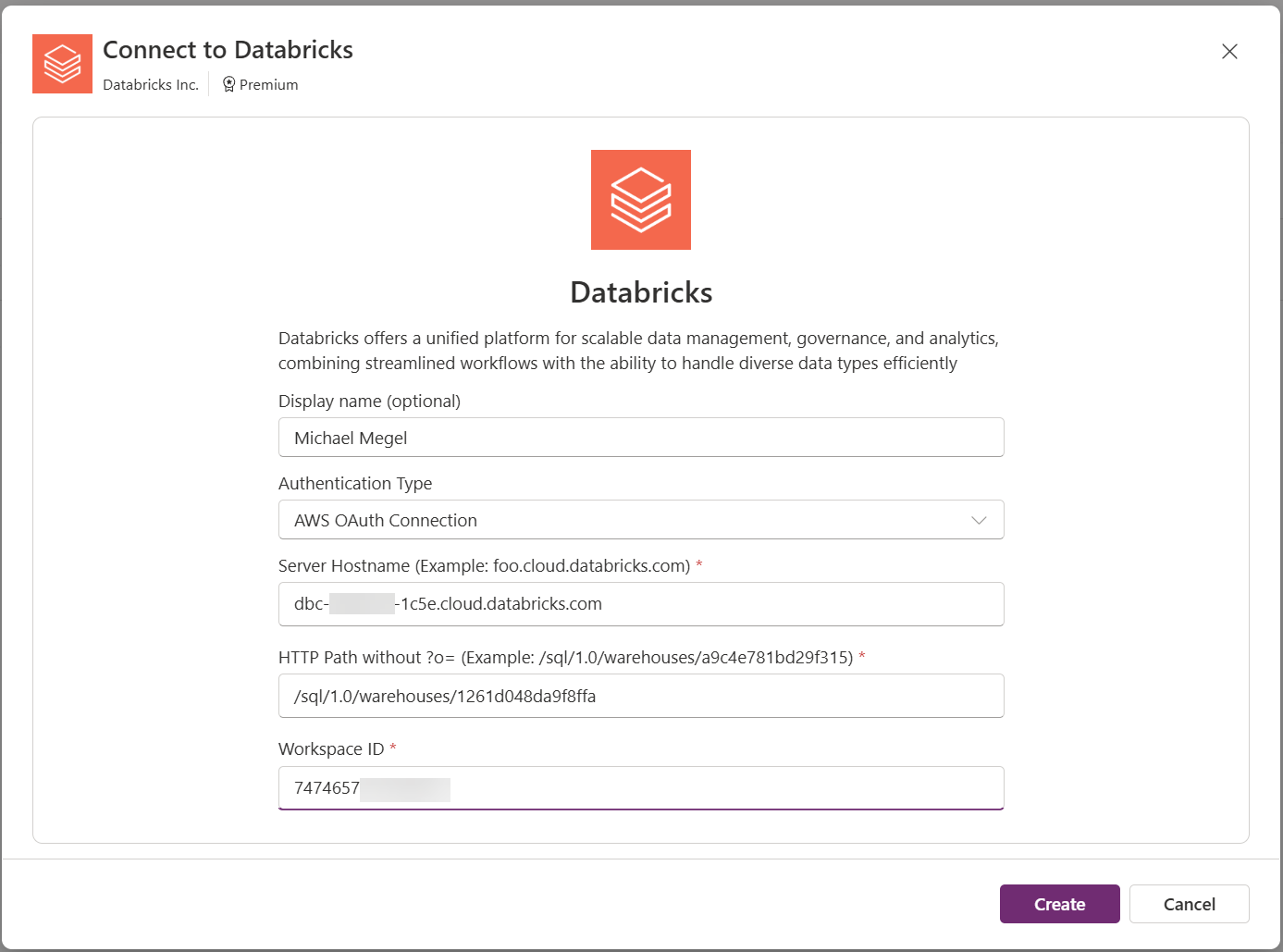
Either way, you give the connection a display name and pick the authentication type. Free Edition runs on AWS, so I choose AWS OAuth Connection. On Azure Databricks, you use the Azure Databricks connector and sign in with Microsoft Entra ID instead. The actions look the same.
Then paste your three values into the dialog.
> Note: This is a Premium connector. Your flow needs a Power Automate Premium license.
Step 3: Authorize the connector
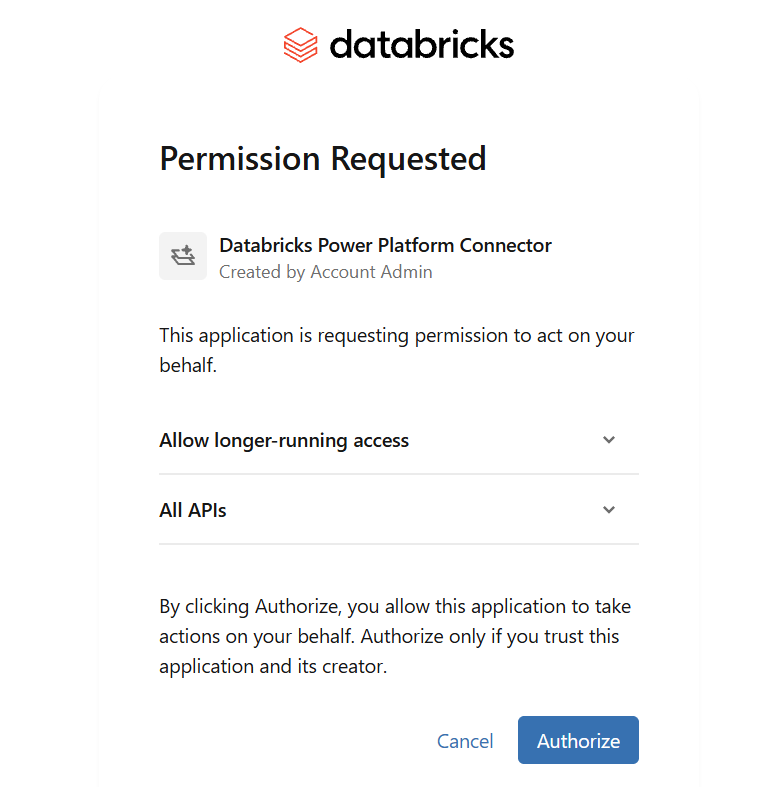
Click Create. A Databricks sign-in window opens, and after you log in, you see a consent screen for the Databricks Power Platform Connector.
Allow longer-running access lets the flow keep working after you close the browser. All APIs means the connector may call Databricks APIs on your behalf. That last part matters: the flow runs with your rights in Unity Catalog, not more.
Click Authorize and you are done.
The connection is ready. Now the flow needs a question to ask.
Hey Genie, How Do I Query This from Power Automate?
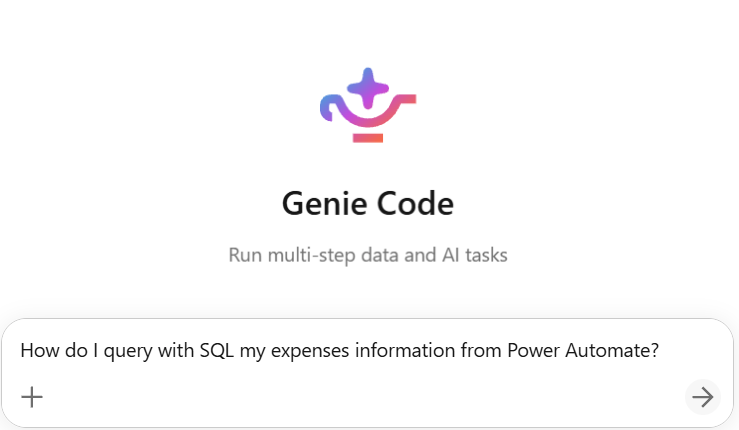
The connection exists. Now the flow needs a question for Databricks. I could write that SQL myself, but I won’t. Many citizen developers have never written a line of SQL, and they should not have to learn it first. AI can close that gap. So I asked Genie.
Ask Genie for the SQL
Genie already knows my catalog, so a short prompt is enough.
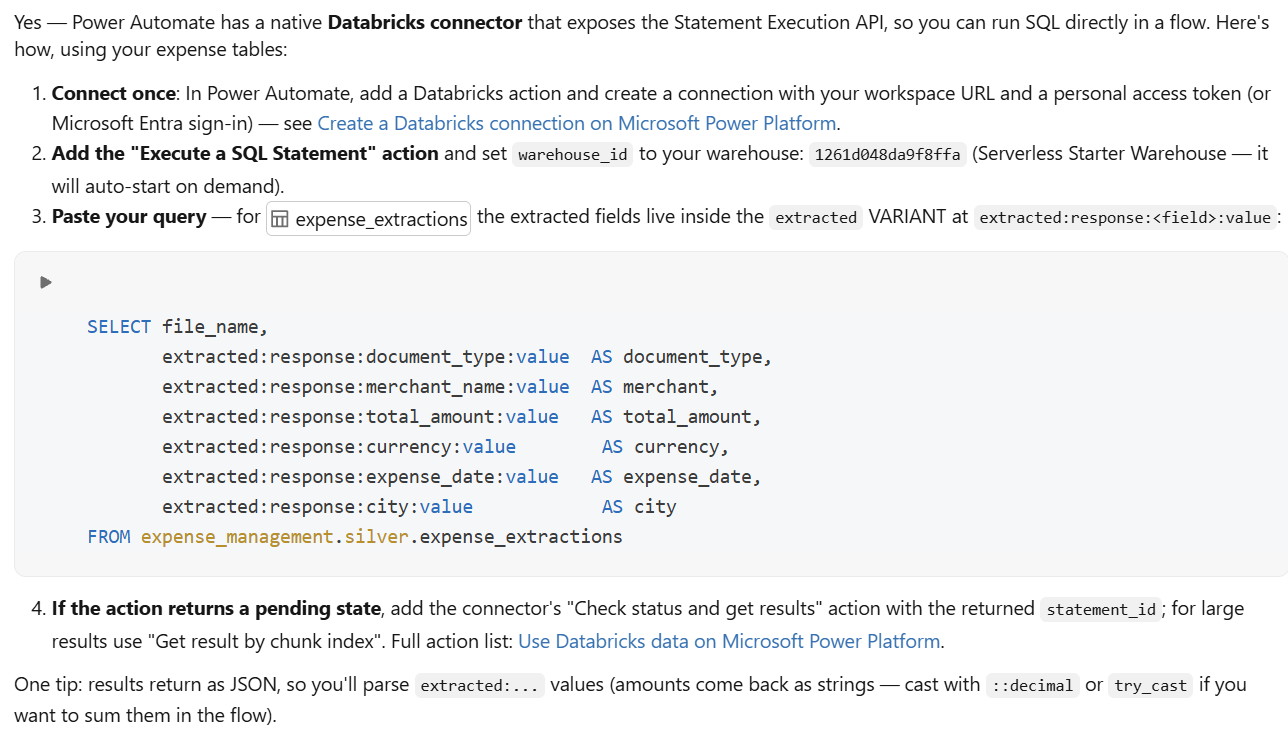
The answer had everything I needed: the connector, the action, my warehouse ID and a ready-made query for expense_management.silver.expense_extractions.
SELECT file_name,
       extracted:response:document_type:value AS document_type,
       extracted:response:merchant_name:value AS merchant,
       extracted:response:total_amount:value  AS total_amount,
       extracted:response:currency:value      AS currency,
       extracted:response:expense_date:value  AS expense_date,
       extracted:response:city:value          AS city
FROM expense_management.silver.expense_extractions
Remember the extracted column from the last post? Its fields sit in a nested structure. The colon syntax walks down that structure, and :value picks the actual content. The Databricks docs explain the path syntax in Query JSON strings.
Add the Execute a SQL statement action
Back in Power Automate, I start with a manual trigger and add a Databricks action. The connector offers a handful of them. Some check the status of a statement, some fetch large results in chunks, and a few start Databricks jobs.
For now, I need Execute a SQL statement.
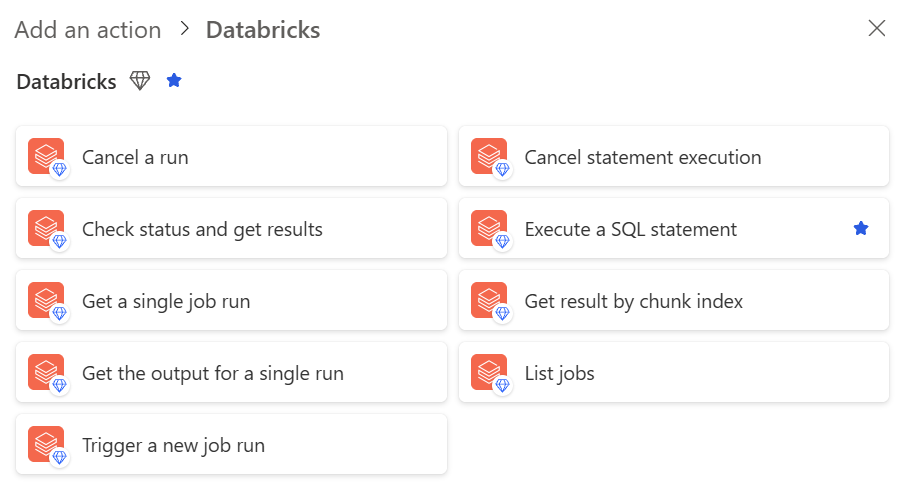
Configure the action
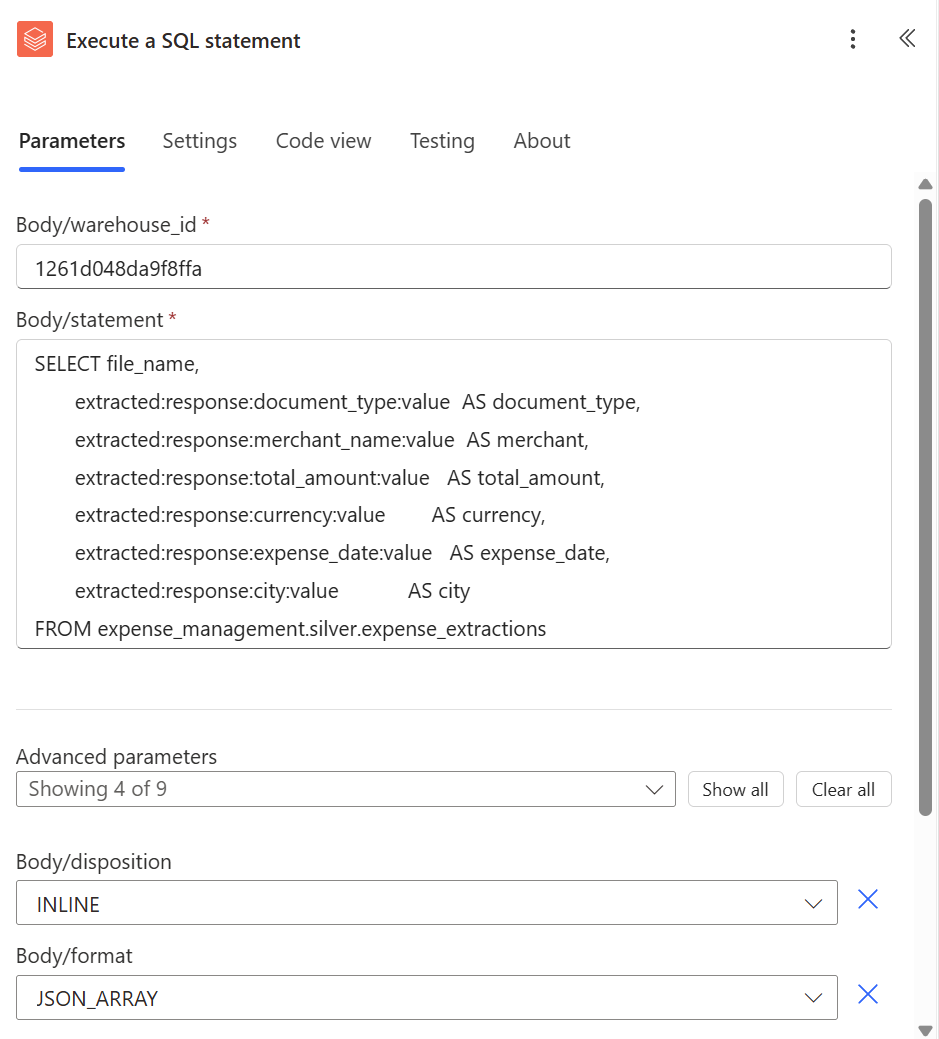
Two fields are required. Body/warehouse_id is the ID of your SQL warehouse, the last part of the HTTP path from the previous chapter. Body/statement takes the SQL from Genie, pasted as is.
Under the advanced parameters, I keep Body/disposition on INLINE and Body/format on JSON_ARRAY. The rows then come back directly in the response.
Test the flow and read the JSON
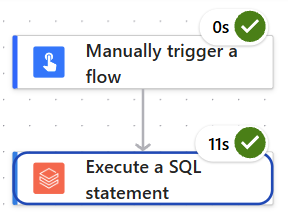
Now run it. Both steps turn green. The SQL step needs 11 seconds, probably because the serverless warehouse wakes up first.
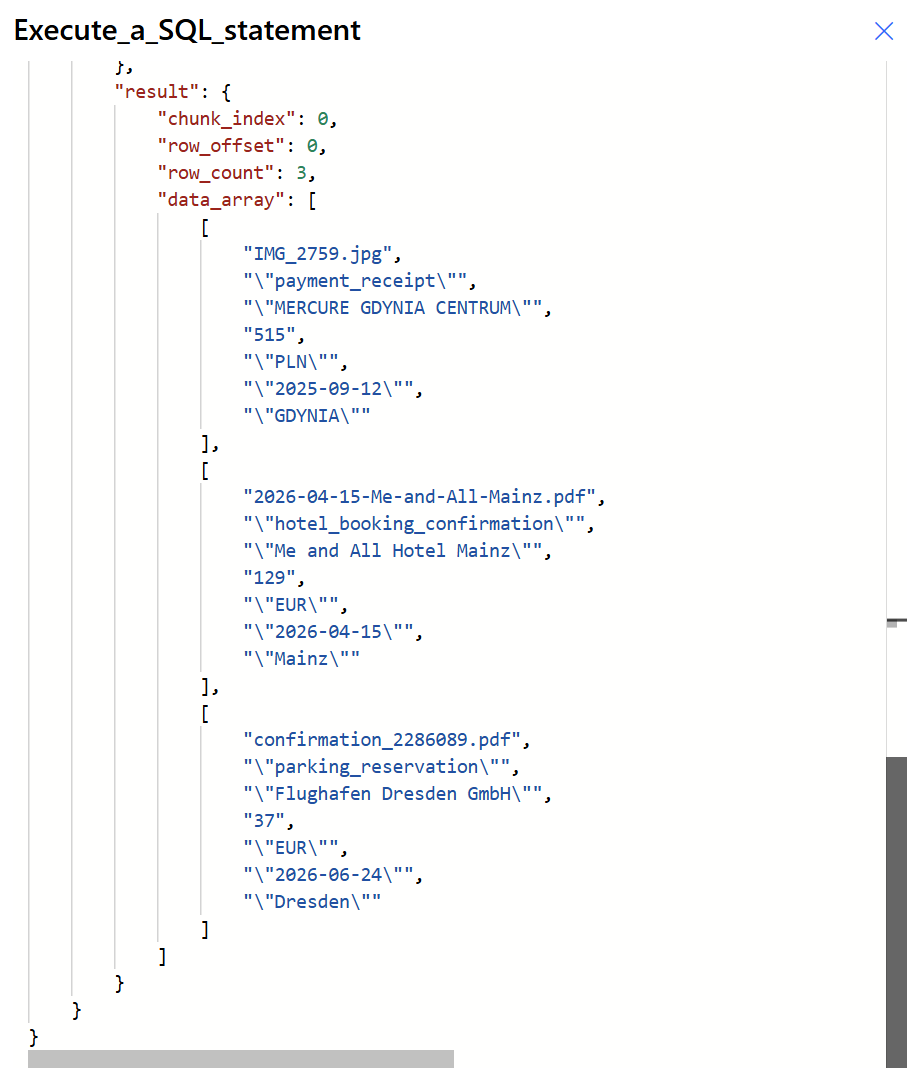
Then I open the output. row_count says 3, and data_array holds one list per expense: the Gdynia receipt, the Mainz hotel and the Dresden parking reservation. These are the three documents from the last post.
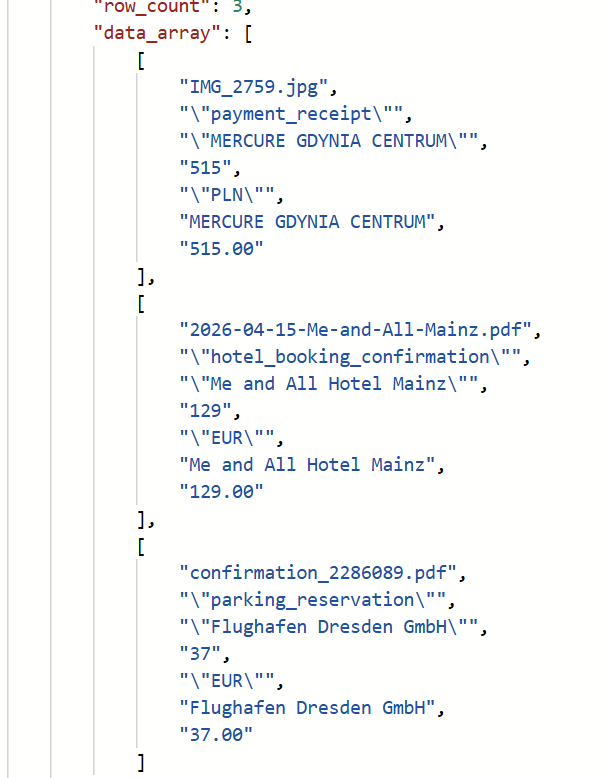
Look closely at the strings, though. A value like "\"payment_receipt\"" comes back with extra quotes, because the :value path keeps the JSON formatting. A cast in the SQL fixes that. I added two fields to the query, the merchant as a string and the amount as a decimal:
extracted:response:merchant_name:value::string AS merchant,
extracted:response:total_amount:value::decimal(10,2) AS total_amount
The result now shows both versions side by side. The original merchant still has the extra quotes, the cast version doesn’t, and the amount gets two decimals.
Cast every field you want to use later in the flow.
Tip: A long-running query can return a pending state. In that case, add Check status and get results with the statement_id to pick up the result later.
That’s the whole round trip: a question I did not have to write, answered by Databricks, inside a flow.
Summary
The expenses in Unity Catalog are no longer out of reach. A connection, one Execute a SQL statement action and a query from Genie were enough. The flow asked, Databricks answered, and three rows came back as JSON. I did not write a single line of SQL myself. That is the real win for citizen developers: you can start with what you know and let AI fill the gap.
One thing stays in Databricks. The connection uses my sign-in, so Unity Catalog decides what the flow can read. Permissions stay in Databricks, and you don’t have to rebuild them in Power Platform.
Which sign-in fits depends on the purpose. A flow that works for one person can use that person’s own sign-in. A shared flow that runs for everyone should not depend on a personal account. For that, a service principal is the better choice, as in the post about my upload flow.
Time for you to try it. Connect your own warehouse, ask Genie for the query, and see what comes back. The docs for Power Platform and Databricks are a good read in the meantime.