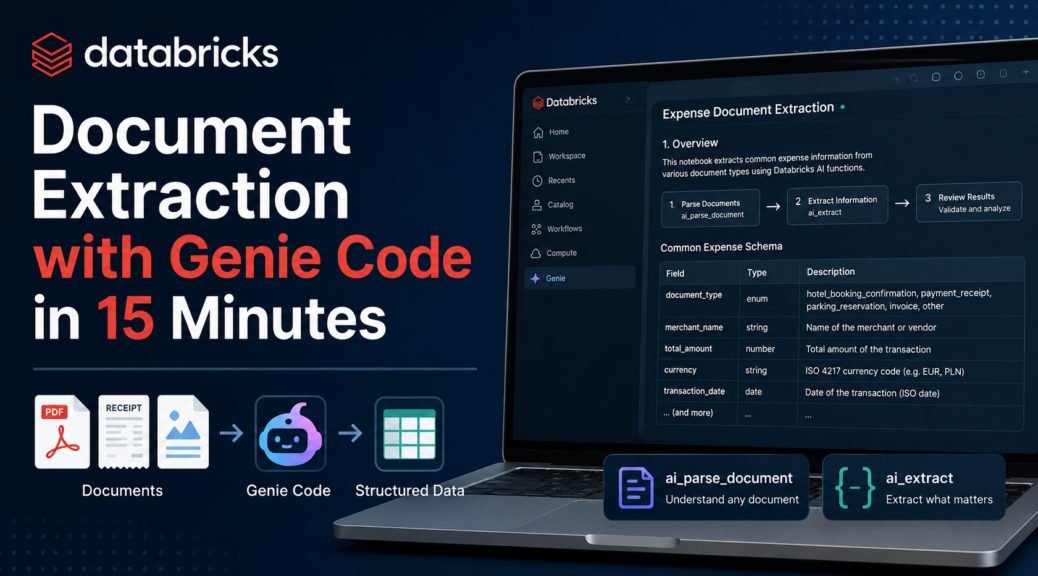
Databricks Document Extraction with Genie Code in 15 Minutes
My Power Automate flow now sends documents into a Databricks volume. But a PDF in a volume is just a file. Time for Databricks Genie Code document extraction: turning those files into structured data.
Databricks has two AI functions for this. ai_parse_document reads a PDF or image. ai_extract pulls out the fields you ask for. The Databricks blog explains the idea well.
In theory, I read the docs and design the schema myself. In practice, I said: “Hello Genie, my buddy, help me to understand and transform this data.” No schema, just three real documents. About 15 minutes later, I had my result.
Genie is not from the Microsoft universe, but the approach works with any AI coding agent, including GitHub Copilot. It’s the same mindset as in my spec-driven development series.
Hey Genie: From Prompt to Notebook
Genie Code is the AI agent built into the Databricks workspace. It reads your files, writes the notebook and runs it.
Open Genie Code and Write the Prompt
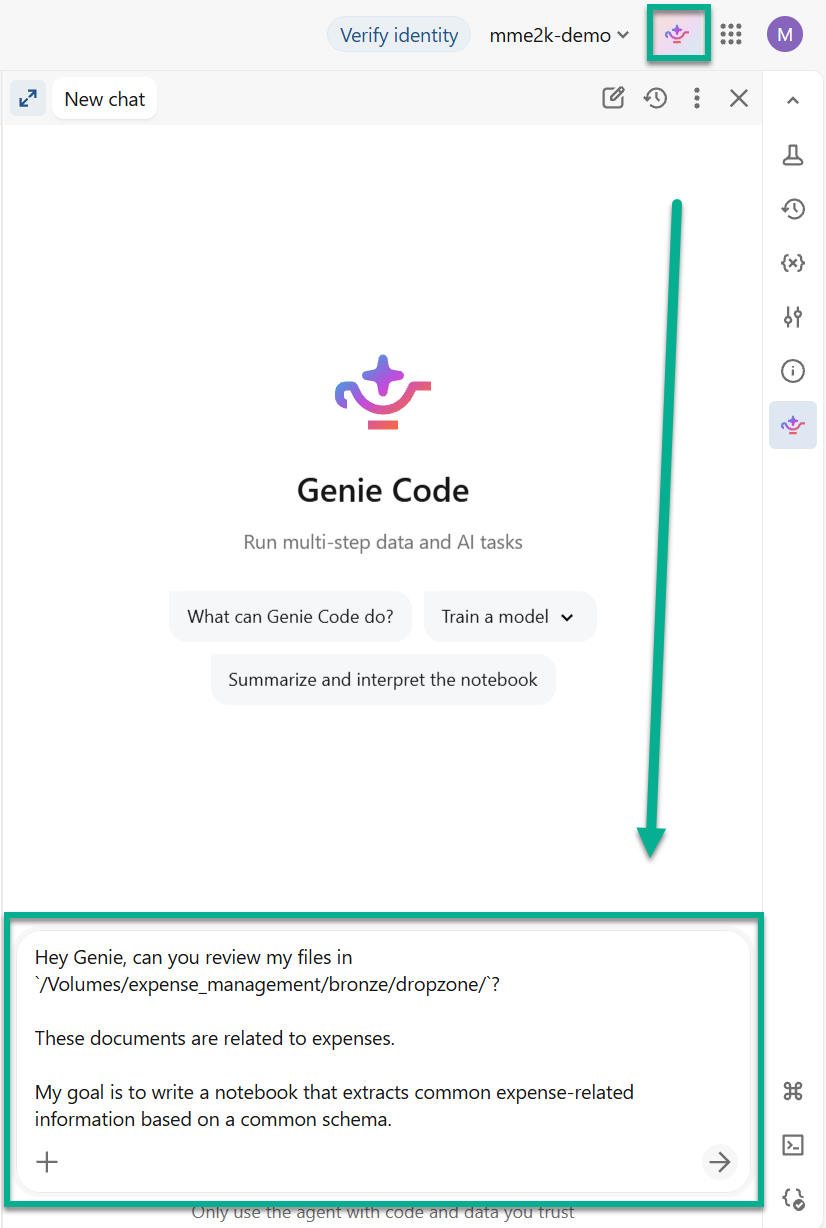
You find it in the side panel. Open it and start a new chat. My prompt was short. I gave the location, the context and the goal, and nothing else.
> Hey Genie, can you review my files in /Volumes/expense_management/bronze/dropzone/? These documents are related to expenses. My goal is to write a notebook that extracts common expense-related information based on a common schema.
Notice what is missing. I did not describe a single field. The documents are the specification. Expenses are also a very common business case. AI models have seen thousands of receipts and invoices, so they know the usual standards: sensible field names, ISO dates, ISO currency codes, and a type for each field. That’s why a short prompt works here. For an unusual domain, I would be more specific.
What Genie Found
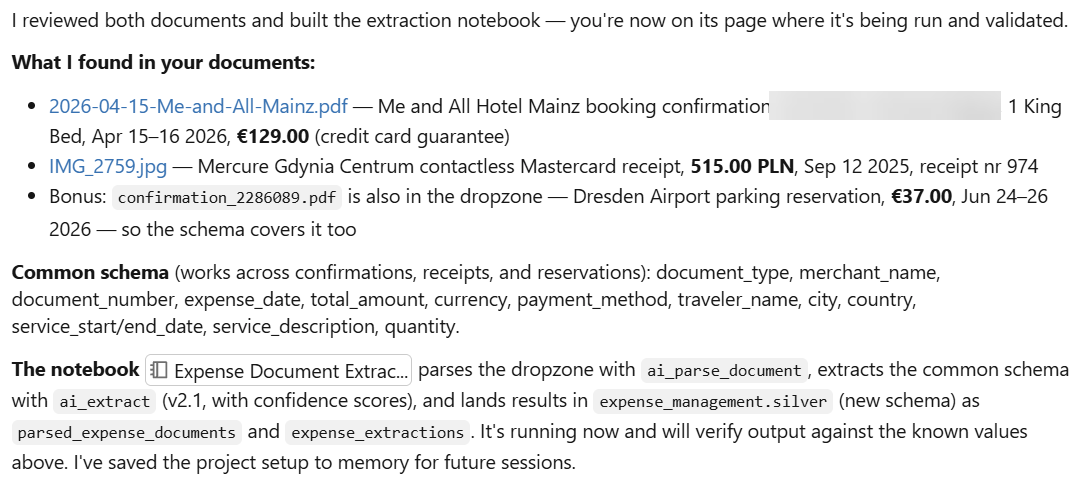
Genie opened the files and told me what it saw. A booking confirmation from a hotel in Mainz, a card receipt from Gdynia in Poland, and a parking reservation from Dresden Airport. Three documents, in different languages and layouts. For each one, it listed the key facts, like amount and currency.
This variety is on purpose. A hotel booking, a card receipt and a reservation have little in common at first sight. The more diverse your examples are, the better the AI sees what really belongs in the schema, and the less it overfits to one document type. If I had given it three hotel bookings, the result would have been much weaker.
Then it proposed one common schema that covers all three. That’s the clever part. I expected a separate structure per document type. Genie found the overlap instead.
Review Before You Accept
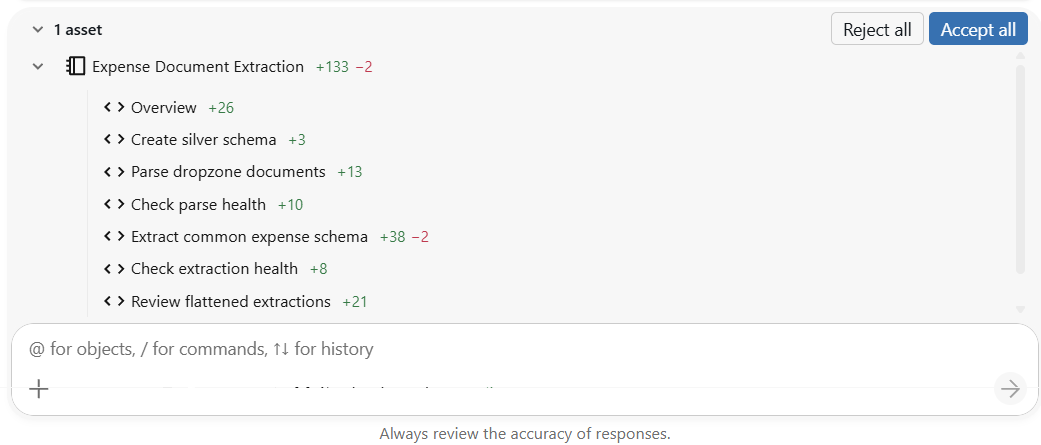
Genie built a notebook named “Expense Document Extraction”. After the run, it showed what it generated and changed, with Accept all and Reject all buttons. This is similar to GitHub Copilot in VS Code. You see the result of the agent’s work, and then you decide what to keep. The cool part: the changes are visible per section of the notebook. Each cell shows how many lines Genie added or removed, so you can check cell by cell.
The notebook starts with an overview cell. It explains the pipeline in three steps: parse every file, extract the common schema, review the result. It even adds a table with every field of the schema. Reading this cell takes two minutes, and it tells you whether Genie understood your goal.
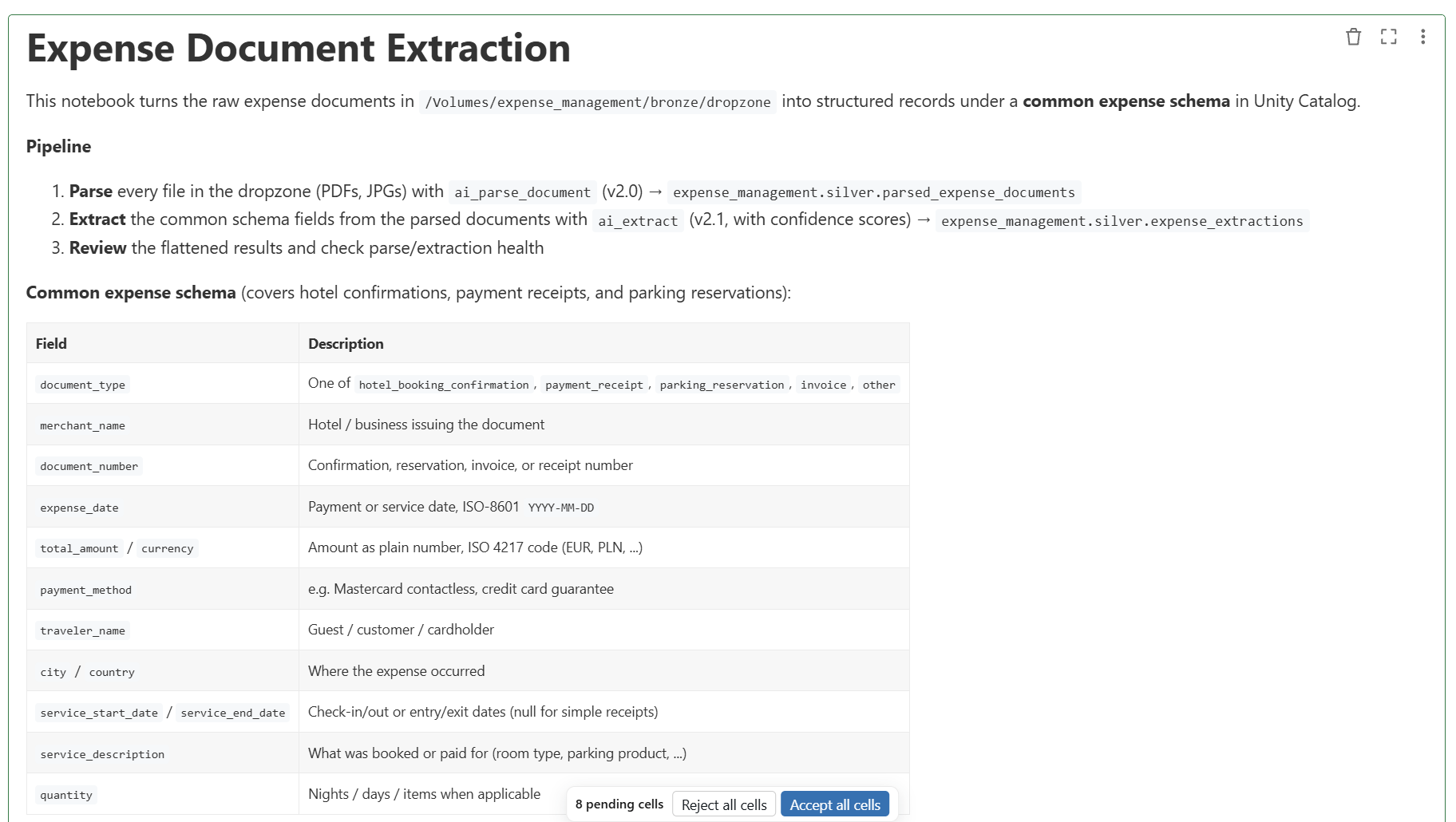
I read it, and it matched what I wanted. So I accepted all cells.
Inside the Notebook
Accepting was the easy part. The interesting part is the code Genie wrote and the data it produced.
The Schema and the SQL
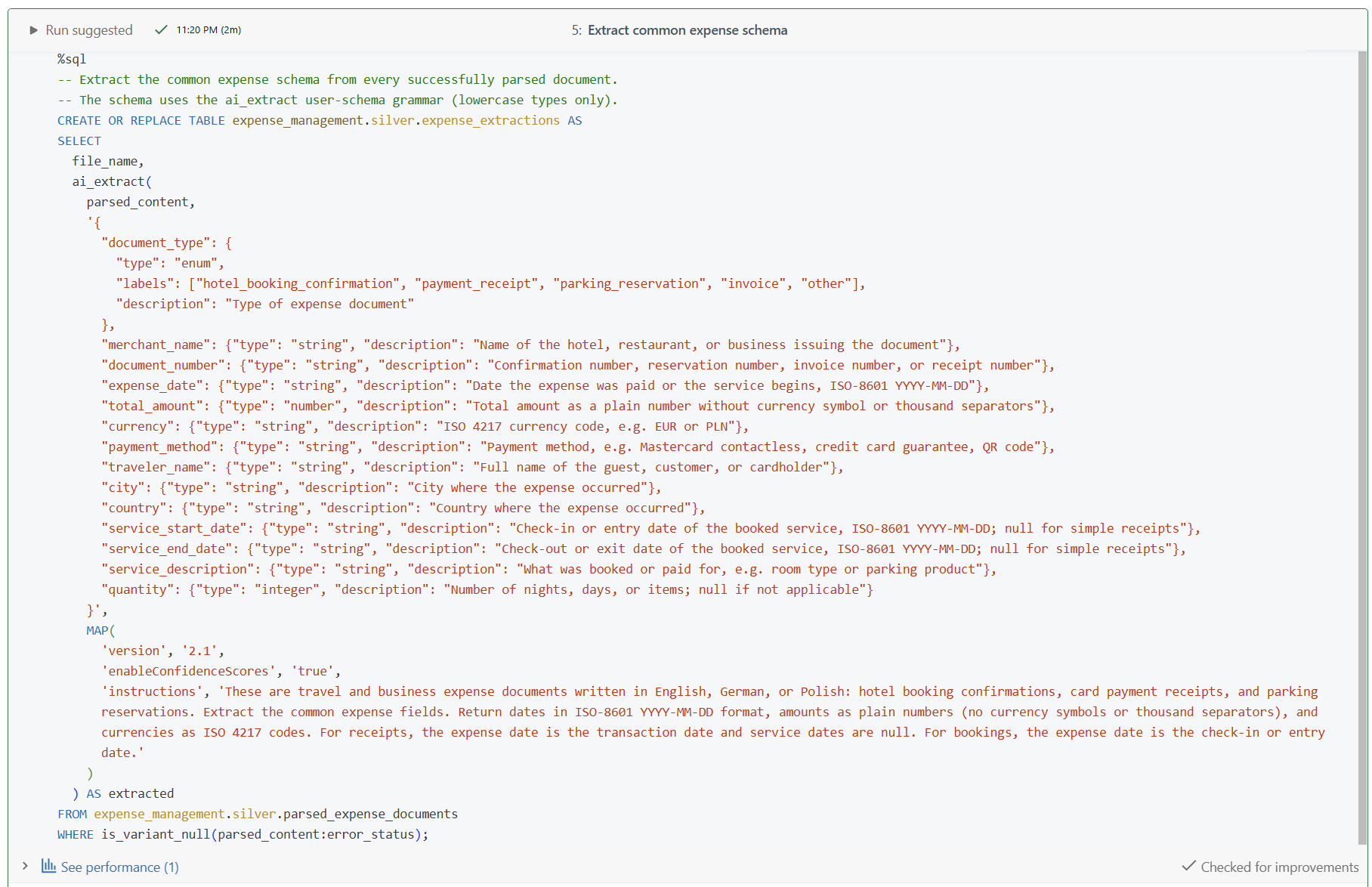
The heart of the notebook is one cell. Genie parses the files first with ai_parse_document. Then it calls ai_extract on the parsed content. Here is a shortened version of that cell.
CREATE OR REPLACE TABLE expense_management.silver.expense_extractions AS
SELECT
  file_name,
  ai_extract(
    parsed_content,
    '{
      "document_type": {"type": "enum", "labels": ["hotel_booking_confirmation", "payment_receipt", "parking_reservation", "invoice", "other"]},
      "merchant_name": {"type": "string", "description": "..."},
      "total_amount": {"type": "number", "description": "..."},
      "currency": {"type": "string", "description": "ISO 4217 currency code, e.g. EUR or PLN"}
    }',
    MAP('version', '2.1', 'enableConfidenceScores', 'true', 'instructions', '...')
  ) AS extracted
FROM expense_management.silver.parsed_expense_documents
WHERE is_variant_null(parsed_content:error_status);
Three details stand out. The document_type is an enum, so the model must pick from a fixed list. Every field has a type and a description. And the instructions tell the model that the documents come in English, German or Polish, and that dates, amounts and currencies follow a fixed format.
Genie Wrote Its Own Test
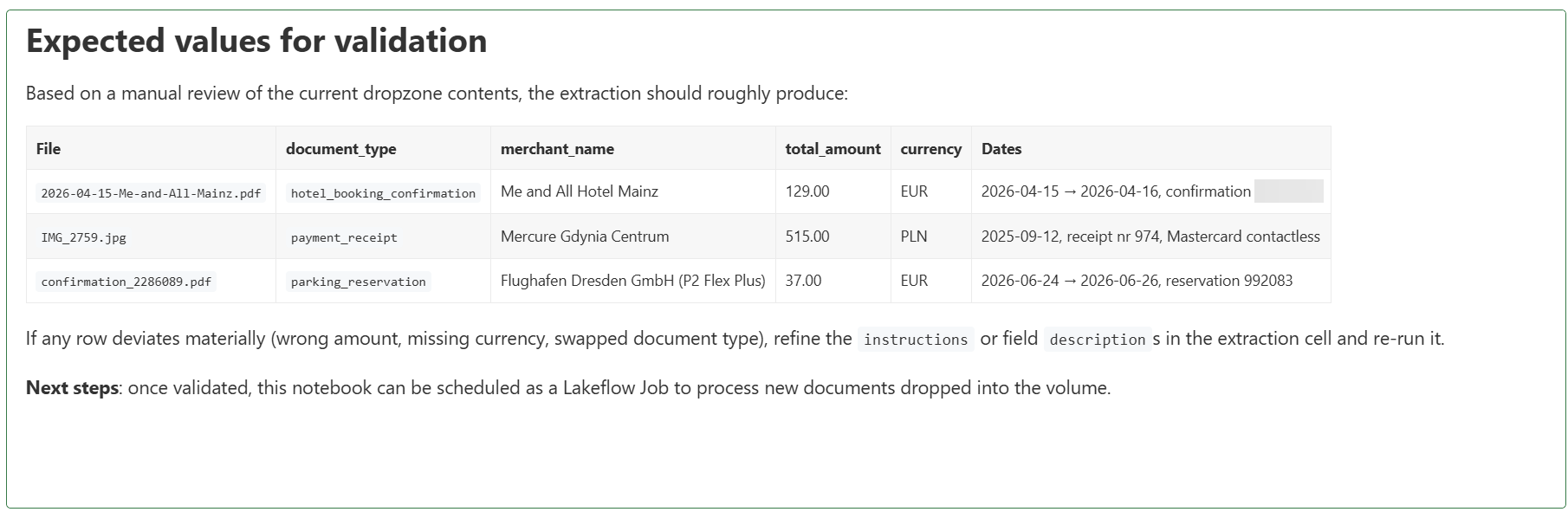
Before it ran anything, Genie reviewed the three files and wrote down what the extraction should return: type, merchant, amount, currency and dates per file. That is a nice habit. You get a checklist for free.
The Result in Unity Catalog
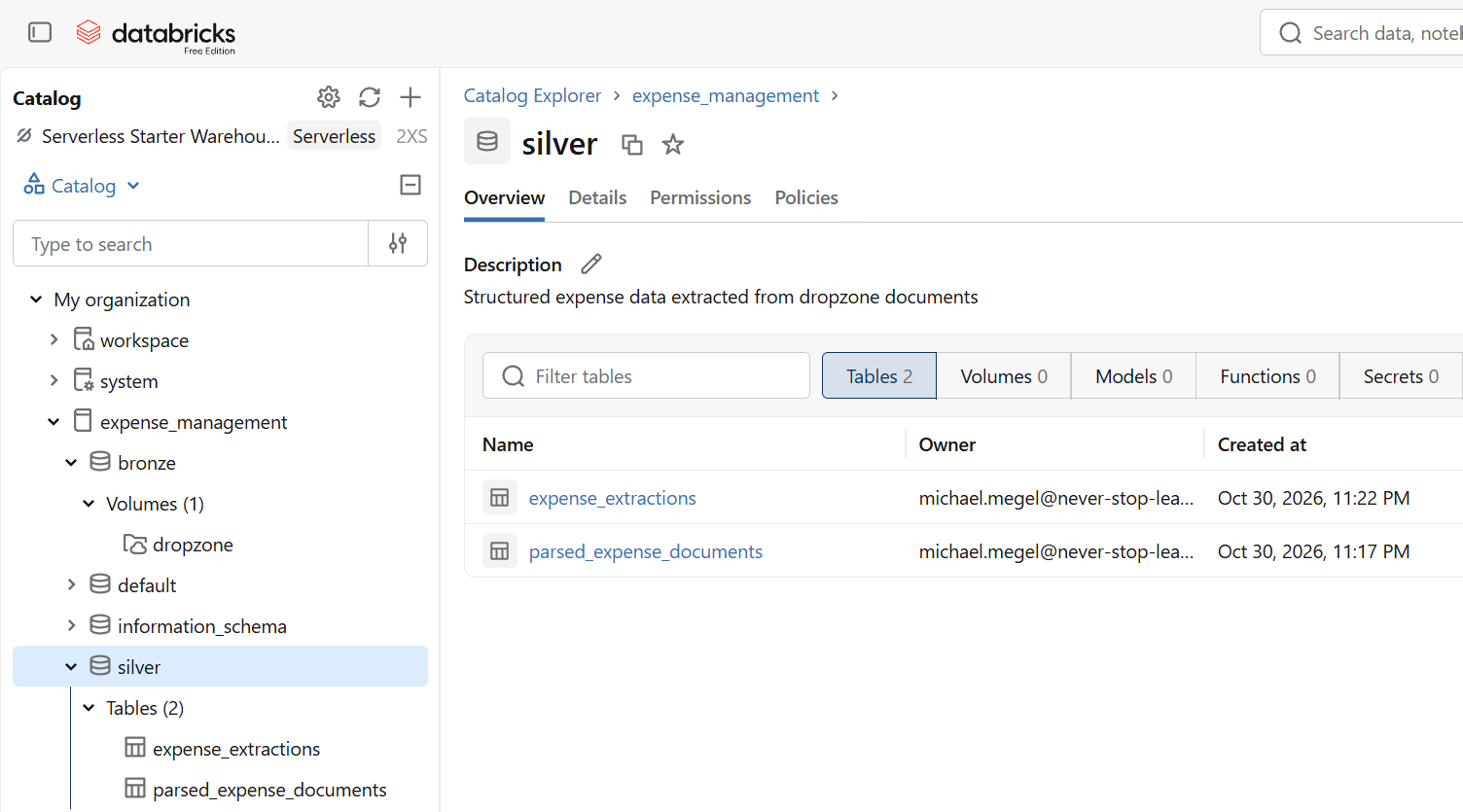
The run took about two minutes. Genie created a new silver schema with two tables: parsed_expense_documents and expense_extractions. Both are governed in Unity Catalog like any other table.
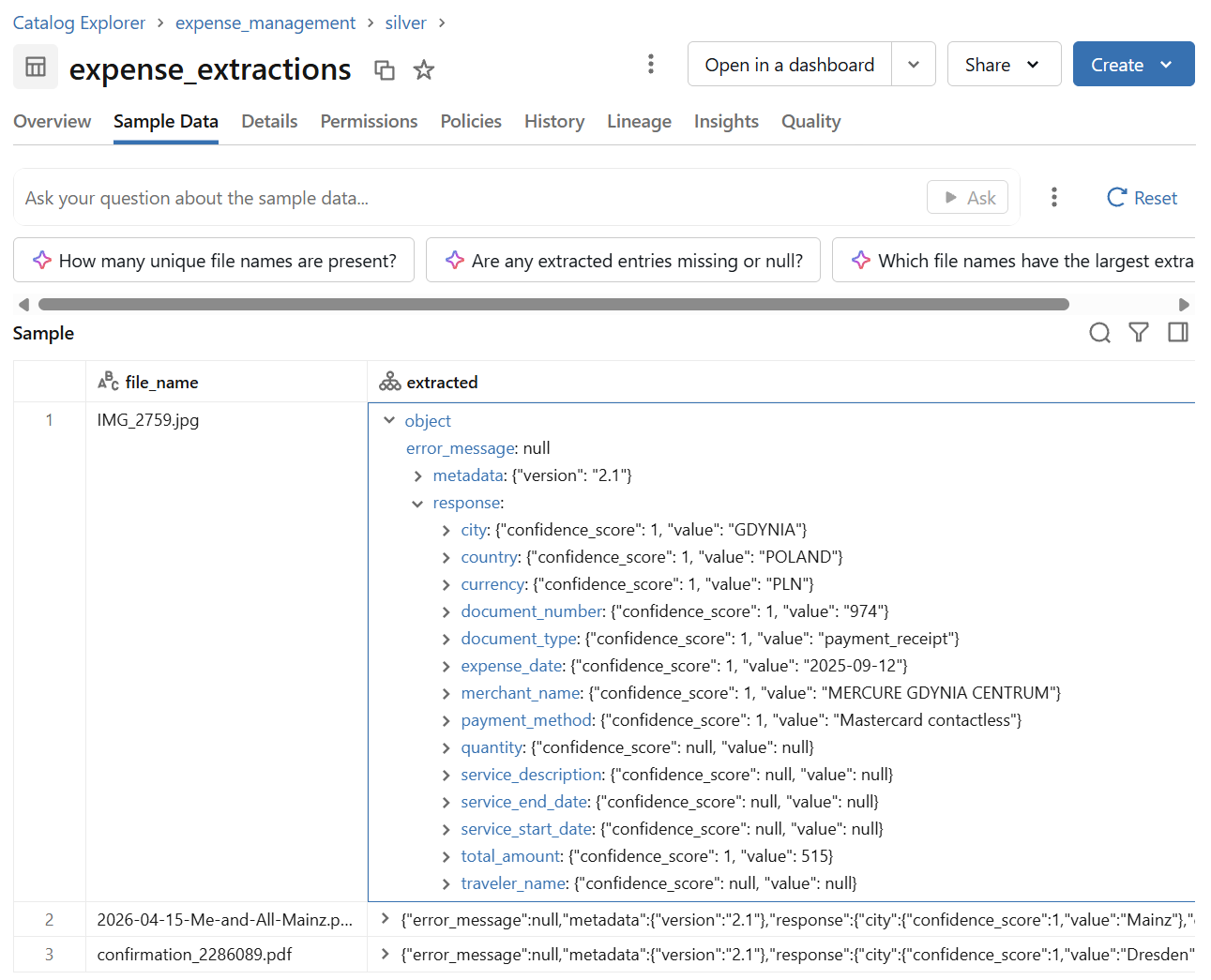
The extraction result is a nested object. Each field has a value and a confidence_score. Fields that do not apply, like the service dates of a simple receipt, come back as null.
Does It Match?
The last cell flattens the nested result into one row per document.
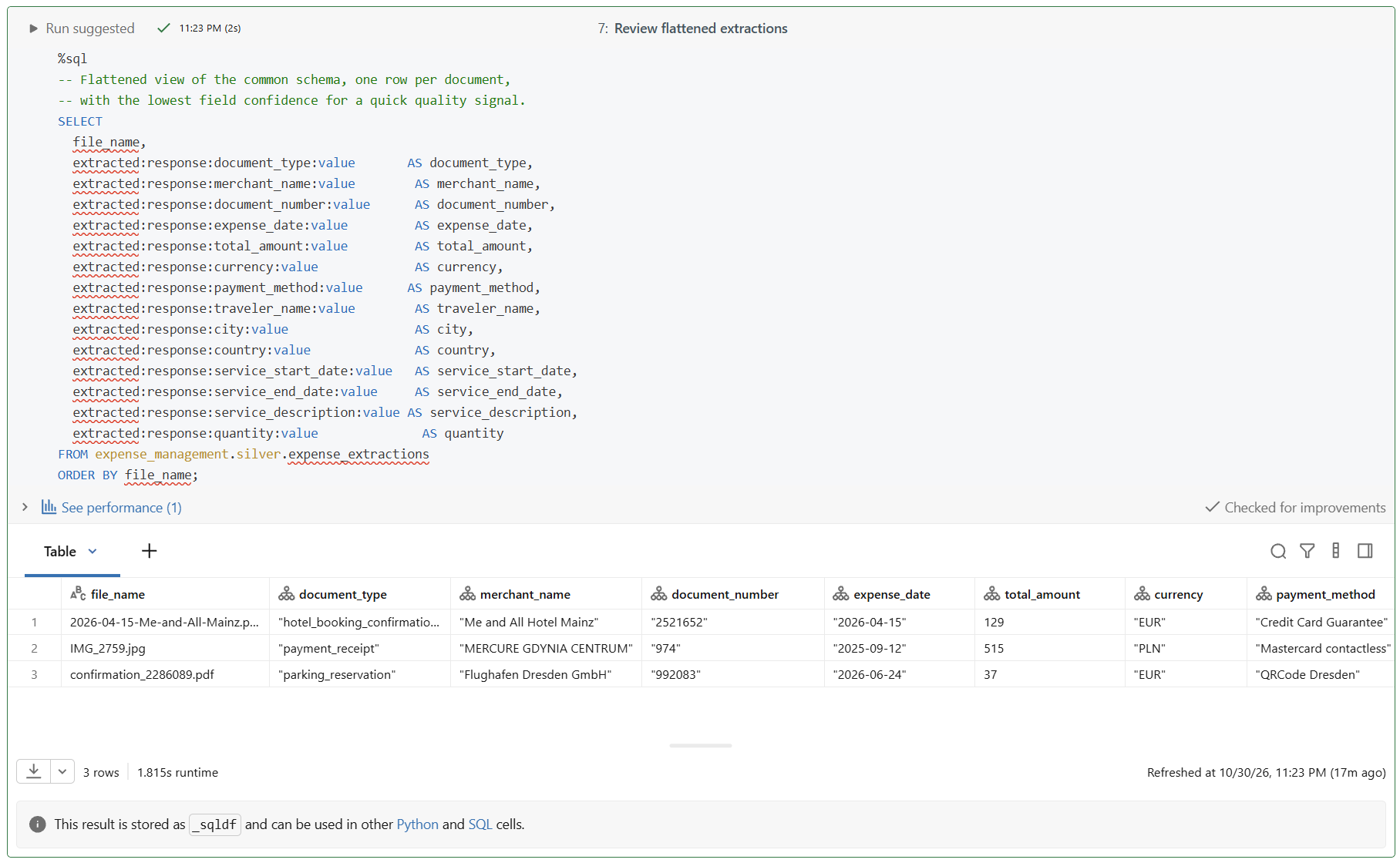
I compared it with Genie’s expected values. Document types, amounts, currencies, dates and document numbers all match. Two things I would still check. The merchant name of the receipt comes back in capital letters, exactly as printed. And the payment method of the parking reservation reads “QRCode Dresden”, which is a bit odd. AI output is a good first draft, not the final truth.
This is also just the first part of the transformation. We turned unstructured files into structured rows. A real data product needs more: clear expectations, data quality checks and rules for what happens when a value looks wrong. Genie’s expected values and the confidence scores are a good start. That topic deserves its own post, so stay tuned.
Summary
The files in dropzone are no longer just files. I showed you how Databricks turns documents into structured data with ai_parse_document and ai_extract, and how Genie Code gets you there in about 15 minutes. Three different documents went in: a hotel booking, a receipt and a parking reservation. One common schema came out, stored in two silver tables and checked against expected values.
The tool matters less than the way you work with it. Give the agent real and diverse examples, state a clear goal, and review what it generated before you accept it. Then verify the result. This works with Genie Code, with GitHub Copilot in VS Code, and with any other AI coding agent. Expenses are a common business case, so a short prompt was enough. For your own domain, be more specific.
This is only the first step. Data quality, expectations and a schedule come next, and the results still need to find their way back to Dataverse. Stay tuned. Until then, the ai_extract docs are a good read.